



Fie că vrei să îți îmbunătățești videoclipurile, podcasturile sau modulele de e-learning, ghidul nostru suprem pentru crearea de voice-over-uri AI în Speechify Studio te va ghida pas cu pas, de la configurarea primului proiect până la personalizarea vocii astfel încât să se potrivească perfect nevoilor tale. Pregătește-te să transformi conținutul text în experiențe audio captivante, rapid și precis.
Cum începi un nou proiect de voice-over în Speechify Studio
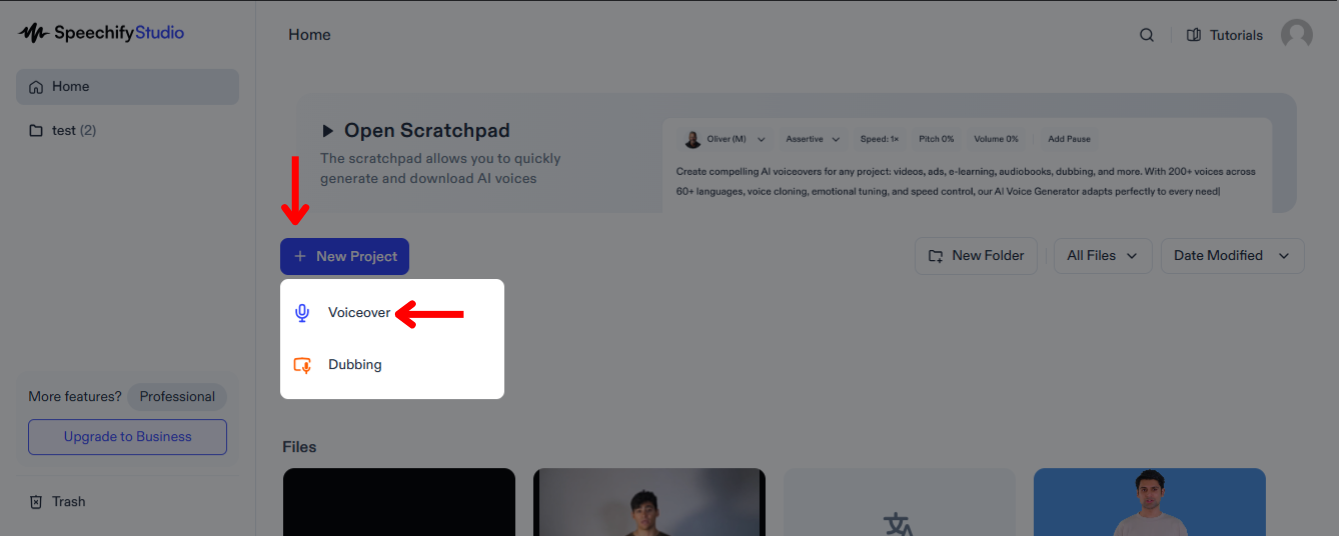
Speechify Studio îți permite să îți pui în valoare conținutul media cu audio personalizat, de înaltă calitate, care poate captiva publicul și transmite eficient mesajul pe diverse piețe. Iată cum să începi:
- Selectează „Proiect nou” pe ecranul principal Speechify Studio.
- Alege „Voice Over”.
Cum încarci un script în Speechify Studio Voice Over
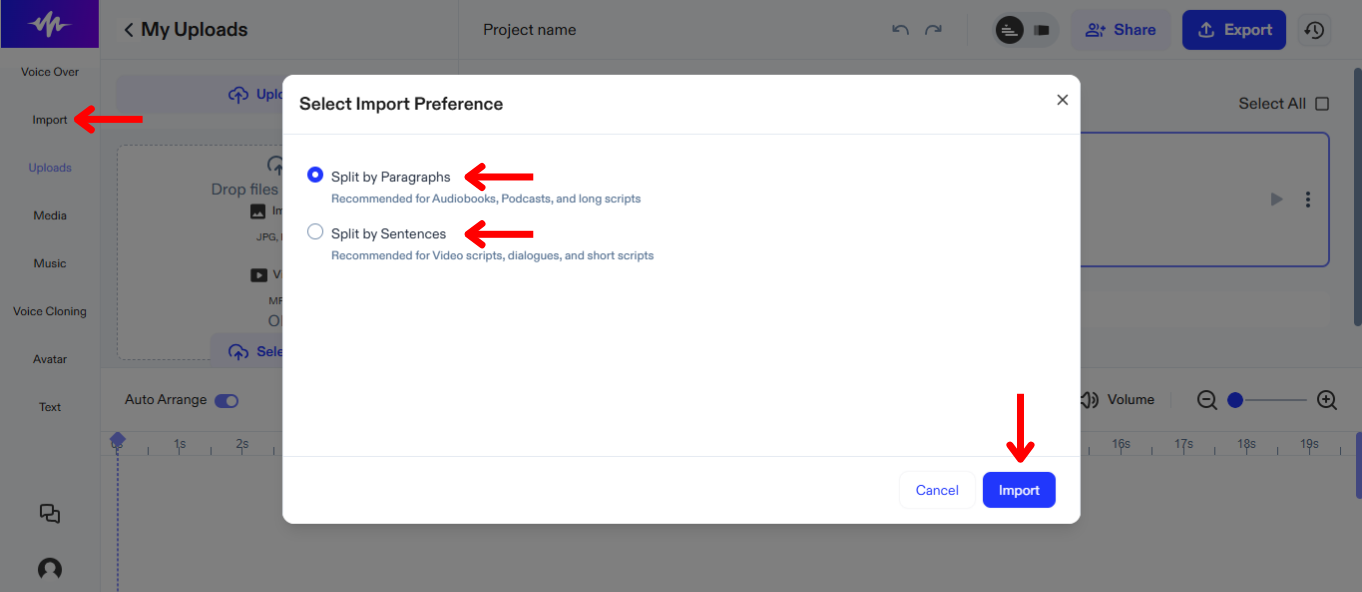
Primul pas pentru a crea un voice-over AI este să încarci un script. Pentru a face acest lucru:
- Fă clic pe „Importă”.
- Încarcă scriptul.
- Alege dacă vrei să împarți scriptul pe paragrafe sau pe propoziții în cronologie.
- Apasă „Importă”.
- Speechify Studio va genera automat un voice-over AI.
Cum schimbi vocea AI sau limba în Speechify Studio Voice Over
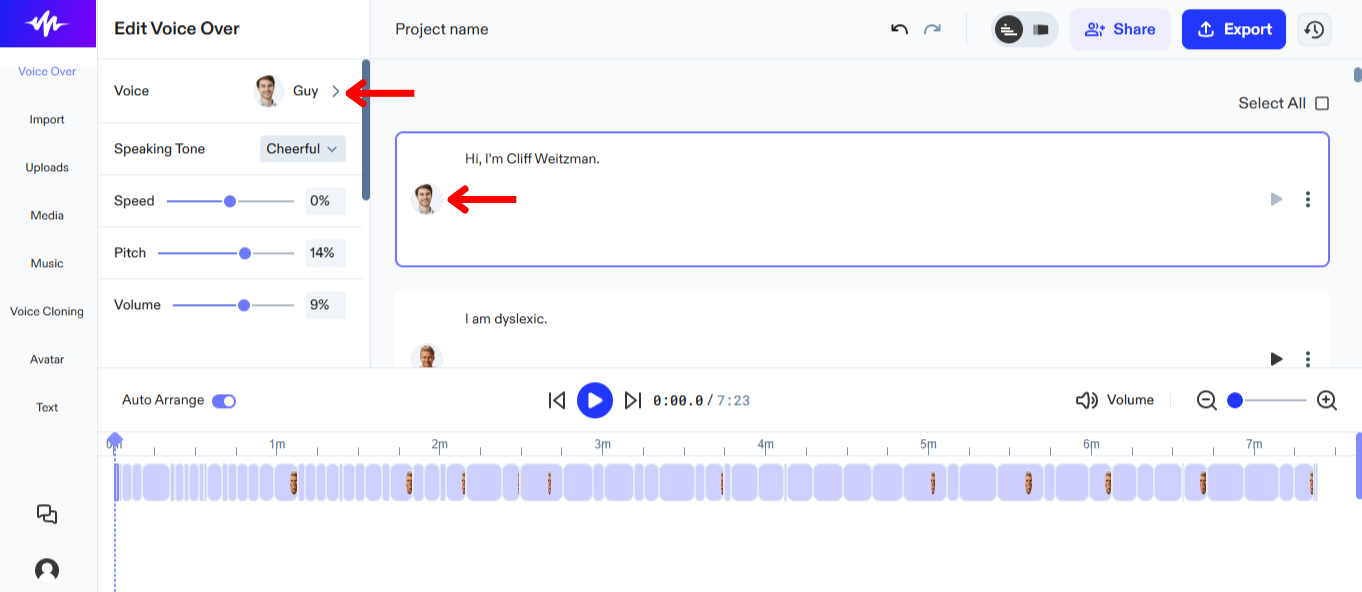
Poți atribui voci diferite diferitelor părți ale scriptului și poți schimba vocea oricând, până găsești varianta care se potrivește cel mai bine. Pentru a schimba vocea în Speechify Studio:
- Selectează „Voice Over” din bara de instrumente din stânga.
- Alege din peste 200 de voci AI realiste, disponibile în diferite limbi.
Cum personalizezi voice-over-ul AI în Speechify Studio
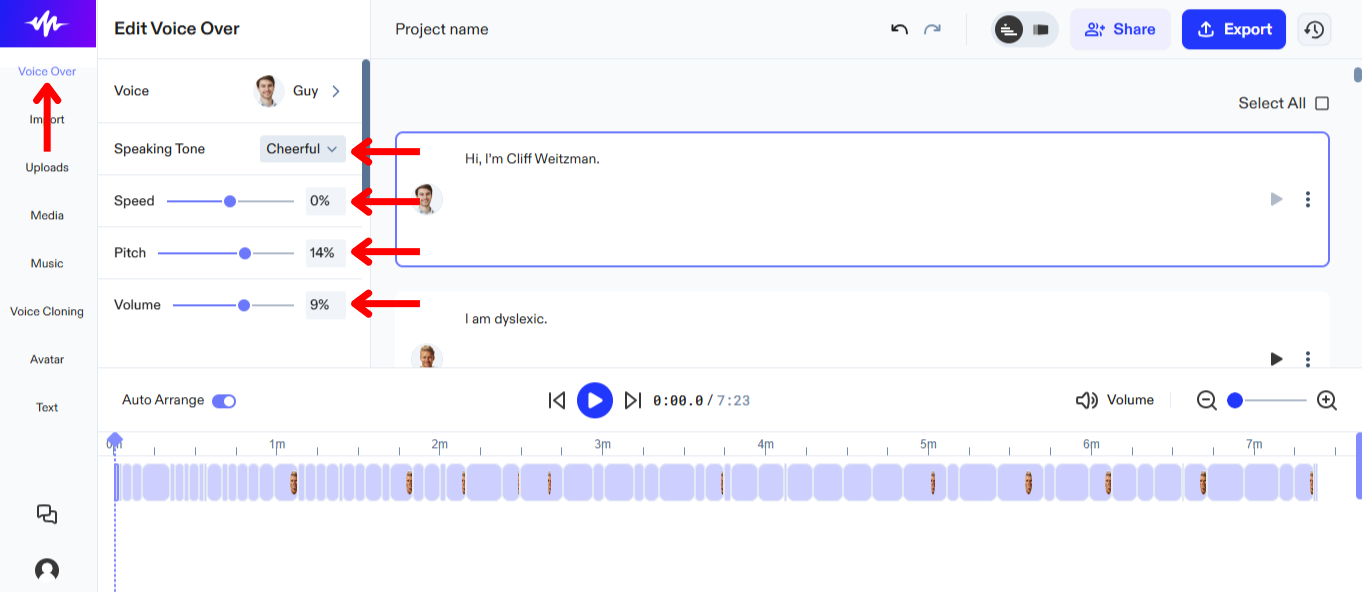
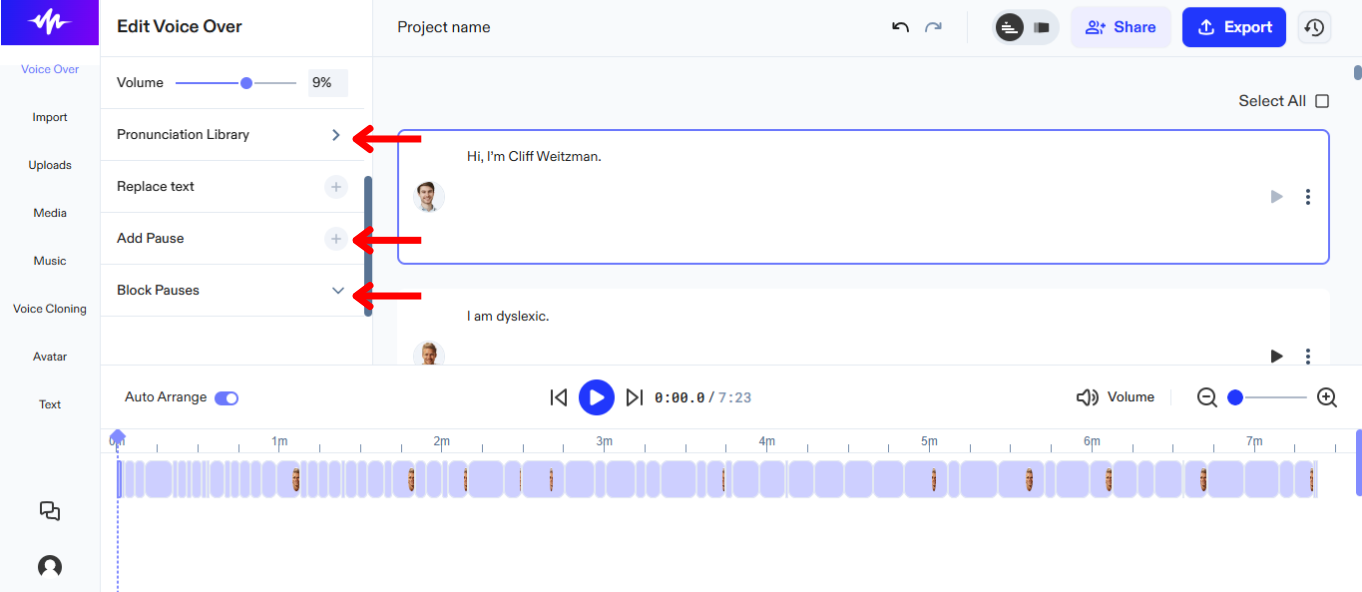
Personalizarea voice-over-ului AI în Speechify Studio îți permite să potrivești perfect tonul, ritmul și emoția narațiunii cu conținutul videoclipului tău. Urmează acești pași ca voice-over-ul AI să rezoneze cât mai bine cu publicul tău:
- Apasă „Voice Over” în bara de instrumente din stânga.
- Pentru a schimba emoția, selectează o opțiune lângă „Ton vorbire”. Notă: Această opțiune este disponibilă momentan doar pentru vocile AI care au „Expressions” în lista de voci.
- Pentru a ajusta viteza vocii, mută sliderul de lângă „Viteză”.
- Pentru a ajusta tonalitatea vocii, mută sliderul de lângă „Ton”.
- Pentru a modifica volumul, mută sliderul de lângă „Volum”.
- Pentru a ajusta pronunția, apasă pe „Biblioteca de pronunții”.
- Adaugă sau elimină pauze pentru ca voice-over-ul AI să sune mai natural, folosind „Adaugă Pauză” sau „Blochează Pauzele”.
Cum folosești Voice Cloning în Speechify Studio Voice Over
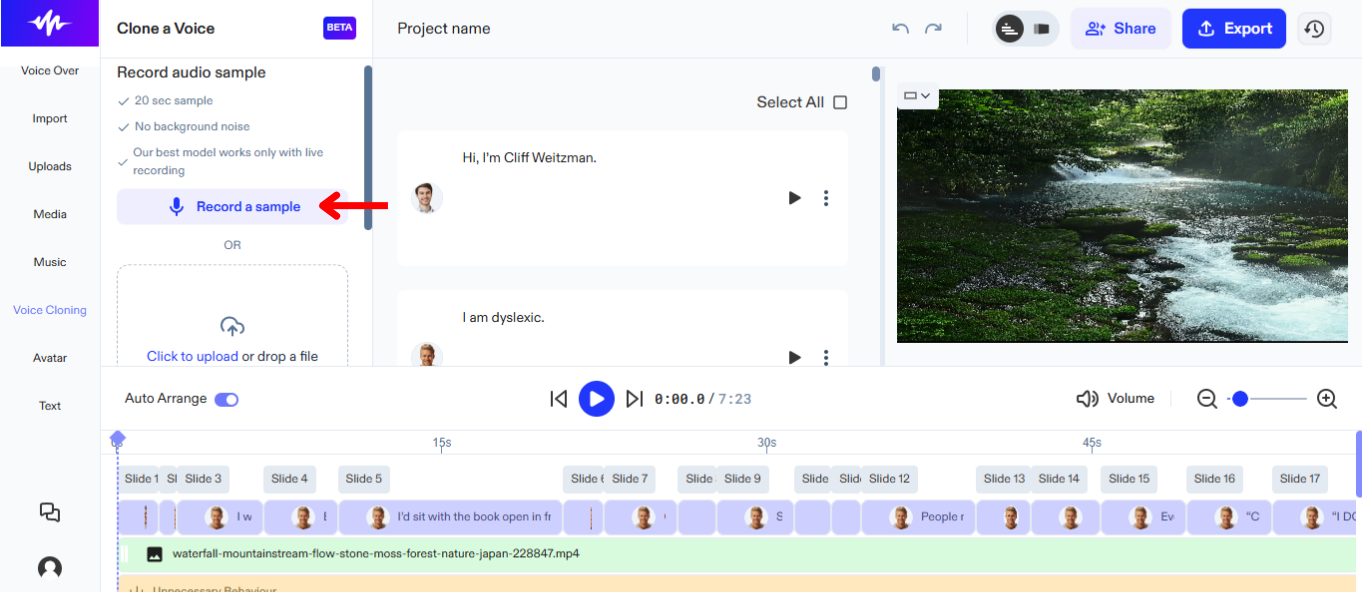
Utilizarea voice cloning în Speechify Studio pentru proiectele tale de voice-over îți permite să creezi proiecte cu propria ta voce și să menții o prezență sonoră constantă și familiară. Pentru a folosi voice cloning:
- Selectează „Voice Cloning” din bara de instrumente din stânga.
- Apasă „Creează un nou clon”.
- Înregistrează un eșantion de 20 de secunde sau încarcă un fișier cu vocea ta.
- Clic pe „Creează clonă”.
- Folosește noua voce selectând-o din lista de voci AI.
Cum adaugi materiale media de stoc în Speechify Studio Voice Over
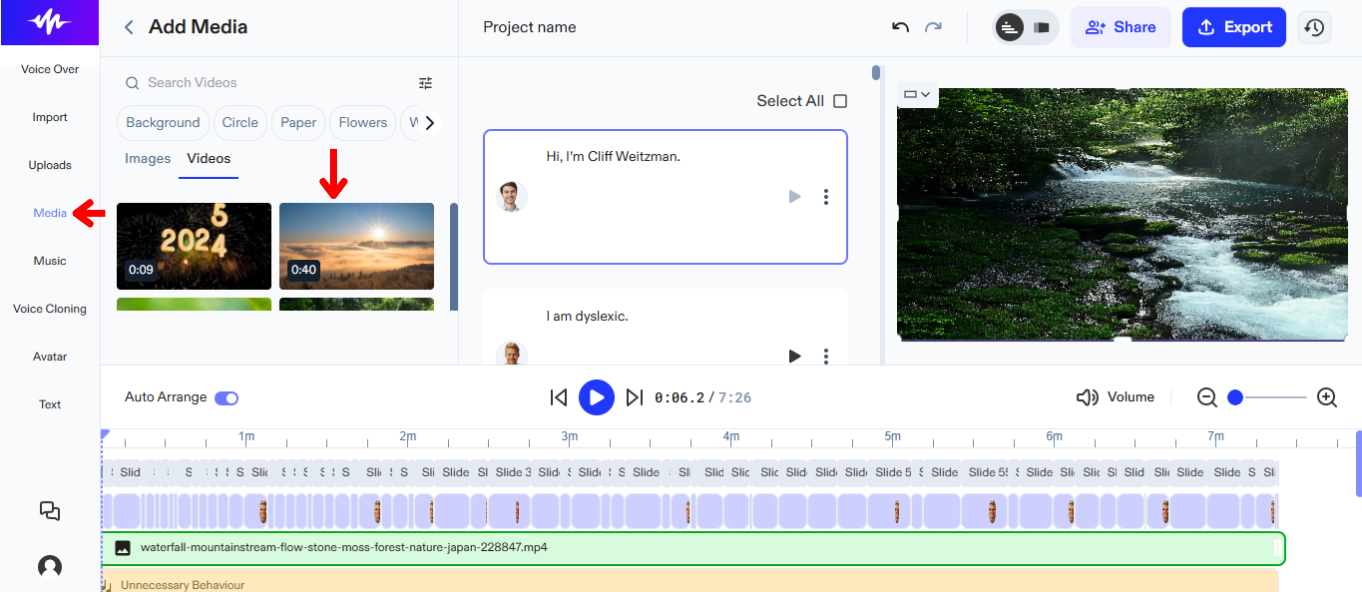
Dă viață poveștii tale adăugând materiale video de stoc în videoclipul tău. Urmează acești pași pentru a adăuga videoclipuri sau imagini:
- Clic pe „Media” în bara de instrumente din stânga.
- Alege dintr-o gamă largă de imagini sau videoclipuri de stoc.
Cum adaugi materiale media originale în Speechify Studio Voice Over
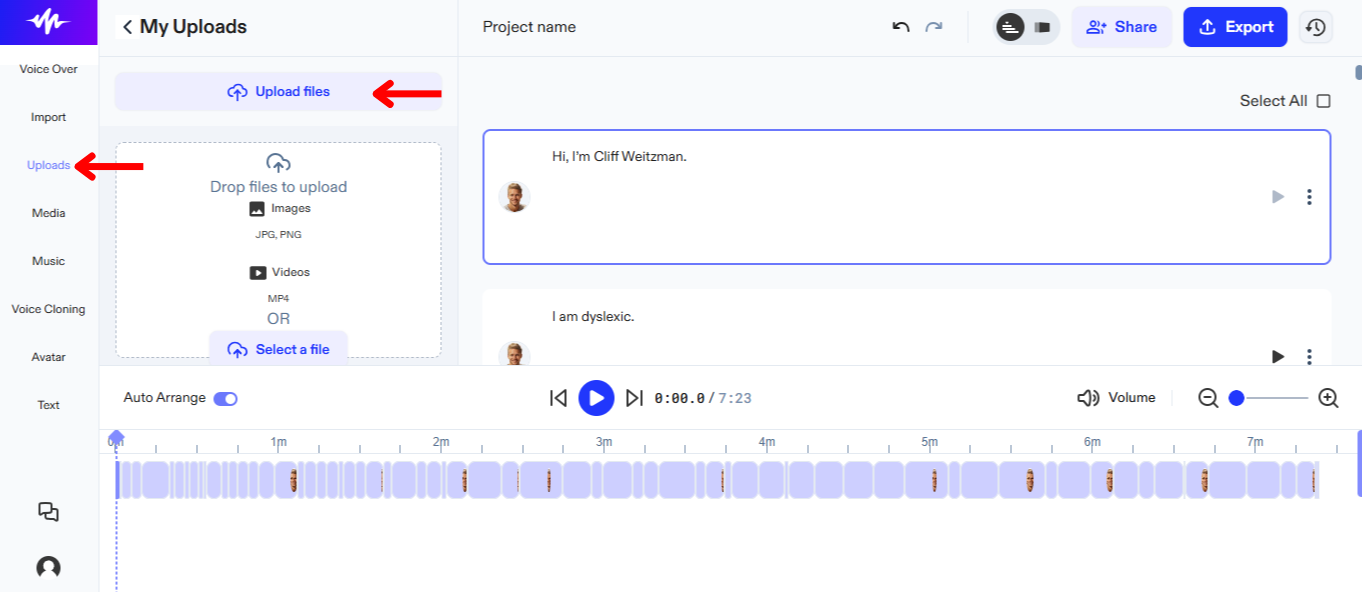
Adaugă materiale originale pentru a-ți spune povestea cât mai bine, urmând acești pași:
- Apasă „Încarcă” în bara de instrumente din stânga.
- Încarcă imagini sau videoclipuri.
Cum adaugi muzică de stoc în Speechify Studio Voice Over
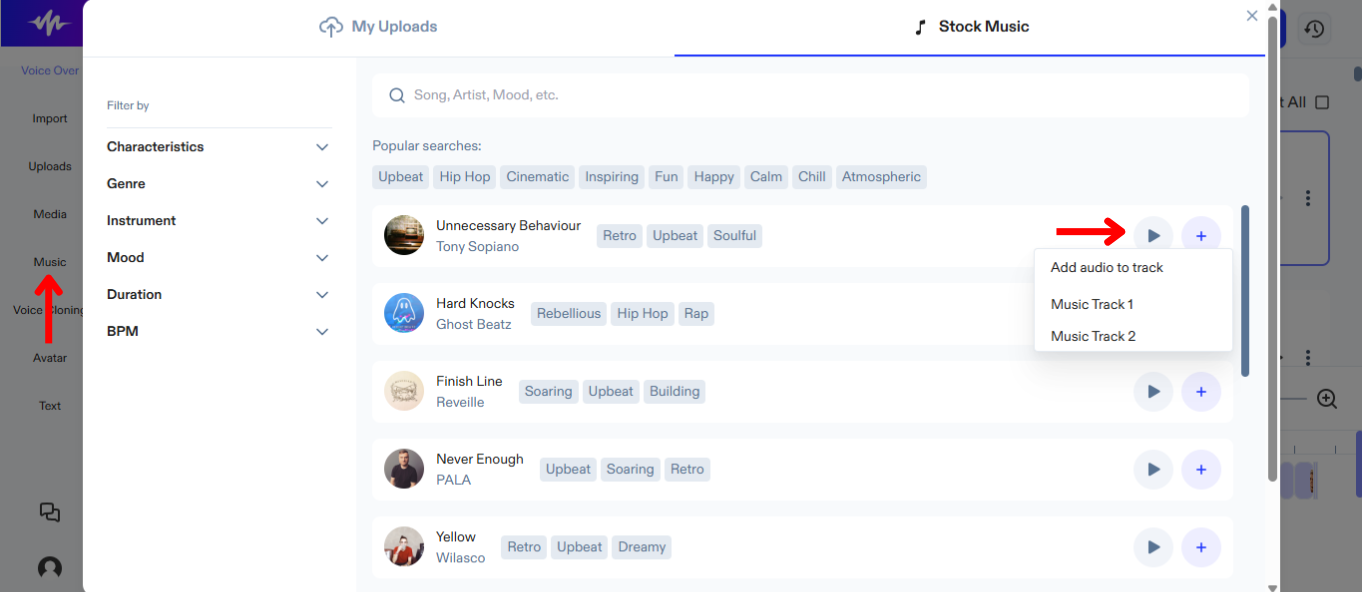
Combinarea muzicii cu voice-over-ul AI este foarte simplă. Doar urmează pașii de mai jos:
- Clic pe „Muzică” în bara de instrumente din stânga.
- Alege dintr-o varietate de piese muzicale de stoc.
Cum folosești AI Avatars în Speechify Studio Voice Over
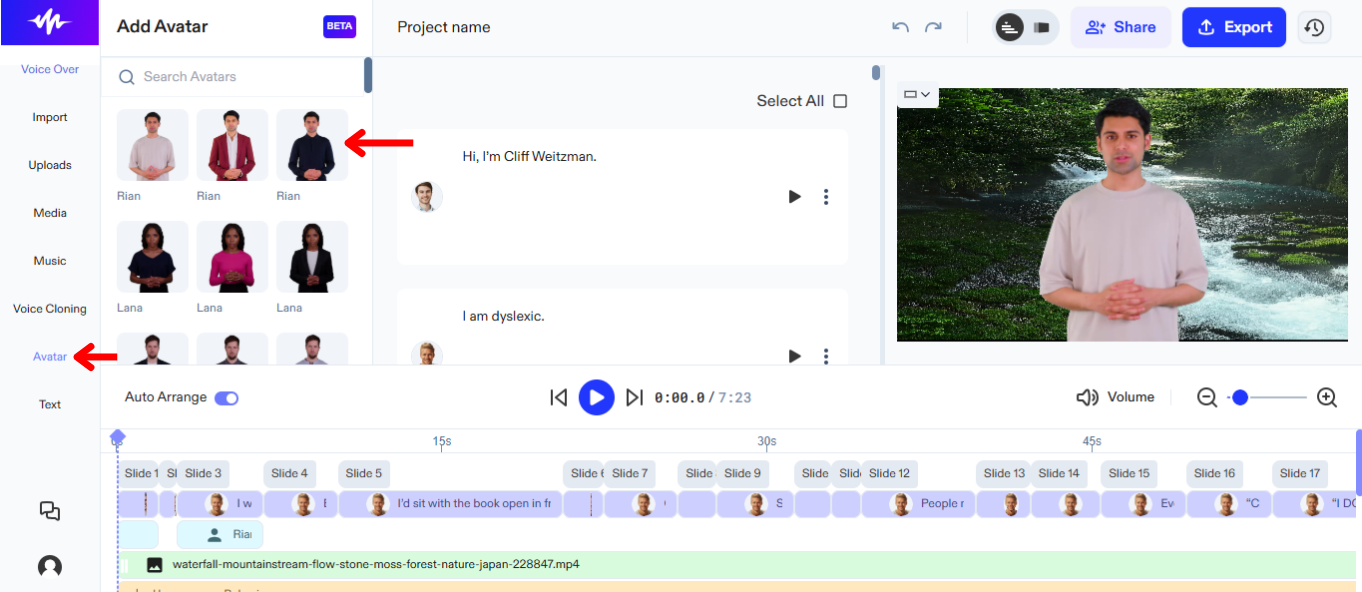
Dacă nu ai actori, dar vrei totuși o prezență în videoclipurile tale, încearcă avatarurile AI. Pentru a activa avatarurile AI:
- Apasă „Avatar” în bara de instrumente din stânga.
- Selectează dintre o gamă de avataruri AI umane care pot înlocui actorii din proiectele tale.
Cum adaugi text în Speechify Studio Voice Over
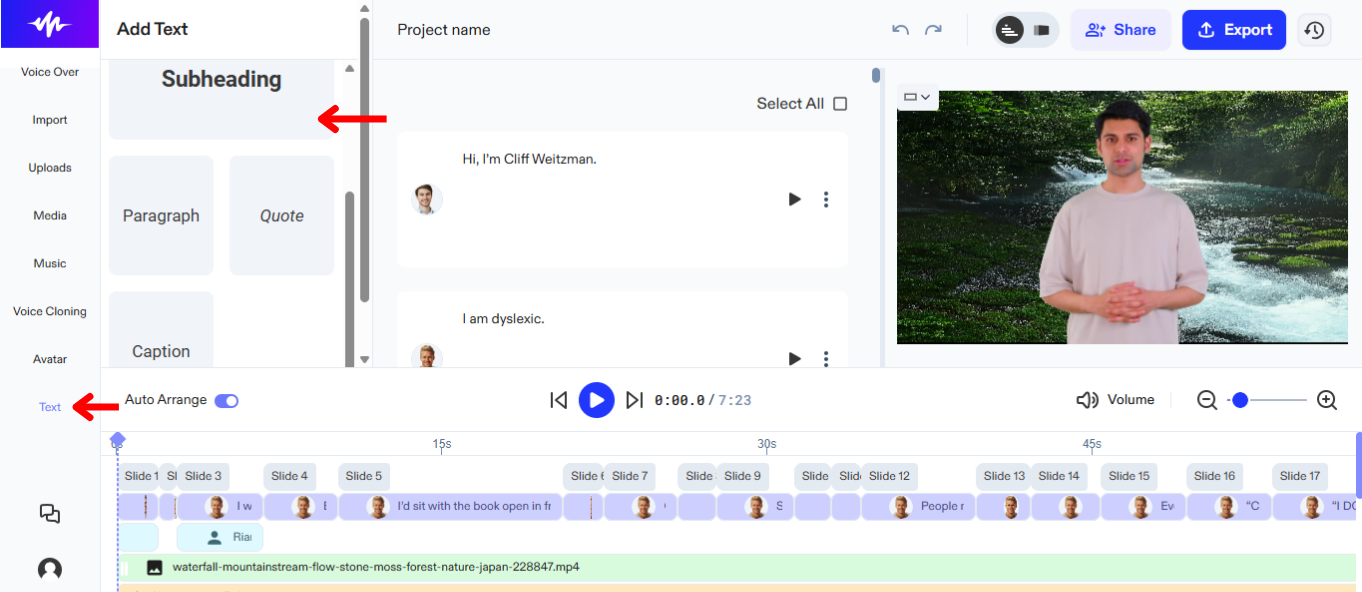
Adaugă subtitrări sau titluri proiectelor tale de voice-over AI pentru mai mult context. Pentru a adăuga text în voice-over-ul din Speechify Studio:
- Clic pe „Text” în bara de instrumente din stânga.
- Alege între titluri sau subtitrări pentru proiectul tău.
- Tastează în căsuța de text.
Cum rearanjezi conținutul în Speechify Studio Voice Over
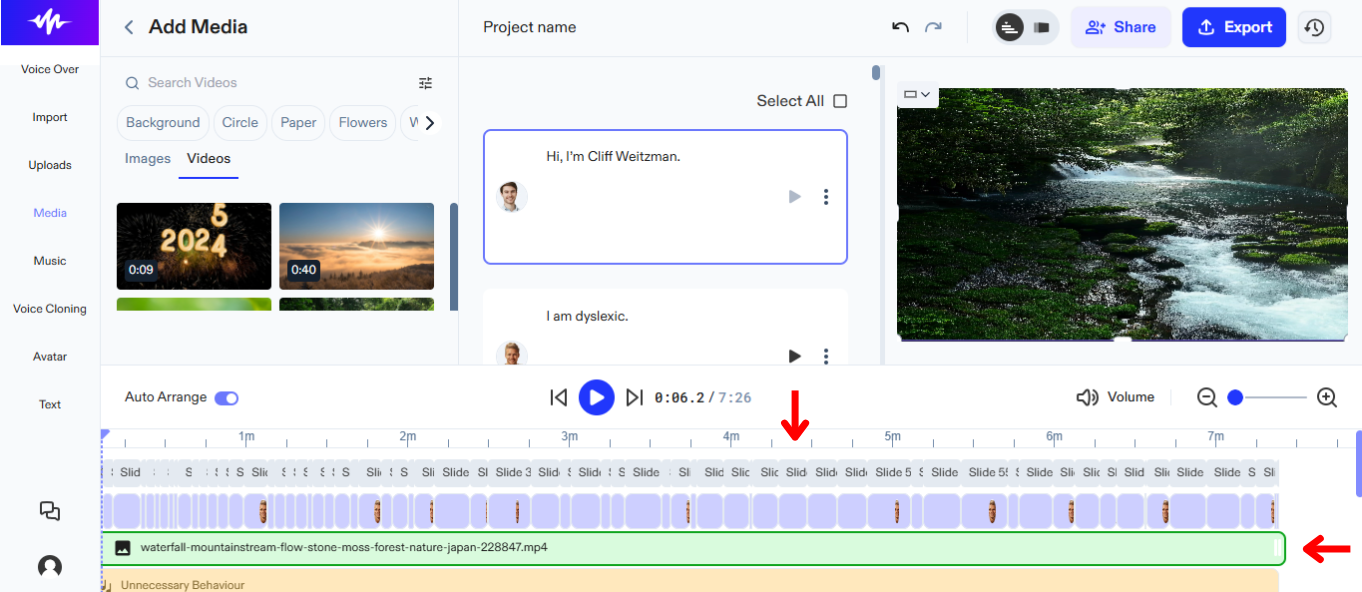
Optimizează fluxul videoclipului tău și asigură-te că sunetul se sincronizează perfect cu elementele vizuale, rearanjând elementele pe cronologia proiectului. Pentru a rearanja conținutul pe cronologie:
- Trage și plasează elementele pentru a le muta.
Cum exporți proiectul în Speechify Studio Voice Over
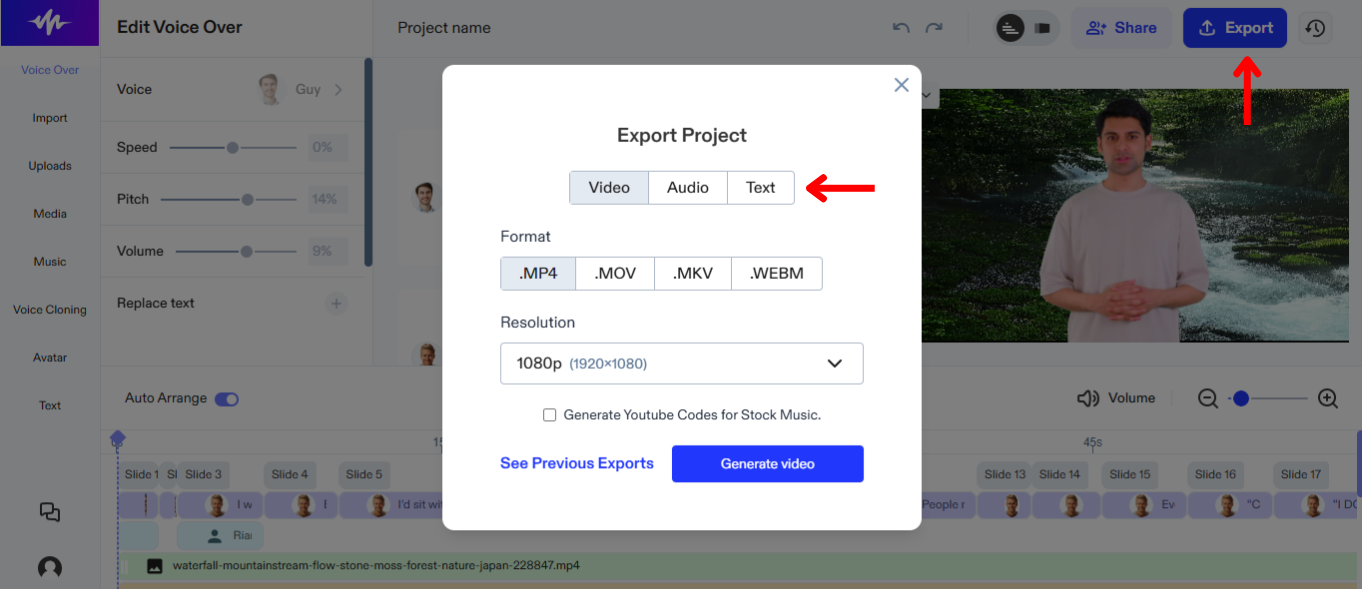
Exportarea proiectului în Speechify Studio îți permite să îl integrezi ușor cu alte instrumente și platforme de editare media. Iată cum poți distribui proiectul:
- Selectează „Exportă” în colțul din dreapta sus.
- Alege dacă dorești să descarci voice-over-ul AI în format audio (OGG, MP3 sau WAV) sau în format text/subtitrare (SRT, WEBVTT sau DOCX).




