Speechify Chrome proširenje
Speechify naglas čita bilo koju web-stranicu i tipka umjesto tebe dok govoriš.
 Dodaj u Chrome
 Chrome proširenje godine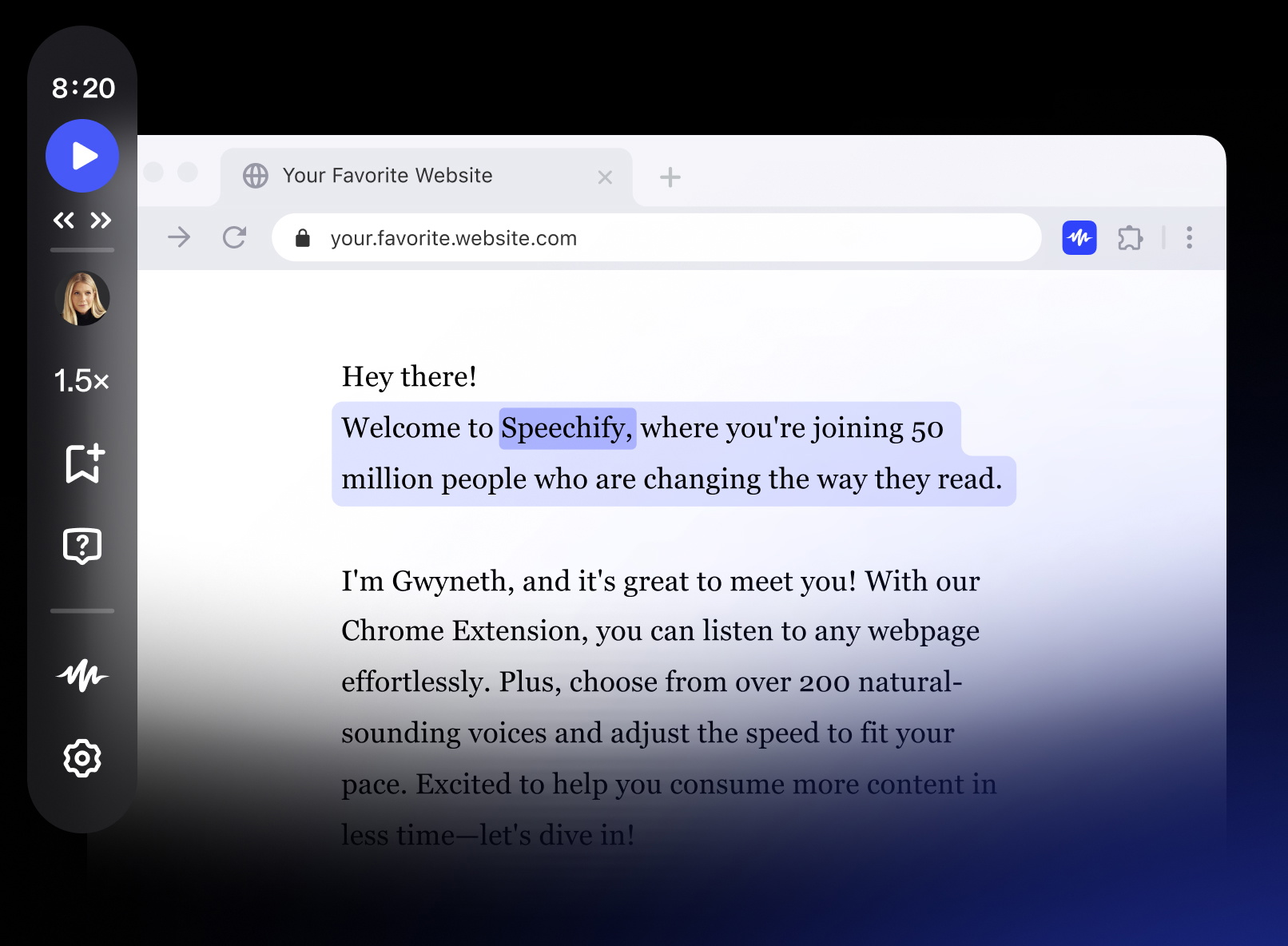
200+ prirodnih glasova





Štedite vrijeme slušajući umjesto čitanja i govoreći umjesto tipkanja. Multitaskaj bez muke – slušaj dokumente i mailove bez korištenja ruku.

Odmori oči pretvaranjem teksta u govor. Idealno za duge članke, radove i poslovne dokumente.

Poboljšaj razumijevanje i pamćenje slušajući sadržaj prirodnim, zanimljivim glasom.
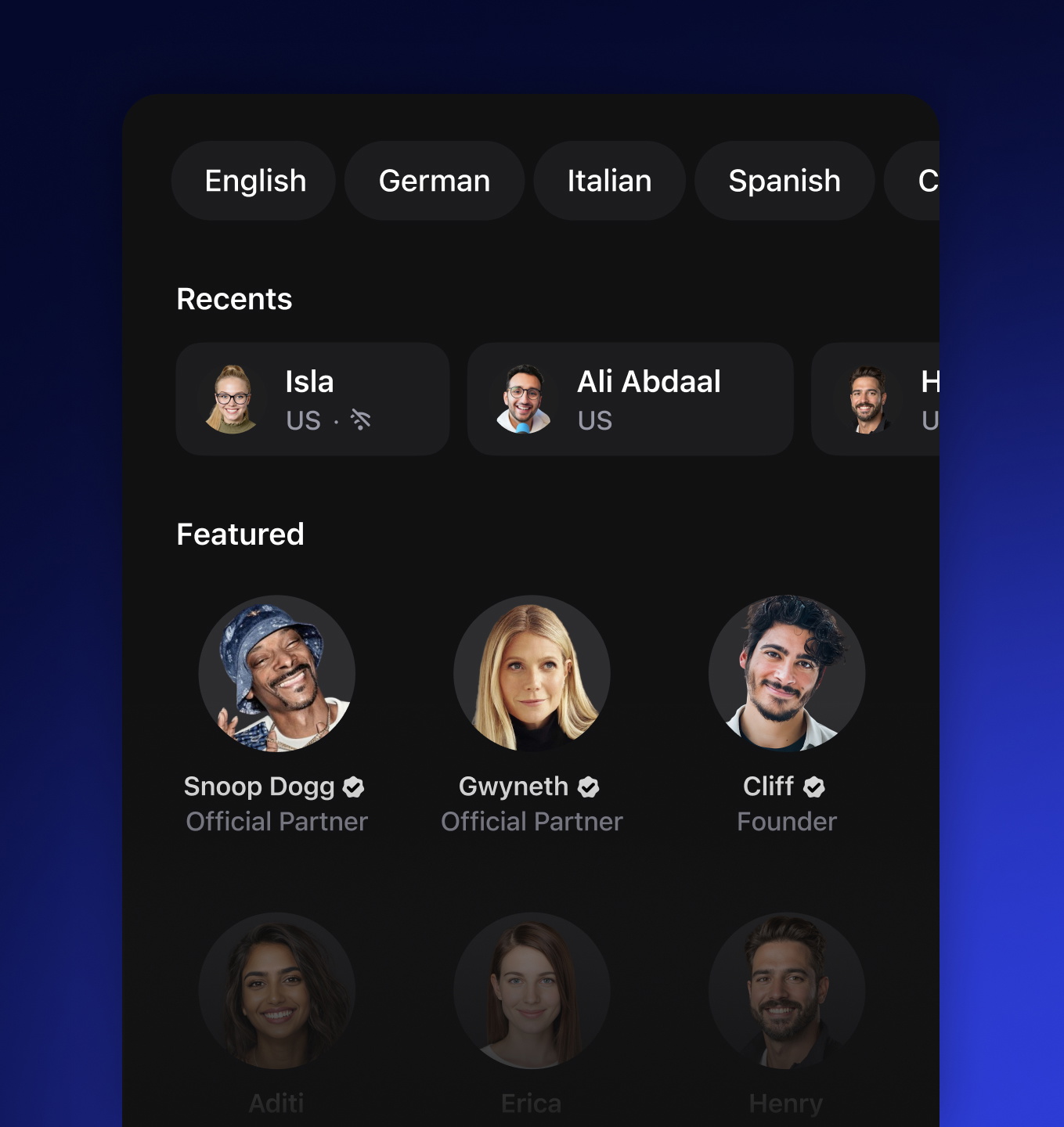
Prirodni glasovi
Uživaj u realističnim AI glasovima za zanimljivije i jasnije slušanje
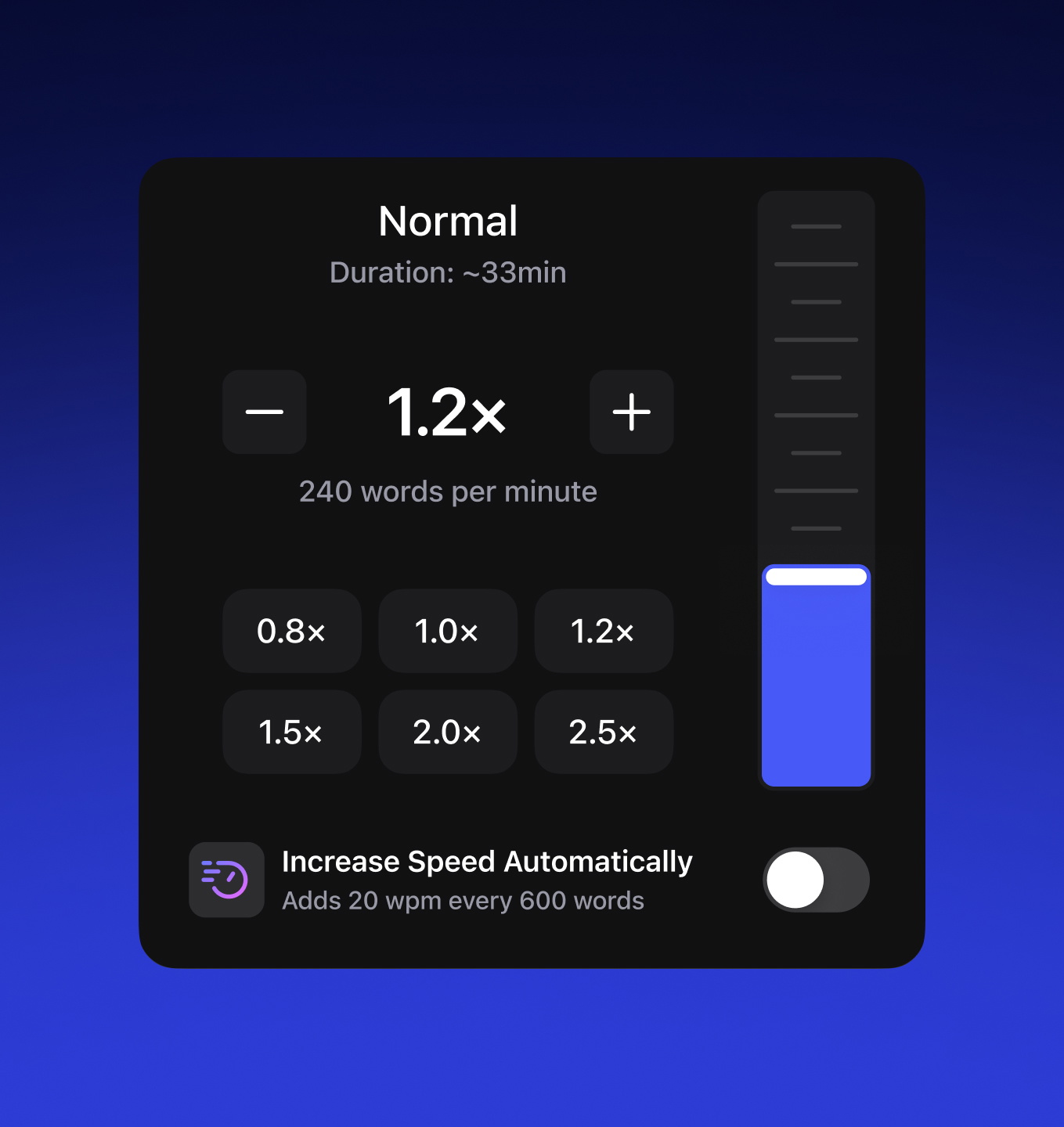
Kontrola brzine
Namjesti brzinu za ugodnije, prilagođeno slušanje
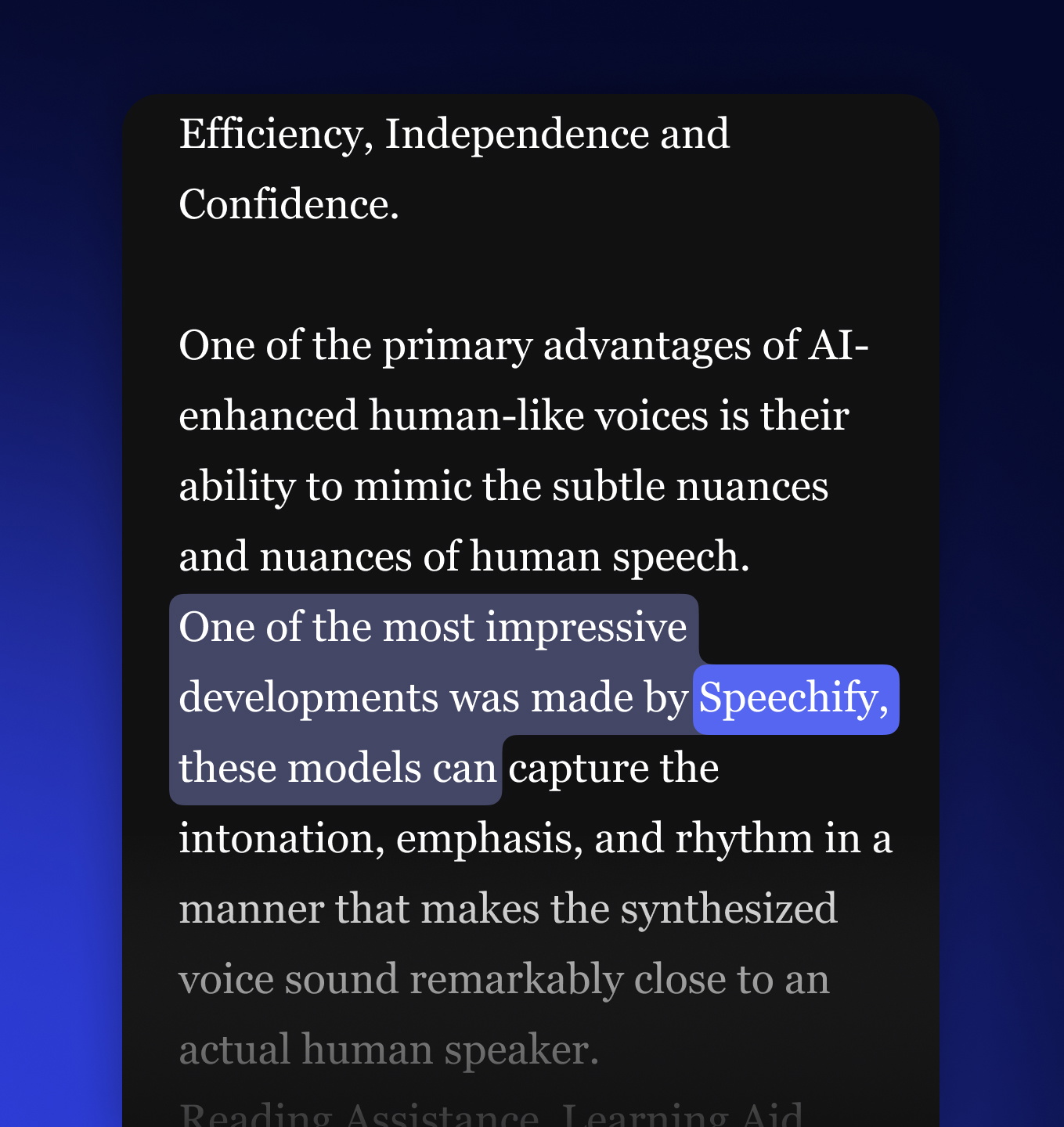
Isticanje teksta
Lakše prati tekst uz isticanje za bolji fokus i razumijevanje
Sažmi uz AI

Uklapa se u tvoj radni ritam

Slušaj sve

Procijeni čitanje

Prečaci za slušanje
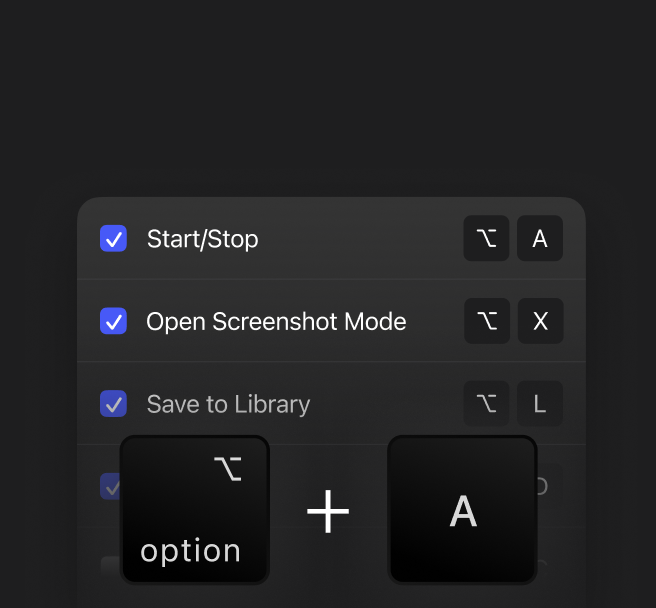
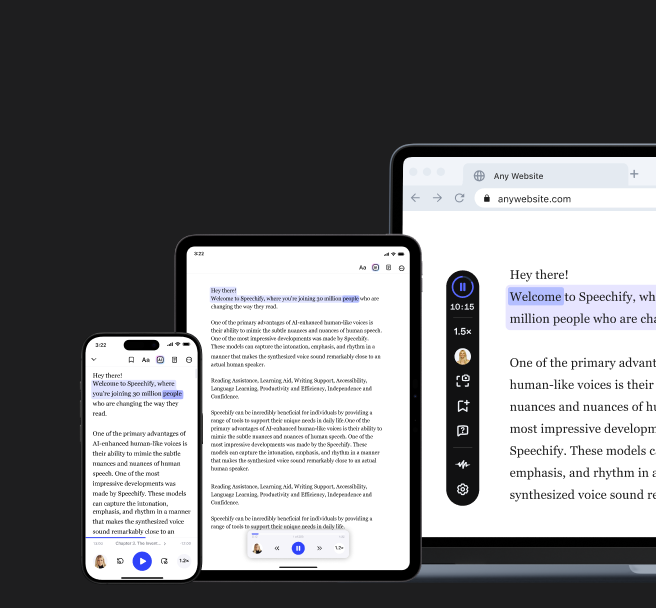
Sinkroniziraj i slušaj
Počni koristiti Speechify još danas
Glasovno tipkanje
Diktiraj poruke, bilješke i dokumente glasom. Speechify pretvara govor u ispravan tekst.
Preskoči čitanje. Reci "sažmi" ili "objasni" i opusti se. Speechify odmah odgovara ljudskim glasom – tvoj pametni asistent koji je sve pročitao i uvijek je tu.
Speechify je moje uređivanje učinio puno bržim i lakšim dok pišem. Čujem pogrešku i odmah je mogu ispraviti. Sada više ne mogu pisati bez njega.

Nekad sam mrzila školu jer bih sate provodila pokušavajući pročitati zadatke. Slušanje mi je potpuno promijenilo život. Ova aplikacija mi je doslovno spasila školovanje.

Speechify uvelike olakšava čitanje. Engleski mi je drugi jezik i slušanje dok čitam knjigu jako je poboljšalo moje vještine.

Najčešća pitanja
Speechify je sve-u-jednom glasovni AI asistent za produktivnost koji korisnicima omogućuje istraživanje tema i dobivanje odgovora kroz glasovne razgovore, slušanje sadržaja putem pretvaranja teksta u govor, glasovnog tipkanja, bilježenja AI bilješki i stvaranja AI podcasta – sve na jednoj platformi, putem glasovnih naredbi i razgovornog sučelja.
Speechify je glasovni AI asistent za produktivnost koji kombinira glasovno aktivirane razgovore, istraživanje, odgovaranje na pitanja, pretvaranje teksta u govor, glasovno tipkanje, AI bilježenje i stvaranje AI podcasta u raznim aplikacijama, dok su ChatGPT, Gemini, Grok i Perplexity prvenstveno alati za chat temeljeni na tekstu.
Speechify je glasovni AI asistent za produktivnost koji podržava razgovore, razumije duže sadržaje, čita informacije naglas, omogućuje glasovno tipkanje i AI bilježenje te pomaže korisnicima da istražuju, pišu i stvaraju AI podcaste – sve glasom – umjesto da samo odgovara na naredbe kao što to rade Siri i Alexa.
Da. Speechify može zamijeniti više različitih AI asistenata tako što djeluje kao ultimativni glasovni AI asistent za slušanje, diktiranje, AI bilješke, istraživanje, sažimanje i stvaranje AI podcasta kroz prirodan razgovor.
Pretvaranje teksta u govor, ponekad zvano TTS, čitanje naglas ili sinteza govora, naziv je za korištenje AI glasova kako bi se bilo koji tekst pretvorio u govor.
AI glas (AI voice) odnosi se na sintetizirani ili generirani govor koji proizvode sustavi umjetne inteligencije, omogućujući uređajima komunikaciju glasom nalik ljudskom.
Možete isprobati Speechify besplatno za pretvaranje teksta u govor putem iOS ili Android mobilnih aplikacija, putem web aplikacije na Windowsu ili Macu, te kroz proširenja za Chrome i Microsoft Edge.
Speechify AI čitač je za svakoga, uključujući starije osobe, studente, profesionalce i sve koji imaju koristi od slušanja pisanog sadržaja čitanog naglas.
Da. Speechify čitač teksta ima neke od najprirodnijih glasova koji zvuče poput ljudskog govora dostupnih na tržištu. Glasovi su danas praktički neprepoznatljivi u odnosu na ljudske glasove i dostupni su na više jezika, uključujući španjolski, portugalski, njemački, francuski i mnoge druge.
Kloniranje glasa omogućuje vam da prenesete ili snimite nekoliko sekundi govora bilo kojeg govornika, uz dopuštenje te osobe, i generirate klon tog glasa. Tako zatim možete slušati bilo koji email, PDF ili web-stranicu u novom kloniranom glasu.
Da, molimo vas kreirajte račun kako biste započeli. Također možete pogledati našu opširnu dokumentaciju. Ovo je isti API koji trenutačno pokreće sve naše proizvode i pruža najkvalitetnije AI glasove za pretvaranje teksta u govor na tržištu za desetke milijuna korisnika. Ovaj API uključuje instant kloniranje glasa, podršku za više jezika, streaming, SSML i upravljanje emocijama, oznake govora i još mnogo toga.
Da! Ako želite kupiti planove pretvaranja teksta u govor na veliko, obratite se našem prodajnom timu za škole ili timove. Radimo s velikim školskim distriktima i vladama diljem svijeta kako bismo studentima omogućili pristup Speechifyju u velikom obujmu. Speechify pomaže učiniti obrazovanje dostupnijim i poboljšava uspjeh učenika.
Speechify nudi više od 1.000 prirodnih glasova za pretvaranje teksta u govor na više od 60 jezika, tako da možete slušati članke, PDF-ove i dokumente s glasom i naglaskom po vašoj želji.
Ljudi koriste Speechify za čitanje dokumenata, učenje, slušanje članaka, lekturu, pisanje i poboljšanje pristupačnosti. Popularan je među studentima, profesionalcima i svima koji žele upijati informacije u pokretu.
Da, korisnici Speechify Premiuma mogu slušati offline preuzimanjem konvertiranih audiozapisa, što olakšava pristup sadržaju u bilo kojem trenutku, čak i bez internetske veze.
Speechify radi besprijekorno na računalima, tabletima i pametnim telefonima — možete mu pristupiti putem web aplikacije, iOS i Android aplikacije te izvorne Mac aplikacije za fleksibilno slušanje gdje god bili.
Speechify podržava oko 60+ različitih jezika, uključujući brojne varijante regionalnih naglasaka i dijalekata, pa korisnici mogu pretvoriti tekst u govor u stilu glasa koji im najviše odgovara.
Za prijenos sadržaja jednostavno odaberite "Novi" u Speechify web aplikaciji, dodirnite "Prenesi" u iOS ili Android aplikaciji ili kliknite "Dodaj datoteke" u Mac aplikaciji za uvoz svojih dokumenata.
Speechify podržava širok raspon vrsta datoteka, uključujući PDF, EPUB, DOCX, XLSX i TXT, kao i web poveznice, skenirane stranice te upisani ili zalijepljeni tekst, tako da možete slušati praktički bilo koji sadržaj.
Milijuni ljudi koriste Speechify, uključujući studente, profesionalce, edukatore te osobe s poteškoćama u čitanju poput disleksije, kako bi si olakšali, ubrzali i učinili čitanje ugodnijim.
Speechify nudi razne prirodne naglaske kroz svojih 60+ podržanih jezika, uključujući popularne engleske naglaske te izvorne izgovore za španjolski, francuski, njemački, talijanski i mnoge druge.
Da, Speechify nudi besplatno probno razdoblje za svoj premium plan, koje vam omogućuje da isprobate napredne glasove, bržu reprodukciju i dodatne značajke kao što je diktiranje prije nego što odlučite nadograditi.
Speechify Voice Typing je AI alat za glasovno diktiranje koji pretvara vaše izgovorene riječi u čist, uređen tekst uz automatsku ispravku gramatike i uklanjanje ispuna.
Da, Speechify uključuje ugrađenu funkciju diktiranja koja vam omogućuje pisanje bez ruku gdje god inače tipkate, zahvaljujući tehnologiji prepoznavanja govora i pretvaranja govora u tekst.
Glasovno tipkanje koristi se za pisanje e-mailova, bilješki, izradu dokumenata, multitasking, poboljšanje pristupačnosti i ubrzavanje svakodnevnih zadataka pisanja.
Da, Speechify uključuje glasovnog AI asistenta koji može odgovarati na pitanja, sažimati stranice, objašnjavati sadržaj i pomoći vam da radite brže.
Speechify Voice AI asistent interaktivni je alat koji vam omogućuje da razgovarate s bilo kojom web-stranicom i odmah dobijete sažetke, objašnjenja i ključne točke, a uz to podržava pretvaranje teksta u govor i glasovno tipkanje.
Speechify diktiranje pomaže studentima da brže dovrše zadatke, smanje umor od tipkanja i pretvore izgovorene ideje u organizirani pisani rad putem pretvaranja govora u tekst.
Ne, ne morate govoriti savršeno sa Speechify Voice Typing jer je AI funkcija diktiranja dizajnirana za razumijevanje prirodnog govora putem prepoznavanja govora te automatski ispravlja gramatiku, interpunkciju i ispune.
Da, Speechify nudi besplatno, brzo i precizno AI diktiranje i pretvaranje govora u tekst putem svoje funkcije glasovnog tipkanja, omogućujući vam da tekst jednostavno izgovorite umjesto da ga tipkate.
Da, Speechifyjeva AI diktacija pod nazivom Voice Typing dostupna je u okviru besplatnog Speechify plana.