



PDF'ler dijital belgeleri paylaşmak için en çok tercih edilen formatlardan biridir, ancak birçok kullanıcı, PDF'leri sesli okutmaya yarayan metinden sese (TTS) araçlarının farkında değildir. Bu makalede PDF'leri dinlemenin avantajlarından, farklı cihazlardaki yerleşik TTS özelliklerinden bahsedecek ve herhangi bir PDF'i etkileyici bir dinleme deneyimine dönüştürmek için neden Speechify'ın en iyi seçenek olduğunu açıklayacağız.
PDF'leri Sesli Okutmanın Faydaları
Günümüz dijital çağında içerik tüketme şeklimiz sürekli değişiyor ve öne çıkan yeniliklerden biri de PDF'leri sesli olarak dinleyebilme imkanı. Sessiz metni sesli anlatıma dönüştürmek, farklı öğrenme stillerine ve erişilebilirlik ihtiyaçlarına cevap veren dinamik bir bilgi tüketimi sunar. PDF'leri sesli okutmanın bazı avantajları şunlardır:
- Engelliler için erişilebilirlik: TTS, görme engelliler veya disleksi olan bireylerin PDF belgelerine kolayca erişmesine olanak tanır.
- Çoklu görev: Kullanıcılar, PDF sesli okuyucuyu dinlerken aynı anda başka işleri de halledebilir.
- Öğrenme tercihi: İşitsel öğrenenler, metin sesli okunduğunda bilgiyi daha iyi anlayıp akıllarında tutabilirler.
- Dil öğrenimi: Anadili İngilizce olmayan kullanıcılar, kelimelerin telaffuzlarını duyarak önemli ölçüde fayda sağlayabilir.
PDF'ler Nasıl Sesli Okutulur?
İster görme engelli olun, ister işlerinizi yaparken "okumayı" tercih eden bir çoklu görev tutkunu, ister sadece işitsel öğrenmeye daha yatkın biri olun, PDF'lerinizi sesli dinlemek son derece faydalı olabilir. Şimdi, herhangi bir PDF'i sesli okutmanın en etkili yollarına göz atalım:
Seçenek 1: Yerleşik Metinden Sese Özelliğiyle PDF'ler Ücretsiz Nasıl Sesli Okutulur?
Windows, Mac, ChromeOS, iPhone veya Android kullanıyor olun, metni oldukça kolay bir şekilde sesli okutabilirsiniz. Ancak yerleşik TTS işlevleri cihaza ve platforma göre farklılık gösterebilir. Bu adım adım rehberlerle, seçtiğiniz platformdaki yerleşik TTS özelliklerini zahmetsizce kullanarak PDF metninizi yüksek sesle okutabilirsiniz.
Windows'ta Yerleşik Metinden Sese ile PDF'ler Nasıl Sesli Okutulur?
Microsoft tarafından geliştirilen Windows, dünyanın en çok kullanılan işletim sistemlerinden biridir ve çok yönlülüğüyle öne çıkar. Erişilebilirlik araçları arasında önemli bir yeri olan yerleşik metinden sese özelliği, kullanıcılar için metni sesli dinleme imkanı sunar. Bu rehberde, Windows cihazınızda bu özelliği nasıl etkinleştirip verimli bir şekilde kullanabileceğinizi bulabilirsiniz.
- TTS ayarlarına erişin:
- 'Başlat' düğmesine tıklayın veya Windows tuşuna basın.
- 'Ayarlar' (dişli simgesi) seçeneğine gidin.
- 'Erişim Kolaylığı'na gidin.
- Sol menüden 'Konuşma'yı seçin.
- TTS'i açın:
- ‘Anlatıcı’ altında anahtarı açarak özelliği etkinleştirin.
- Ses ve hızı kişiselleştirin:
- 'Bir ses seçin' bölümünden istediğiniz sesi belirleyin.
- 'Sesin hızını değiştir' kaydırıcısını tercihinize göre ayarlayın.
- TTS'i kullanın:
- Sesli okunacak metni seçin.
- 'Ctrl + Win + Enter' tuşlarına birlikte basın. Anlatıcı devreye girerek metni okumaya başlayacaktır.
Mac'te Yerleşik Metinden Sese ile PDF'ler Nasıl Sesli Okutulur?
Apple'ın Mac bilgisayarları, şık tasarımı ve kullanıcı dostu özellikleriyle bilinir. Erişilebilirlik konusundaki hassasiyetlerinin bir yansıması olarak Mac'in entegre metinden sese özelliği, metin içeriklerinin sesli olarak dinlenmesini sağlar. Mac'inizde bu özelliği nasıl aktif hale getirip kullanacağınızı aşağıdaki adımlarda bulabilirsiniz.
- TTS ayarlarına erişin:
- Sol üst köşede Apple menüsüne tıklayın.
- 'Sistem Tercihleri'ne girin.
- 'Erişilebilirlik' seçeneğini seçin.
- 'Görme' kategorisinde, 'Konuşma' sekmesini açın.
- TTS'i etkinleştirin:
- 'Seçili metni tuşa bastığınızda oku' kutucuğunu işaretleyin.
- Ses ve hız ayarlarını kişiselleştirin:
- ‘Sistem Sesi’ açılır kutusundan bir ses seçin.
- Konuşma hızını kaydırıcıyla dilediğiniz gibi ayarlayın.
- TTS'i kullanın:
- Okunmasını istediğiniz metni seçin.
- Özelleştirilmiş tuş kombinasyonunu kullanın (varsayılan olarak 'Option + Esc').
ChromeOS'ta Yerleşik Metinden Sese ile PDF'ler Nasıl Sesli Okutulur?
Chromebook'ların işletim sistemi olan ChromeOS, bulut tabanlı yapısı ve sadeliğiyle bilinir. En önemli erişilebilirlik özelliklerinden biri de yerleşik metinden sese (TTS) fonksiyonu sayesinde içeriklerin sesli okunabilmesidir. İşte ChromeOS'ta bu özelliği kullanmak için adım adım bir rehber.
- TTS ayarlarına erişin:
- Hesap resminizin göründüğü alana tıklayın.
- 'Ayarlar' bölümüne girin.
- ‘Gelişmiş' altında 'Erişilebilirlik' seçeneğini seçin.
- 'Erişilebilirlik özelliklerini yönet' seçeneğine tıklayın.
- TTS'i etkinleştirin:
- Yerleşik ekran okuyucu olan 'ChromeVox'u aktif hale getirin.
- TTS'i kullanın:
- Web sayfalarında veya dökümanlarda gezinirken ChromeVox içeriği sizin için sesli okuyacaktır.
iPhone'da Yerleşik Metinden Sese ile PDF'ler Nasıl Sesli Okutulur?
Apple'ın iPhone'da erişilebilirliğe verdiği önem, sunduğu çeşitli özelliklerle açıkça görülüyor. 'Speak Selection' olarak bilinen yerleşik metinden sese fonksiyonu, herhangi bir metni basit bir dokunuşla sesli okutmanızı sağlar. Bu faydalı aracı iPhone'unuzda nasıl etkinleştirip kullanacağınızı öğrenmek için aşağıdaki adımları izleyin.
- TTS ayarlarına erişin:
- 'Ayarlar'ı açın.
- 'Erişilebilirlik' seçeneğine gidin.
- 'Görme' bölümünde 'Sesli İçerik' seçeneğine dokunun.
- TTS'i etkinleştirin:
- 'Seçimi Seslendir'i aktif hale getirin.
- Ses ve hız ayarlarını özelleştirin:
- 'Sesler' bölümünden tercih ettiğiniz sesi seçin.
- Konuşma hızını kaydırıcıyı kullanarak ayarlayın.
- TTS'i kullanın:
- Okunmasını istediğiniz metni seçin.
- Çıkan 'Konuş' seçeneğine dokunun.
Android'de Yerleşik Metinden Sese ile PDF'ler Nasıl Sesli Okutulur?
Geniş cihaz yelpazesi ve esnek yapısıyla Android, erişilebilirliğe öncelik veren bir platformdur. Sistemle birlikte gelen yerleşik metinden sese özelliği, metin içeriklerinin sesli olarak kullanıcıya aktarılmasına olanak tanır. Aşağıdaki adım adım rehberimizi takip ederek bu özelliği nasıl etkinleştirip kullanacağınızı öğrenebilirsiniz.
- TTS ayarlarına erişin:
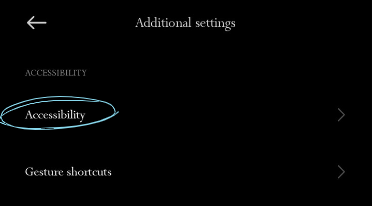
- 'Ayarlar'ı açın.
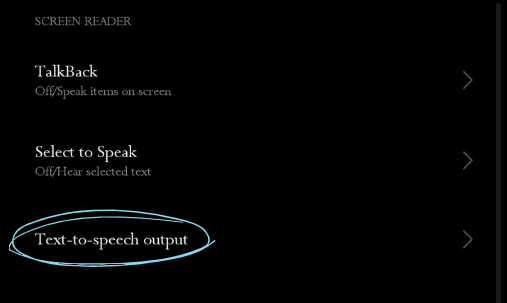
- 'Erişilebilirlik' bölümüne gidin.
- 'Metinden sesli çıktıya' dokunun.
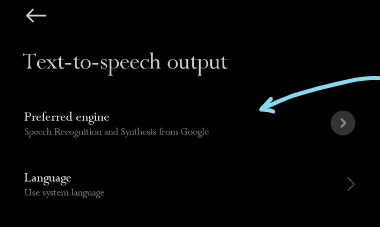
2. TTS motorunu seçin:
- Tercih ettiğiniz TTS motorunu seçebilirsiniz; örneğin 'Google Metinden Sese Motoru'.
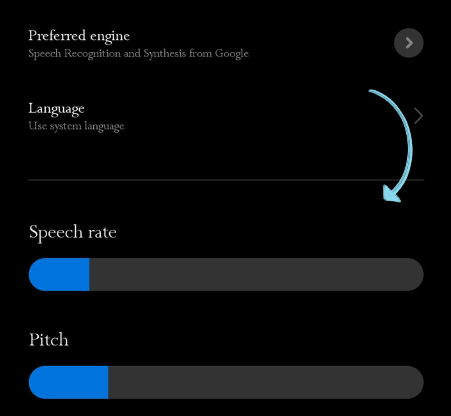
3. Ses ve hız ayarlarını kişiselleştirin:
- 'Konuşma hızı' ve 'Perde' seçeneklerine dokunarak istediğiniz gibi ayarlayın.
4. 'Ses' seçeneğine dokunarak bir ses seti seçin.
5. TTS'i kullanın:
- Cihazınıza ve sürümüne göre, bazı uygulamalarda metni seçtiğinizde doğrudan 'Konuş' seçeneğini görebilirsiniz. Aksi takdirde TTS motoru, Google Play Kitaplar gibi belirli uygulamalarda çalışacak ve burada kitapları sesli okuyacaktır.
Seçenek 2: Adobe Acrobat Reader ile PDF'ler Nasıl Sesli Okutulur?
Adobe Acrobat Reader, PDF araçları alanında öncüdür ve belgeleri görüntülemenin çok ötesinde özellikler sunar. Kullanıcı deneyimini iyileştirmek için geliştirilen özellikler arasında, PDF içeriğini sesli şekilde okuyan yerleşik bir fonksiyon da bulunur. Adobe Acrobat Reader ile görsel okumadan işitsel öğrenmeye nasıl geçebileceğiniz aşağıda yer alıyor.
- PDF'i Adobe Acrobat Reader'da açın.
- Sol üst menüden 'Görünüm'e tıklayın.
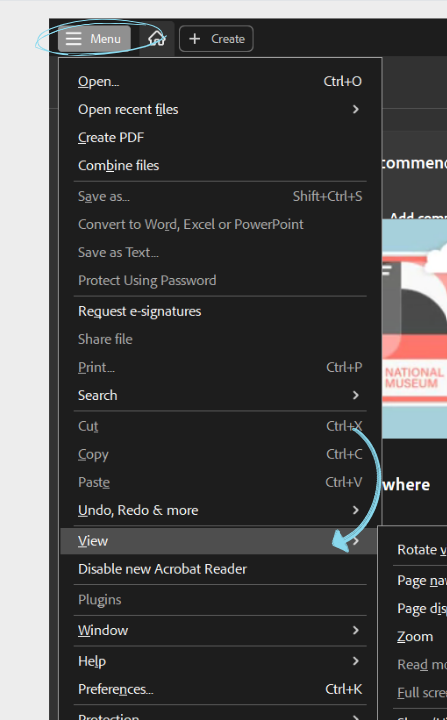
- 'Sesli Oku' üzerine gelin ve 'Sesli Oku'yu Etkinleştir'i tıklayın.
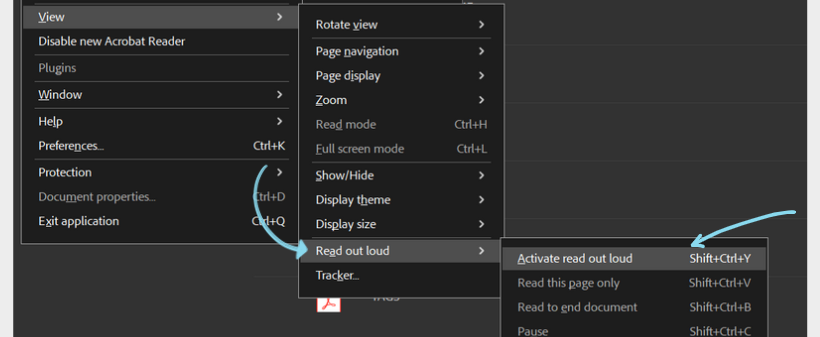
- İsterseniz yalnızca mevcut sayfanın ya da tüm belgenin okunmasını seçebilirsiniz.
- ‘Belgenin Sonuna Kadar Oku’ veya ‘Sadece Bu Sayfayı Oku’ seçeneklerinden birini işaretleyin.
Seçenek 3: Speechify ile PDF Dosyalarını Sesli Okutma
PDF’lerinizi insan sesinden ayırt edilemeyecek kadar gerçekçi metinden sese seslerle dinlemek istiyorsanız Speechify tam size göre. Speechify ile PDF’lerinizi ses dosyasına dönüştürebilir, kolay kullanılabilen arayüzü ve zengin özellikleri sayesinde kusursuz bir deneyim yaşayabilirsiniz. İşte Speechify ile PDF okumanın adımları:
- İndir ve kur: Mobil cihaz kullanıyorsanız App Store (iOS) veya Google Play Store (Android) üzerinden Speechify uygulamasını indirin. Masaüstü kullanıcıları Speechify web sitesini ziyaret ederek veya Speechify Chrome eklentisini indirerek kullanabilir.
- PDF aç: Speechify ile okumak istediğiniz PDF dosyasını açın.
- Metni seçin: Sesli okunmasını istediğiniz metni vurgulayın.
- Speechify’ı aktif edin: Vurguladığınız metne sağ tıklayın ve araç çubuğu ya da açılan menüden Speechify seçeneğini seçin.
- Dinleyin: Speechify’ın sesli okuyucusu, seçtiğiniz metni doğal bir sesle okumaya başlayacaktır.
- Kişiselleştirin: Okuma hızı, ses seçimi ve diğer seslendirme ayarlarını isteğinize göre değiştirerek okuma deneyiminizi size göre şekillendirin.
PDF'leri Sesli Okutmak İçin Neden Speechify En İyi Tercihtir?
Speechify’ın PDF dosyalarını sesli okumada öne çıkmasını sağlayan pek çok güçlü neden var. Bunlardan bazıları şunlardır:
Çoklu platform erişimi
Speechify; iOS, Android, Google Play, Apple App Store, macOS ve Windows üzerinde kullanılabilir. Böylece belgelere her cihazdan erişip TTS deneyiminize kesintisiz devam edebilirsiniz.
Doğal Sesli Yapay Zeka (AI) Sesleri
Bazı robotik TTS motorlarının aksine Speechify, birden fazla dil ve aksanda, 200'ün üzerinde yüksek kaliteli ve doğal sesli AI sesleri ile okuma deneyimini üst seviyeye taşır.
Kullanıcı dostu arayüz
Speechify, hem yeni başlayanlar hem de deneyimli kullanıcılar için oldukça sezgisel, kullanıcı dostu bir arayüze sahiptir.
Çok dilli destek
Speechify, İngilizce dışında Çince, Rusça, Ukraynaca, İspanyolca ve çok daha fazlası dahil pek çok dili destekler; böylece dünyanın dört bir yanındaki kullanıcıların farklı ihtiyaçlarına yanıt verir.
Kişiselleştirilebilir ayarlar
Sonsuz metinden sese özelliği sayesinde okuma hızını ve AI ses seçimini özelleştirebilir veya okumaya kaldığınız yerden devam etmek için yer imi ekleyebilirsiniz.
Her türlü formatı destekler
Speechify yalnızca PDF’lerle sınırlı değildir. Fiziksel veya dijital her türlü metni, PowerPoint sunumlarını, web sayfalarını, Google Drive belgelerini, EPUB kitaplarını, Microsoft Word dosyalarını ve çok daha fazlasını sesli okuyabilir.
Her yerde metinden sese
Speechify’ın mobil uygulamaları sayesinde iPhone, iPad veya Android cihazınızla belgelerinizi dilediğiniz her yerde dinleyebilirsiniz.
OCR tarama
Speechify’ın OCR (Optik Karakter Tanıma) tarama özelliği, basılı metinleri ve görselleri, PDF’ler dahil olmak üzere dijital ve okunabilir içeriğe zahmetsizce dönüştürmenizi sağlar.
Speechify - 1 Numaralı PDF Okuyucuyu Deneyin
Speechify, gelişmiş bir PDF okuyucu arayanlar için benzersiz bir seçenektir. Temel fonksiyonlarının ötesinde, okuma deneyimini bambaşka bir seviyeye taşıyan sofistike bir metinden sese özelliği sunar ve statik PDF belgelerini adeta canlandırır. Akademik bir makale, bir iş raporu veya aradaki herhangi bir belge olsun, Speechify etkileyici AI ses netliği, doğal tonlamalar ve çoklu dil desteği sağlar. Kullanıcı dostu arayüz ve Optik Karakter Tanıma (OCR) sayesinde taranmış metinler bile geride kalmaz. Speechify'ı ücretsiz deneyin ve okuma deneyiminizi bir üst seviyeye taşıyın.
Sıkça Sorulan Sorular
NaturalReader gibi birçok metinden sese uygulama vardır; fakat Speechify, PDF’lerinizi sesli okutmak için en gerçekçi AI seslerine sahiptir.
PDF’leri podcast tarzında ses dosyalarına dönüştürmek için Speechify’ı kullanabilirsiniz.
iPhone'da metni sesli okutmak için erişilebilirlik ayarlarından "Ekranı Konuştur" özelliğini etkinleştirdikten sonra, ekranın üstünden iki parmağınızla aşağı kaydırarak kısayolu kullanabilirsiniz.
Speechify ile istediğiniz herhangi bir PDF’i kolayca sesli okutabilirsiniz.
Snoop Dogg & Gwyneth Paltrow'un resmî ve özel seslerine ek olarak yakında daha birçok ünlü ses geliyor.
Yüksek kaliteli yapay zeka seslerimiz, ortalama okuma hızından 9 kat daha hızlı okuyabilir; böylece çok daha kısa sürede çok daha fazlasını öğrenebilirsiniz. Dakikada 900 kelimeyi dinlemek kulağa çılgınca gelebilir ama sizin sınırınızı kim koyabilir ki? Çoğu diğer metinden sese okuyucu bu kadar hızlı değildir. Bugün bizi deneyin. Önce dakikada 380 kelimeyle başlayın, kulaklarınızı yavaş yavaş alıştırın ve ihtiyacınıza göre adım adım hızı artırın.
Speechify kütüphanenize kaydettiğiniz her şey anında cihazlarınız arasında senkronize olur; böylece nerede olursanız olun, dilediğiniz zaman dinleyebilirsiniz.
Okuyucu seslerimiz, diğer tüm yapay zeka okuyucularına kıyasla çok daha akıcı ve insansı duyulur; böylece hem daha iyi anlayıp hem de daha fazla akılda tutabilirsiniz.
30’dan fazla farklı dil ve çok sayıda ses seçeneği arasından seçim yaparak yüksek kaliteli konuşmaların keyfini çıkarın. Mevcut diller arasında Arapça, Çince, Çekçe, Danca, Hollandaca, İngilizce, Fince, Fransızca, Almanca, Yunanca, İbranice, Hintçe, Macarca, Endonezce, İtalyanca, Japonca, Korece, Norveççe Bokmål, Lehçe, Portekizce, Rumence, Rusça, Slovakça, İspanyolca, İsveççe, Tayca, Türkçe ve Ukraynaca bulunmaktadır.
Ücretsiz metinden sese çevirim aracımızla yazabilir, metin yapıştırabilir ya da bir dosya yükleyerek içeriği sese dönüştürebilirsiniz. Ardından bunu ses dosyası olarak indirip dublajda veya başka herhangi bir projede kullanabilirsiniz. Speechify’ın premium aboneliği ise HD seslerin yanı sıra Snoop Dogg & Gwyneth Paltrow gibi resmî ünlü seslerine erişim sunar.
Çevirilmesini istediğiniz uzun bir belgeniz mi var? Hiç sorun değil. Belgenizi metinden sese uygulamamıza yükleyin ve birkaç saniye içinde sese dönüşmesini izleyin. Demomuzu hemen deneyin!



