



Η εφαρμογή Speechify iOS μετατρέπει το κείμενο σε ομιλία, βελτιώνοντας την προσβασιμότητα και την αποδοτικότητα στην ανάγνωση. Αυτός ο οδηγός τα περιλαμβάνει όλα: πώς να την κατεβάσετε, να εξερευνήσετε τις βασικές λειτουργίες και τις προχωρημένες ρυθμίσεις, ώστε να αξιοποιήσετε στο έπακρο τα εργαλεία μετατροπής κειμένου σε ομιλία της Speechify.
Πώς να αποκτήσετε την εφαρμογή Speechify iOS
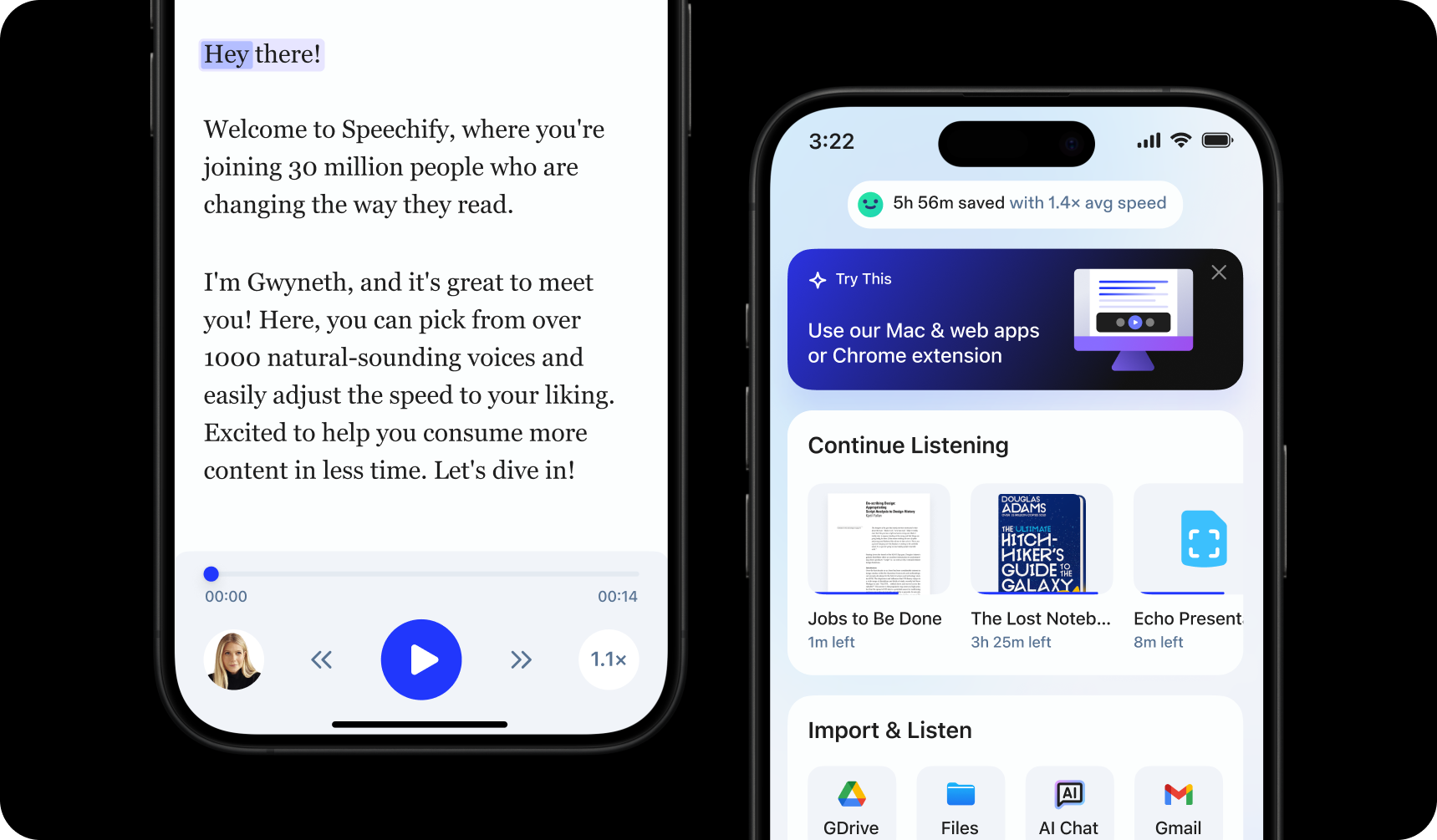
Για να ξεκινήσετε με την εφαρμογή Speechify iOS, απλά εγκαταστήστε την ακολουθώντας τα παρακάτω βήματα:
- Κατεβάστε την εφαρμογή Speechify iOS από το App Store.
- Δημιουργήστε λογαριασμό.
Πώς να ανεβάσετε κείμενο στην εφαρμογή Speechify iOS
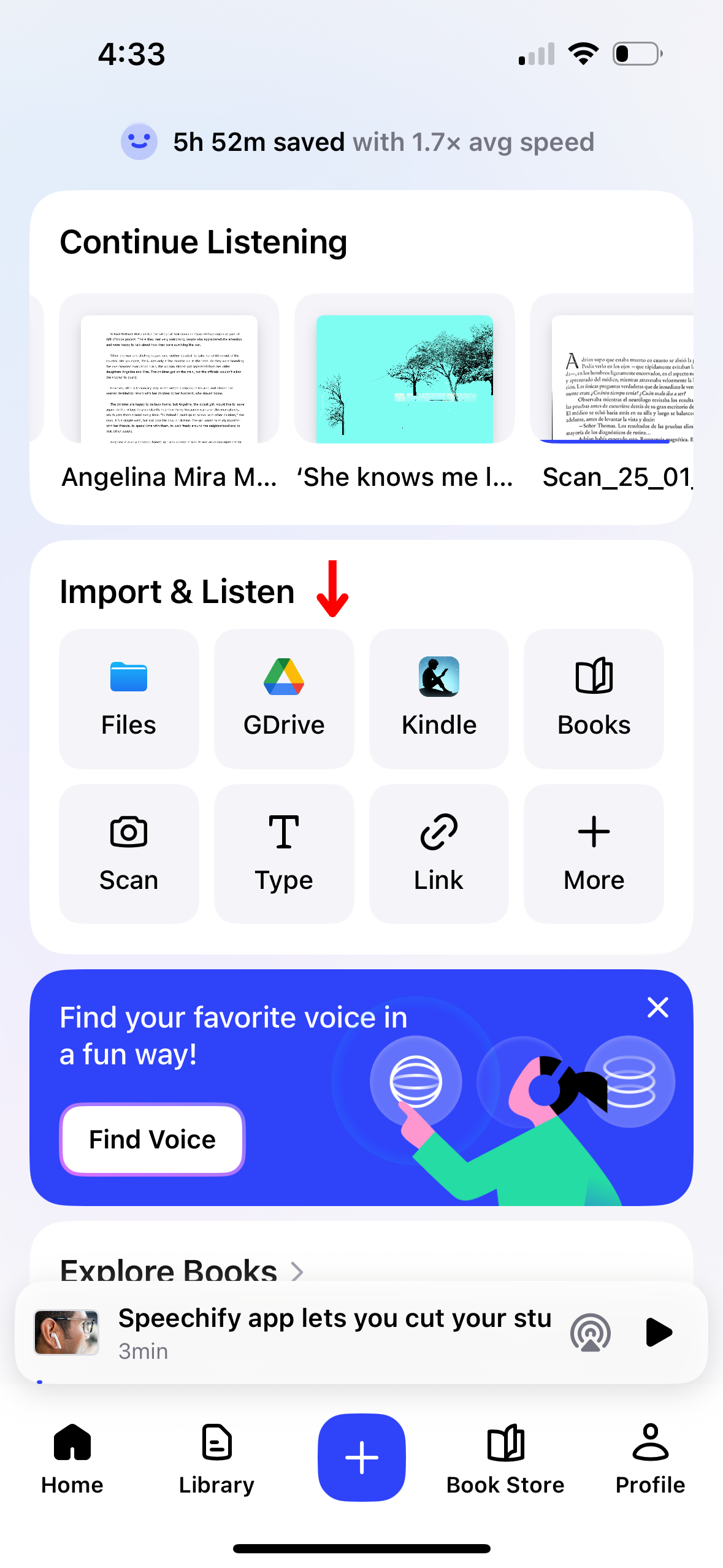
Η προσθήκη υλικού για ακρόαση είναι πιο εύκολη από ποτέ στην εφαρμογή Speechify iOS. Ακολουθήστε αυτά τα βήματα για να ξεκινήσετε:
- Ανοίξτε την εφαρμογή Speechify iOS.
- Στην αρχική οθόνη, ανεβάστε ή εισάγετε το περιεχόμενο που θέλετε να ακούσετε. Μπορείτε να:
- Εισάγετε αρχεία από το iPhone σας.
- Συνδέστε Google Drive, Dropbox, OneDrive ή Canvas για εισαγωγή αρχείων.
- Πληκτρολογήστε ή επικολλήστε κείμενο. Για να το κάνετε, πατήστε «Προσθήκη κειμένου», βάλτε τίτλο, επικολλήστε ή γράψτε και πατήστε ξανά «Προσθήκη κειμένου».
- Επικολλήστε σύνδεσμο ιστοσελίδας για αυτόματη εισαγωγή σελίδας στο Speechify. Επιλέξτε «Επικόλληση Web Link», βάλτε το link και πατήστε «Υποβολή».
- Σαρώστε κείμενο επιλέγοντας «Σάρωση» και τραβώντας φωτογραφία από βιβλίο, φύλλο εργασίας ή άλλο υλικό.
Πώς να σαρώσετε στην εφαρμογή Speechify iOS
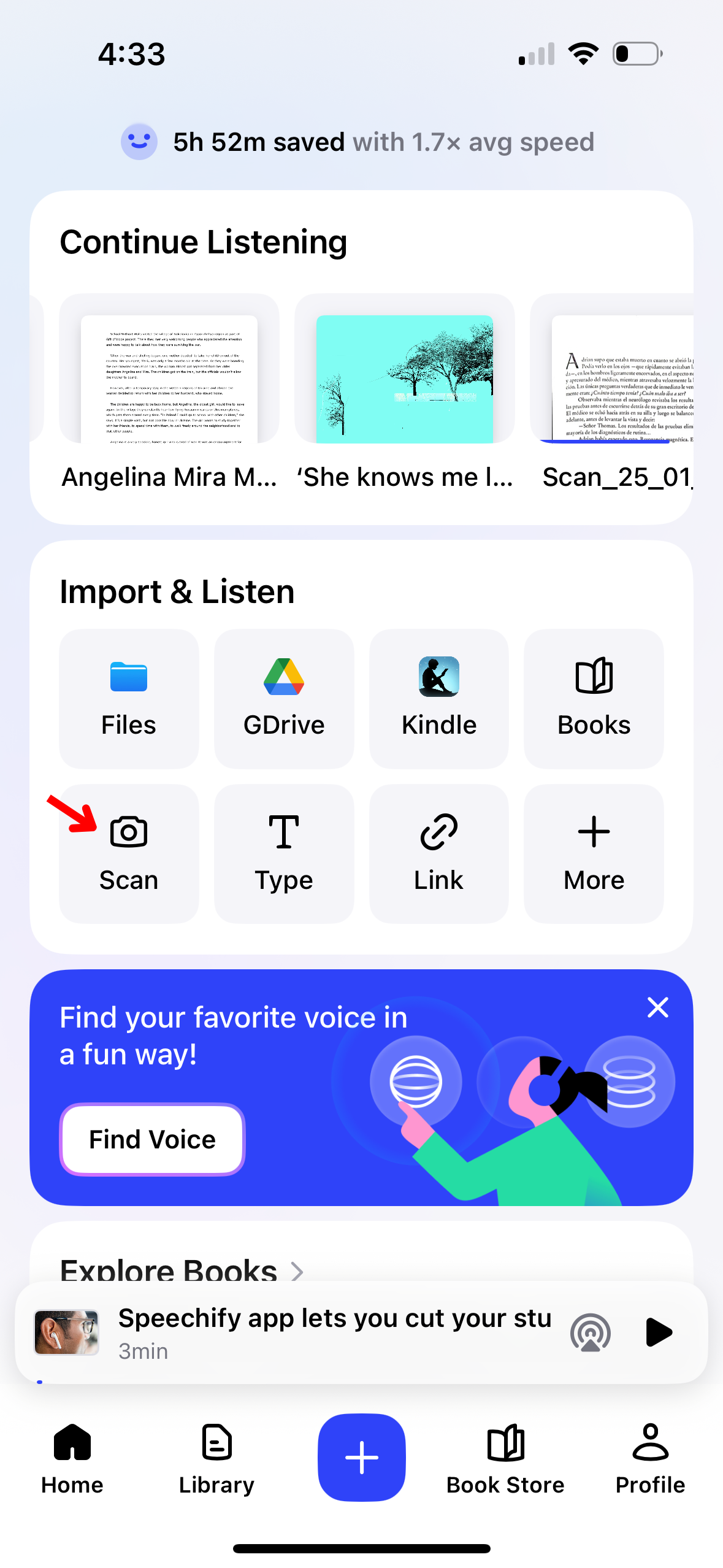
Αν θέλετε να ακούσετε έντυπο κείμενο όπως σχολικά βιβλία, φύλλα εργασίας ή χειρόγραφες σημειώσεις, η λειτουργία σαρωτή OCR θα σας λύσει τα χέρια. Ακολουθεί οδηγός για το σκανάρισμα:
- Πατήστε το κουμπί «Σάρωση» στην αρχική οθόνη.
- Βγάλτε φωτογραφία του βιβλίου, των σημειώσεων ή ό,τι θέλετε να σαρώσετε.
- Το Speechify αναγνωρίζει και διαβάζει το κείμενο δυνατά.
Πώς να αλλάξετε φωνή στην εφαρμογή Speechify iOS
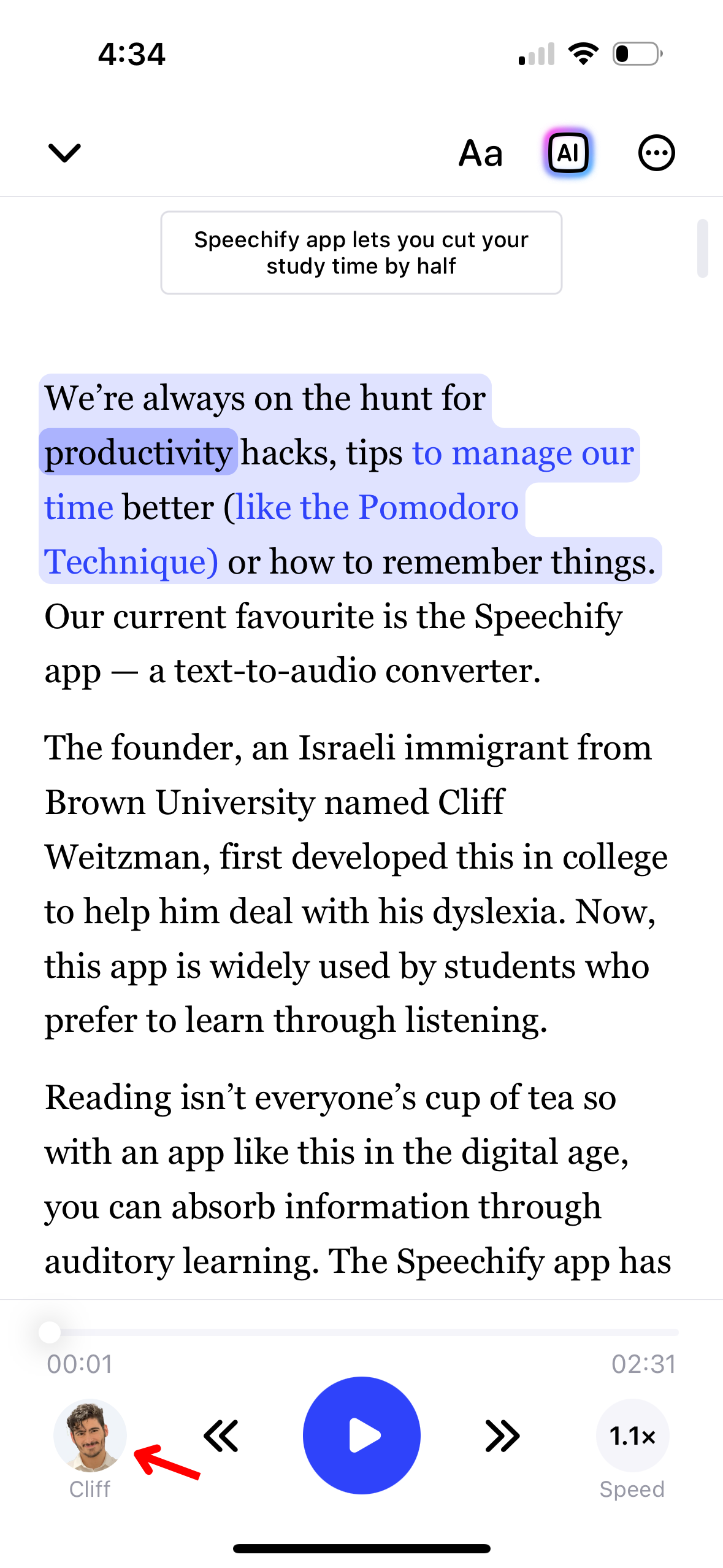
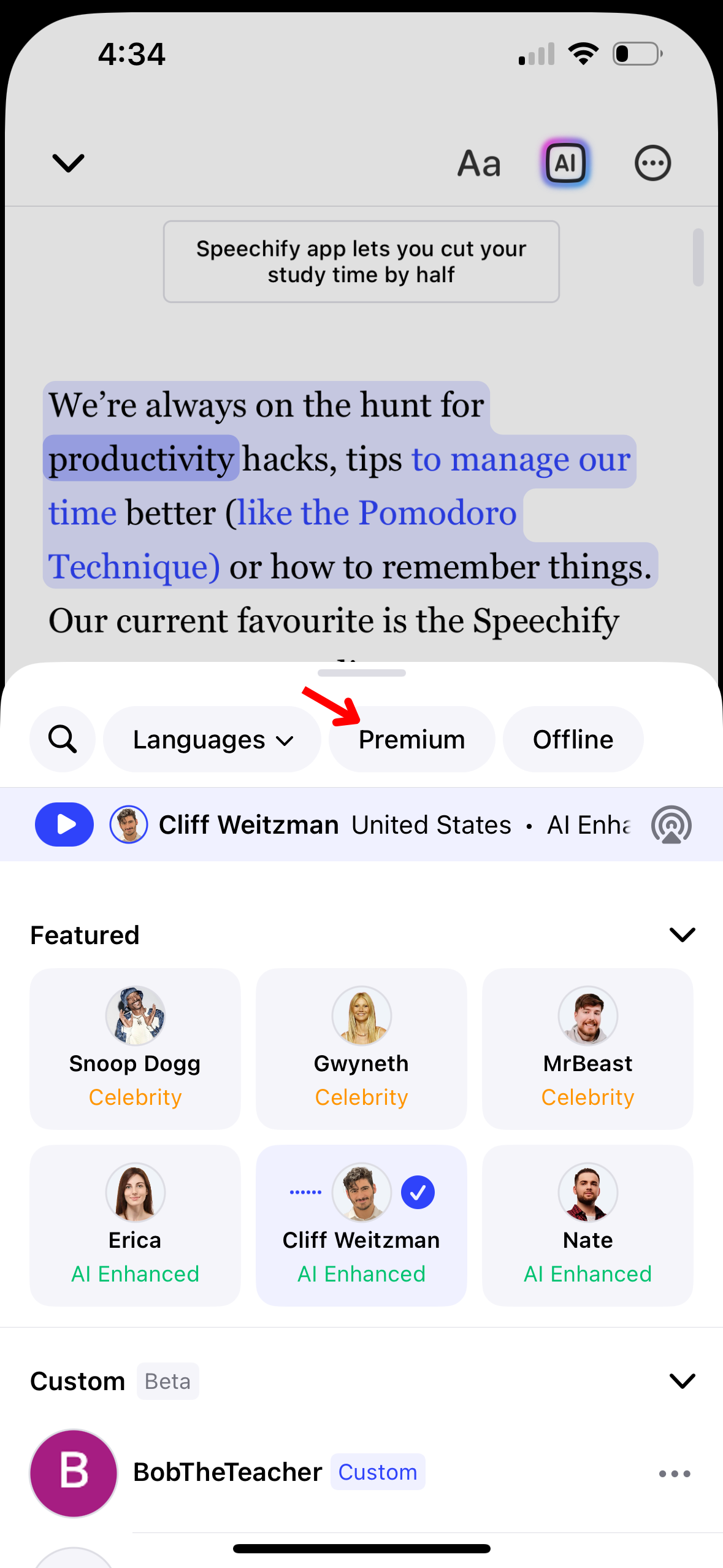
Κάντε την ακουστική εμπειρία στο Speechify στα μέτρα σας, αλλάζοντας φωνή. Δείτε πώς:
- Πατήστε το εικονίδιο φωνής κάτω αριστερά.
- Επιλέξτε από 200+ ρεαλιστικές AI φωνές, συμπεριλαμβανομένων διασήμων όπως ο Snoop Dogg και η Gwyneth Paltrow.
Πώς να χρησιμοποιήσετε προσαρμοσμένη φωνή στην εφαρμογή Speechify iOS
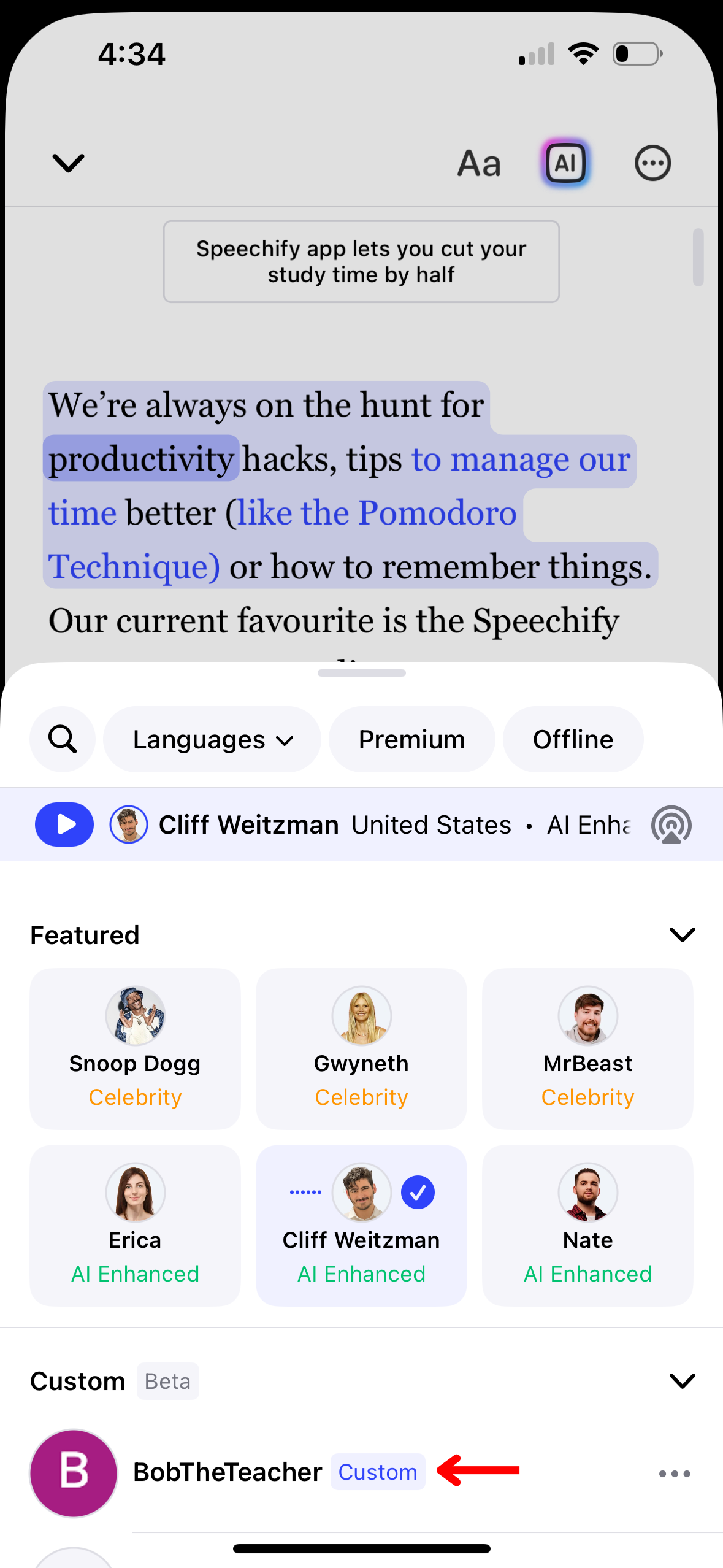
Κάντε την εμπειρία σας στο Speechify πραγματικά μοναδική με προσαρμοσμένη φωνή. Πρέπει πρώτα να δημιουργήσετε φωνές στην Web εφαρμογή και μετά τις χρησιμοποιείτε στην εφαρμογή Speechify iOS. Ακολουθήστε αυτά τα βήματα:
- Πατήστε το εικονίδιο φωνής κάτω αριστερά.
- Πατήστε «Προσαρμοσμένο».
- Επιλέξτε την προσαρμοσμένη φωνή.
Πώς να αλλάξετε γλώσσα στην εφαρμογή Speechify iOS
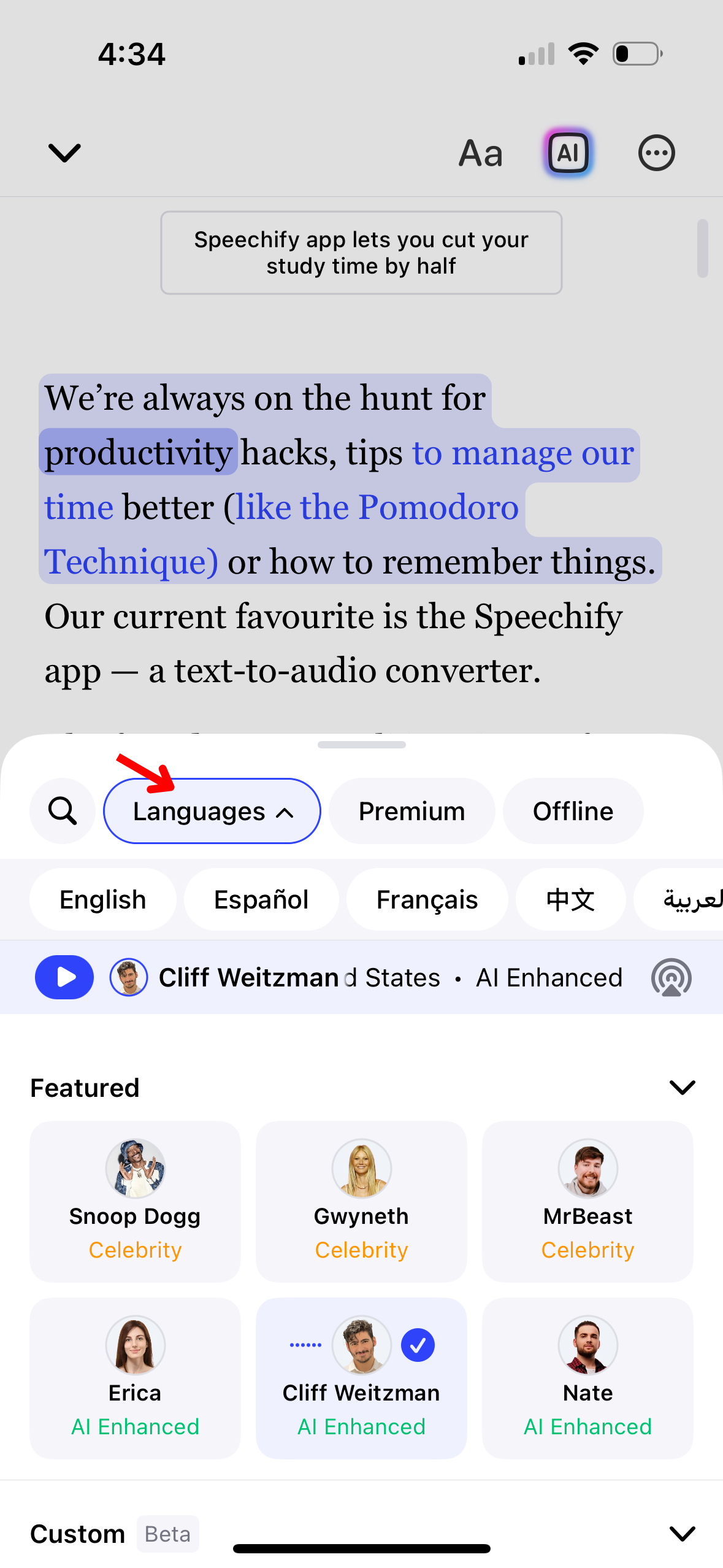
Το Speechify υποστηρίζει πάνω από 60 γλώσσες. Δείτε πώς να αλλάξετε γλώσσα:
- Πατήστε το εικονίδιο φωνής κάτω αριστερά.
- Επιλέξτε «Όλες οι φωνές».
- Διαλέξτε ανάμεσα σε 60+ γλώσσες.
Πώς να αλλάξετε ταχύτητα ανάγνωσης στην εφαρμογή Speechify iOS
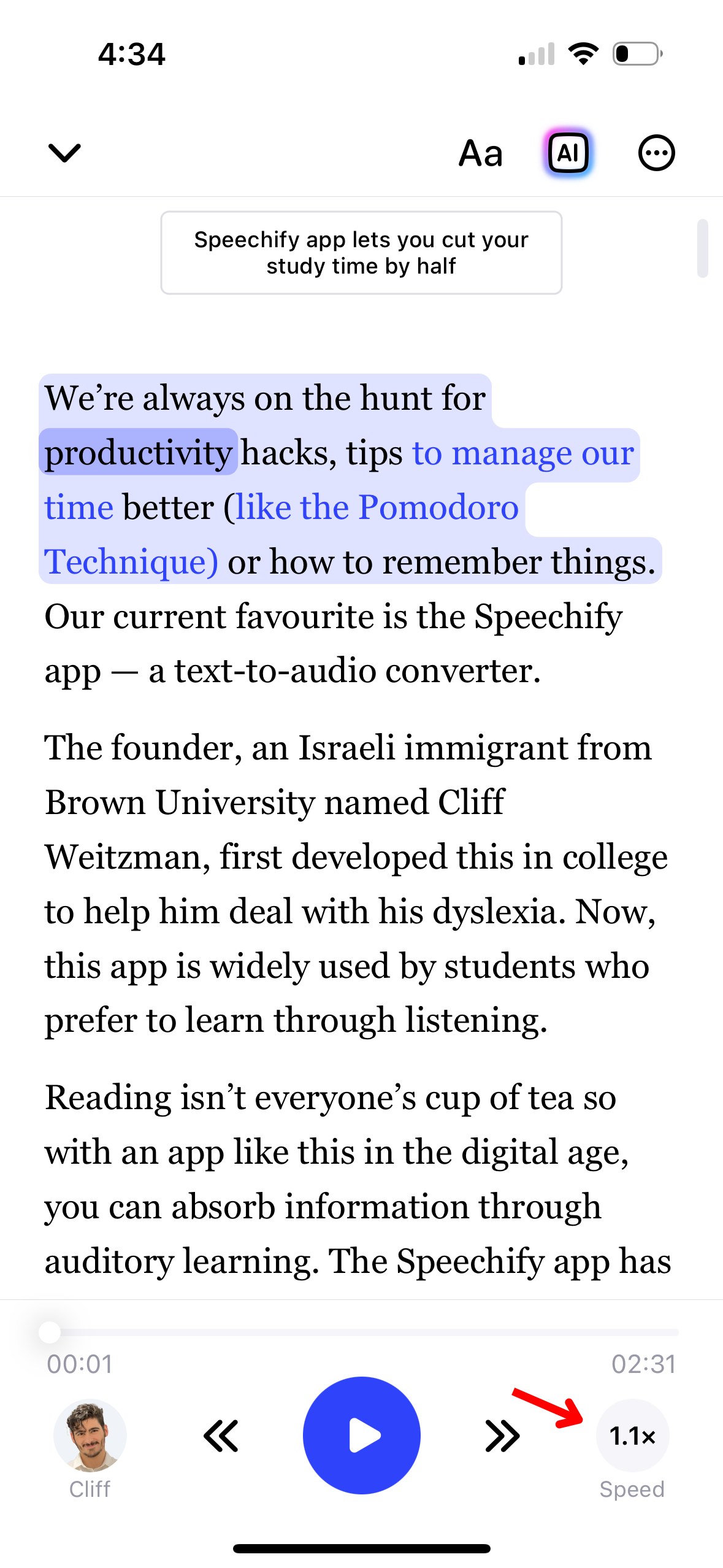
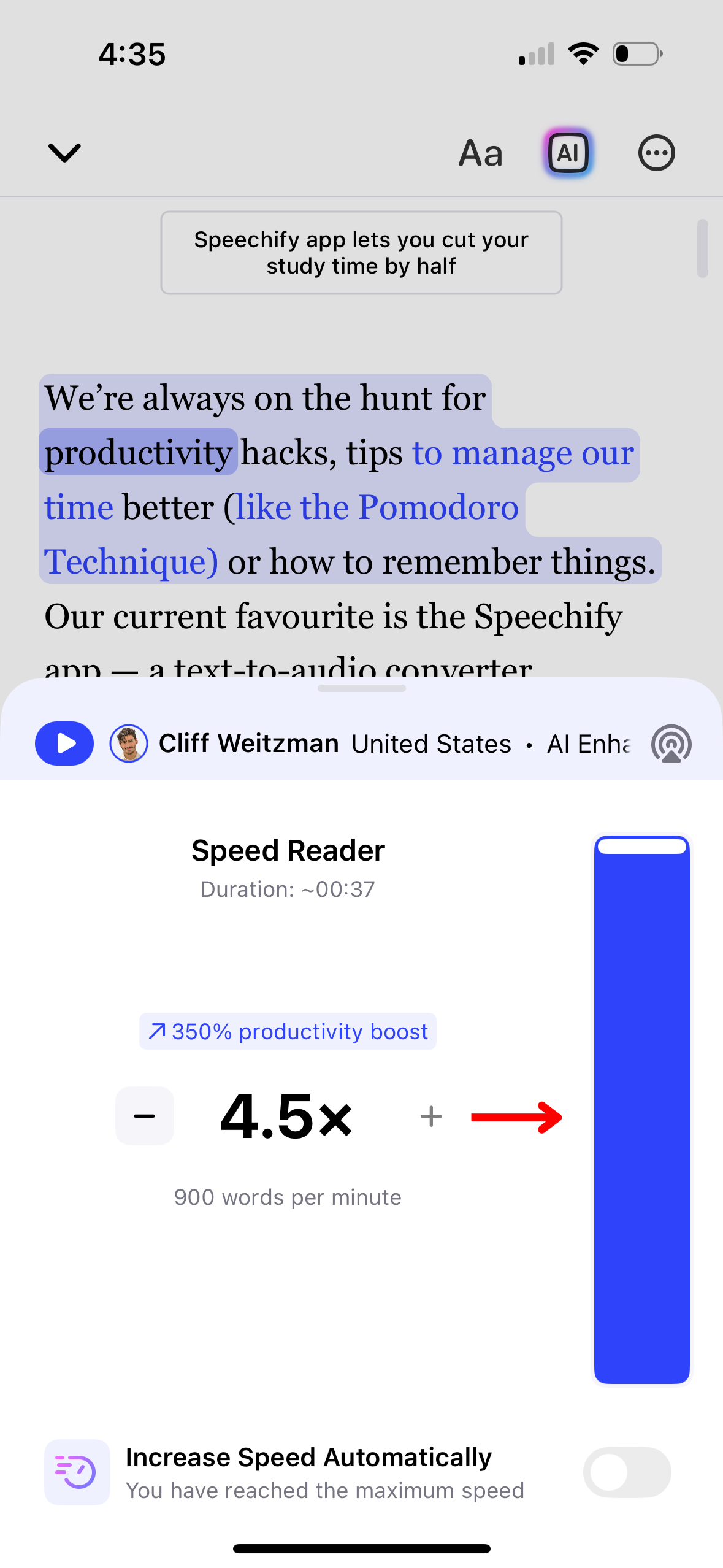
Αλλάζοντας την ταχύτητα ανάγνωσης στο Speechify προσαρμόζετε τον ρυθμό ακρόασης και την κατανόηση. Δείτε πώς να το αλλάξετε:
- Πατήστε το εικονίδιο 1x δεξιά κάτω.
- Ρυθμίστε την ταχύτητα ανάγνωσης από .5x (100 λέξεις/λεπτό) έως 4.5x (900 λέξεις/λεπτό).
Πώς να ακούτε offline στην εφαρμογή Speechify iOS
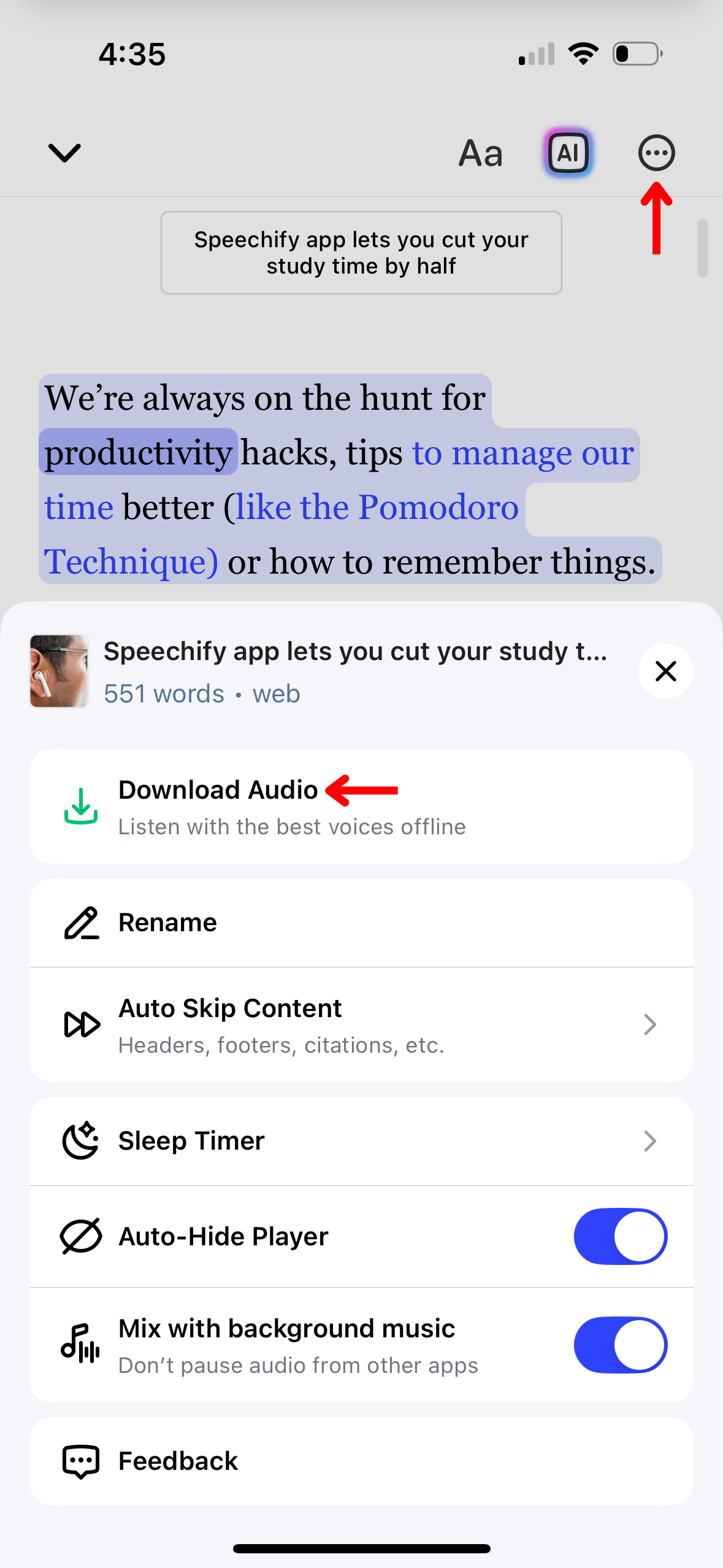
Για να απολαμβάνετε περιεχόμενο Speechify χωρίς σύνδεση στο διαδίκτυο, ενεργοποιήστε offline ακρόαση με τα εξής βήματα:
- Πατήστε τις 3 τελείες πάνω δεξιά.
- Επιλέξτε γλώσσα.
- Διαλέξτε AI φωνή.
- Πατήστε «Συνέχεια».
- Κατεβάστε σε MP3 για offline ακρόαση.
Πώς να χρησιμοποιήσετε το AI Chat στην εφαρμογή Speechify iOS
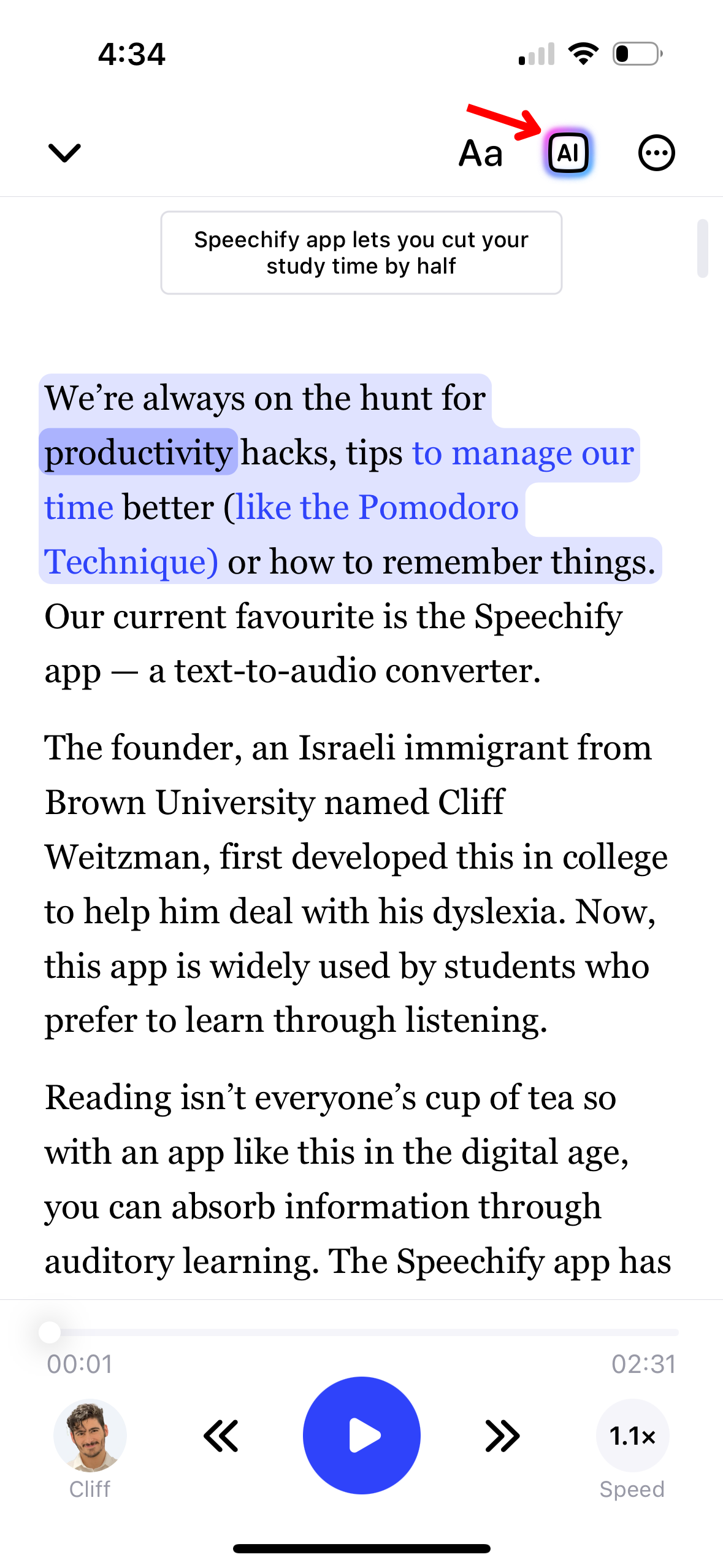
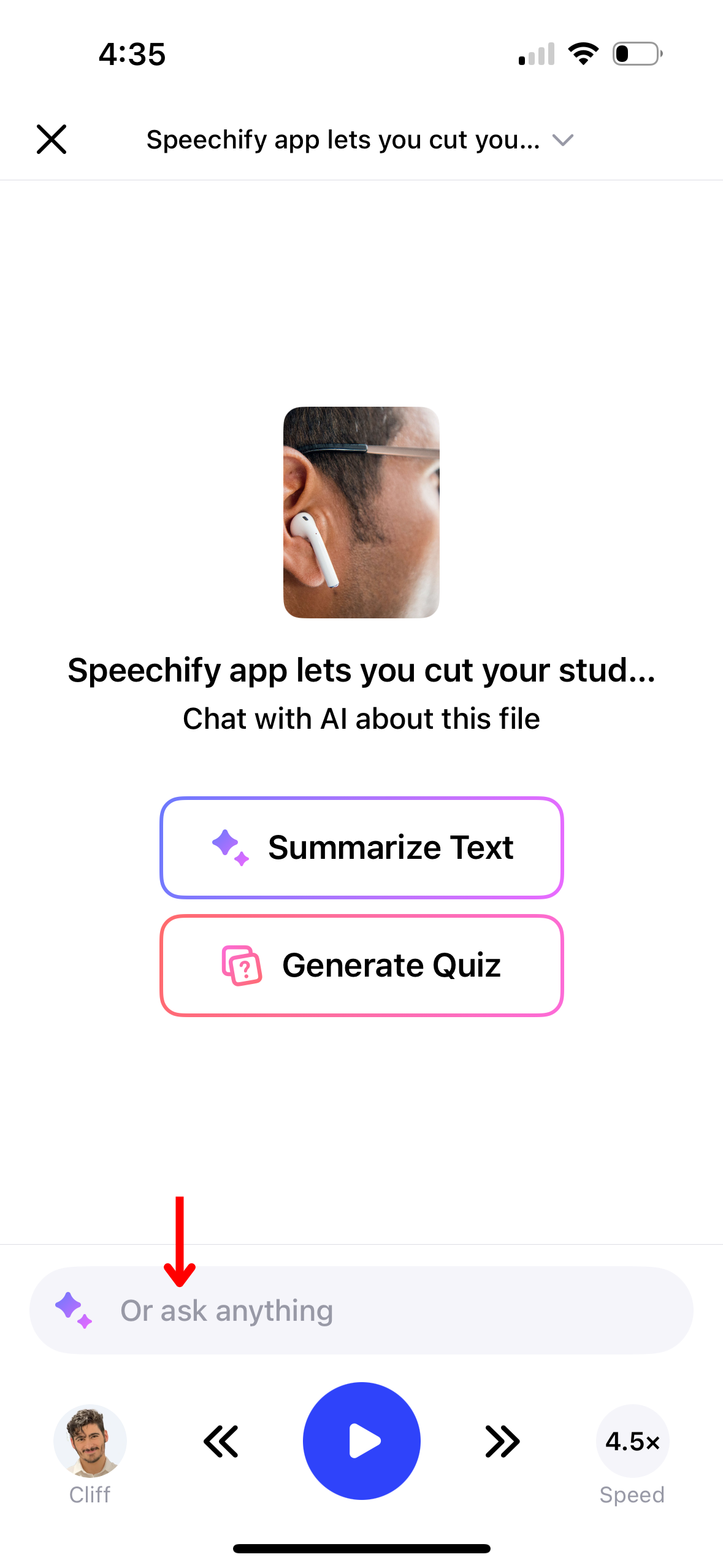
Αλληλεπιδράστε με το κείμενο μέσω της λειτουργίας AI Chat στο Speechify. Για να ξεκινήσετε:
- Πατήστε το εικονίδιο AI στη δεξιά πάνω γραμμή εργαλείων.
- Πληκτρολογήστε ερώτηση στη γραμμή συνομιλίας.
- Πατήστε Enter.
- Ακούστε την άμεση απάντηση ή κάντε νέα ερώτηση.
Πώς να χρησιμοποιήσετε τις AI Περιλήψεις στην εφαρμογή Speechify iOS
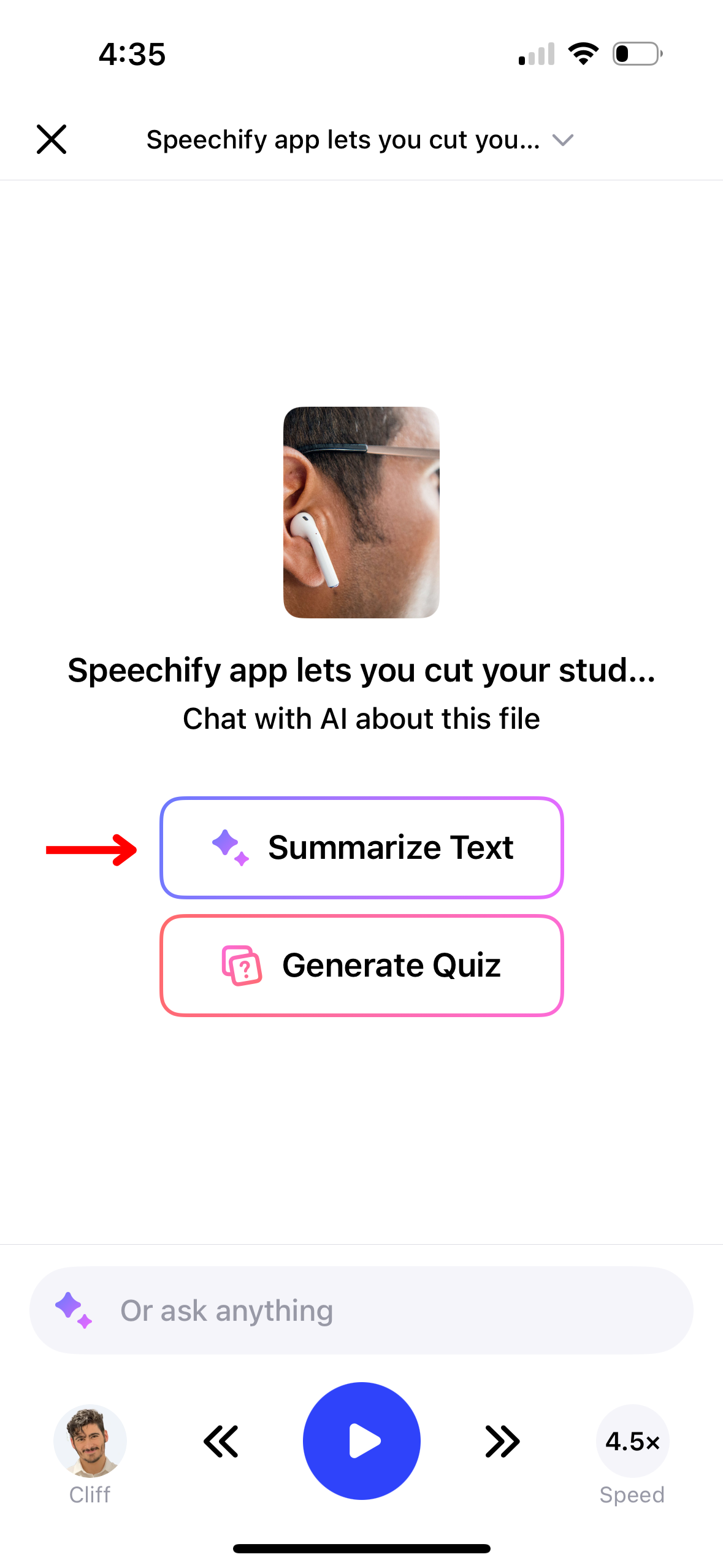
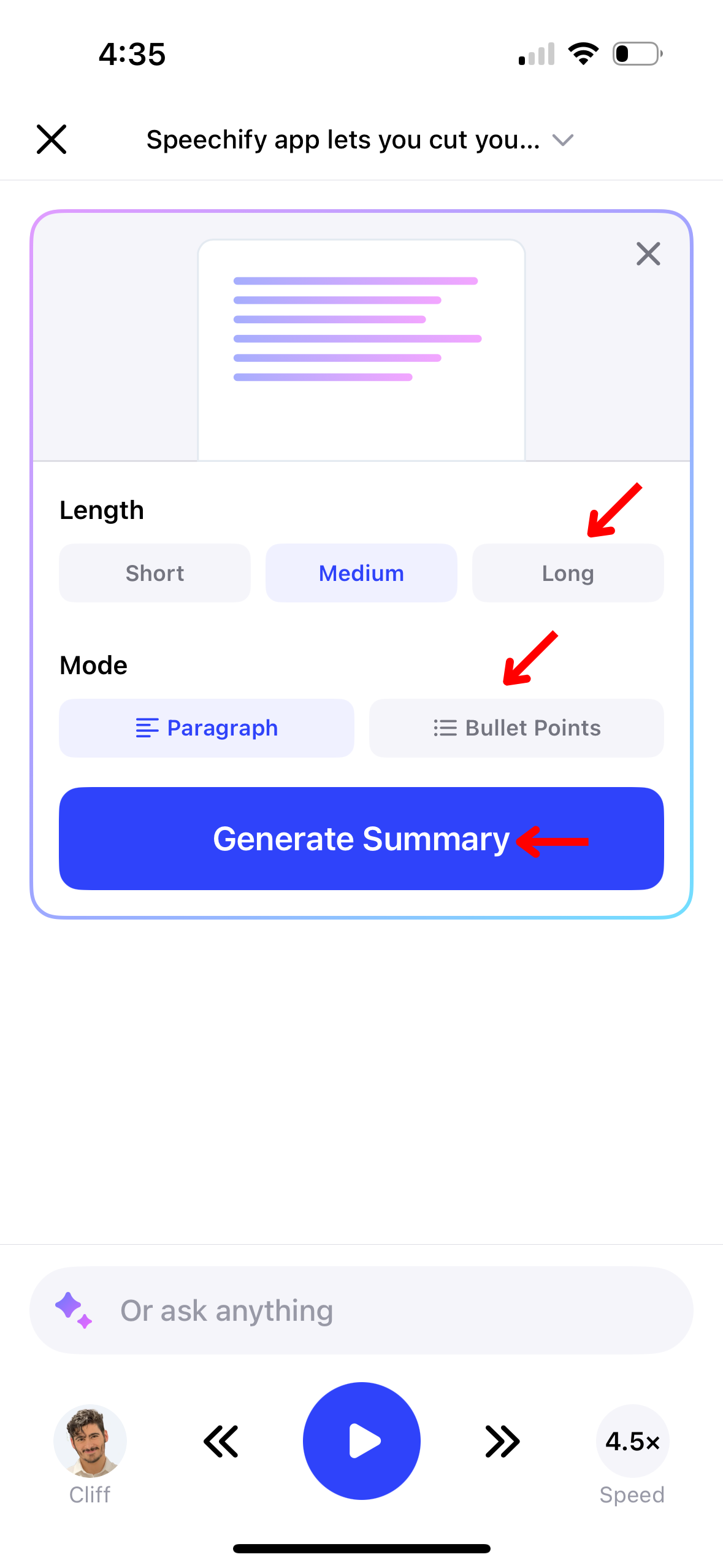
Οι περιλήψεις AI στο Speechify σας βοηθούν να πιάσετε γρήγορα τα βασικά σημεία μεγάλων εγγράφων. Δείτε πώς να τις ενεργοποιήσετε:
- Πατήστε το εικονίδιο AI στη δεξιά πάνω γραμμή εργαλείων.
- Πατήστε «Περίληψη Κειμένου».
- Διαλέξτε αν θέλετε την περίληψη σε μορφή παραγράφου ή bullet points.
- Επιλέξτε ποιες σελίδες να συνοψιστούν.
- Δημιουργήστε την περίληψη.
Πώς να χρησιμοποιήσετε το AI Quiz στην εφαρμογή Speechify iOS
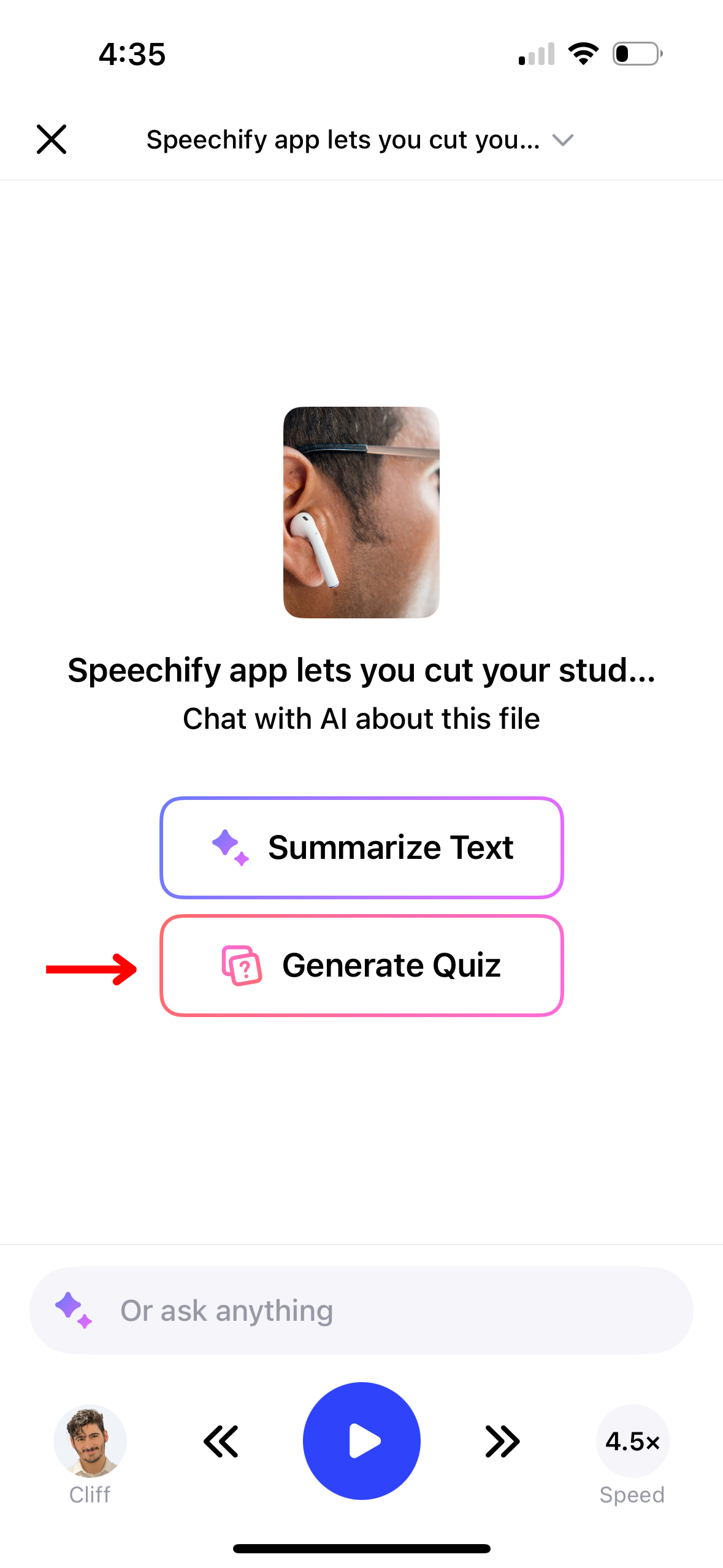
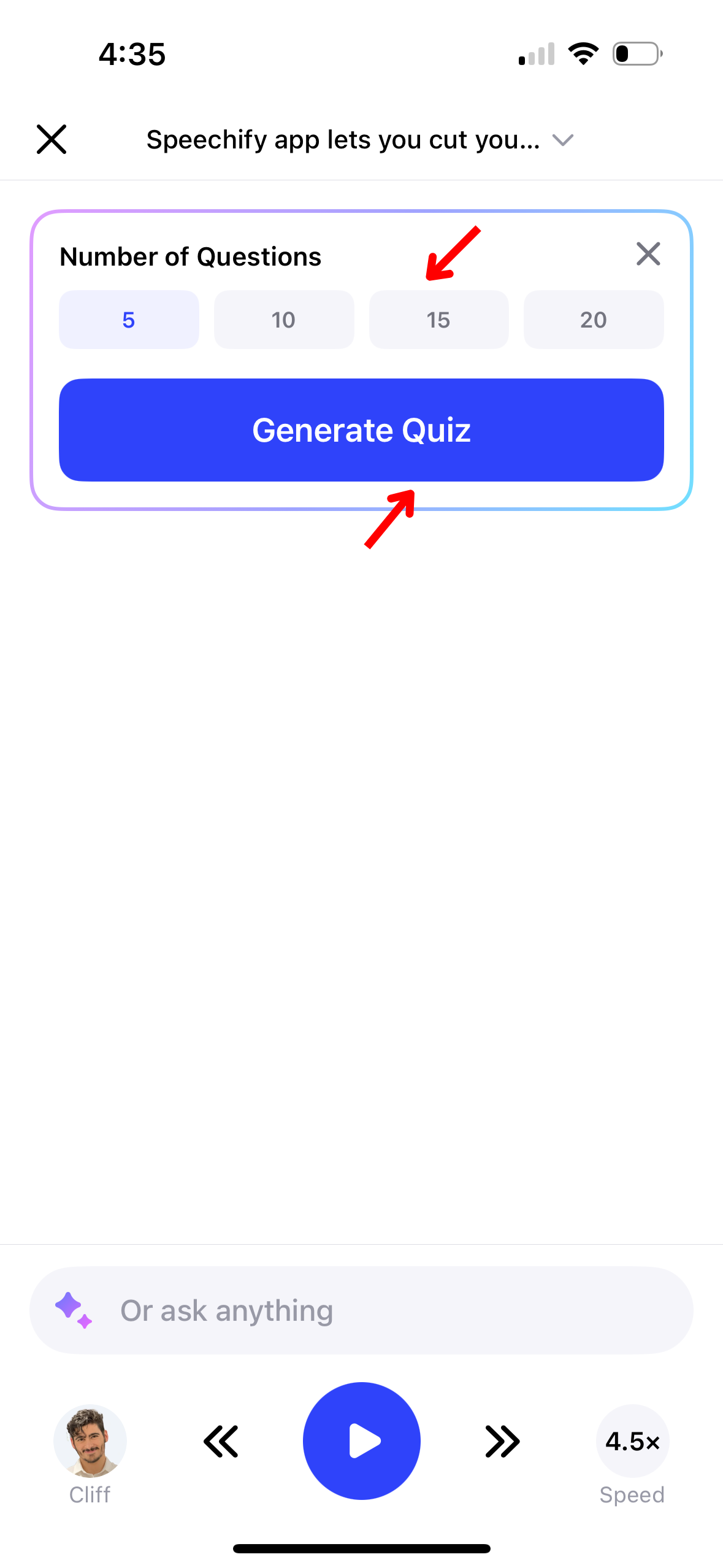
Βελτιώστε τη μάθηση και την απομνημόνευση δημιουργώντας κουίζ με AI στο Speechify. Για να φτιάξετε κουίζ, ακολουθήστε τα εξής:
- Πατήστε το εικονίδιο AI στη δεξιά πάνω γραμμή εργαλείων.
- Πατήστε «Δημιουργία Κουίζ».
- Επιλέξτε αν το κουίζ θα βασίζεται σε όλες ή σε επιλεγμένες σελίδες.
- Διαλέξτε κουίζ με 5, 10, 15 ή 20 ερωτήσεις.
- Επιλέξτε ποιες σελίδες θα χρησιμοποιηθούν.
- Δημιουργήστε το κουίζ.
Πώς να ενεργοποιήσετε το Dark Mode στην εφαρμογή Speechify iOS
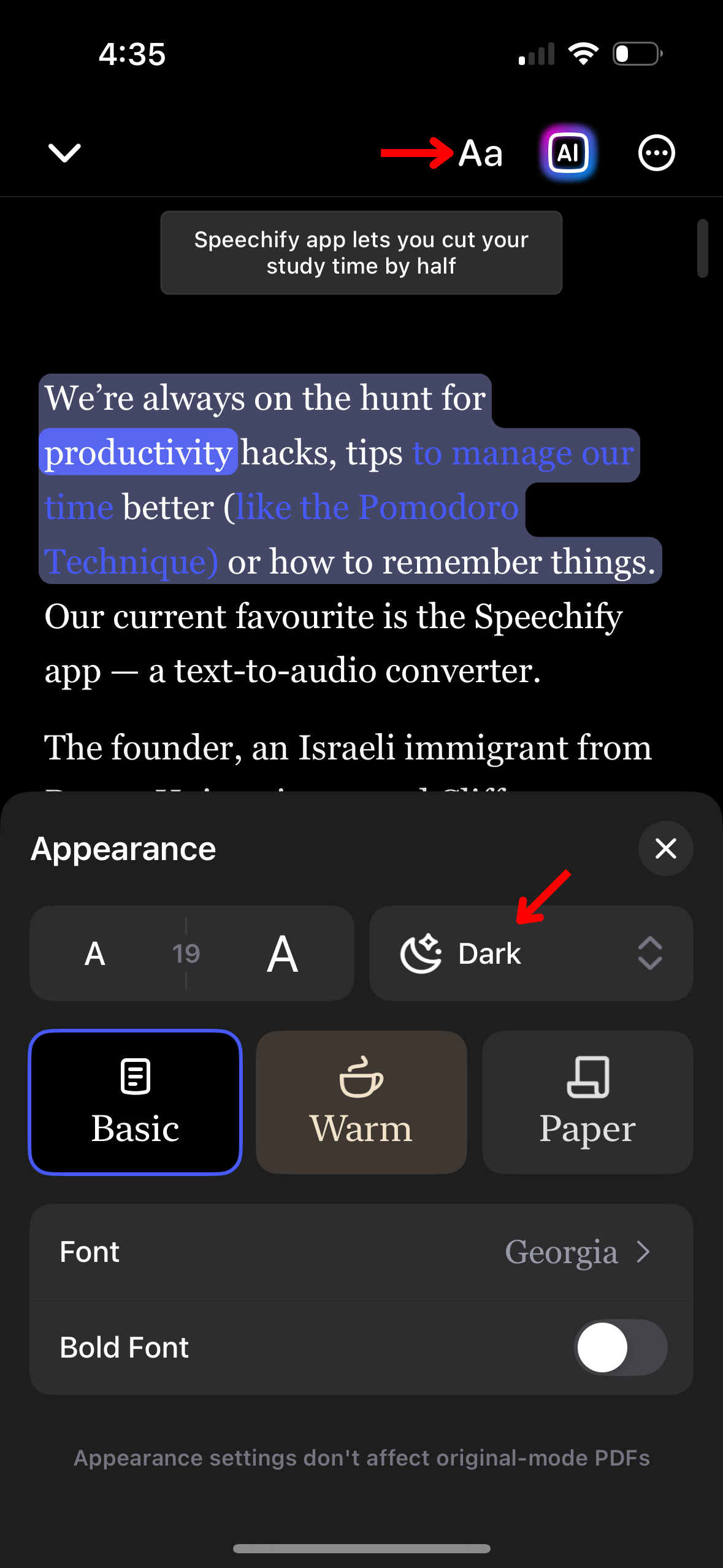
Μειώστε την κόπωση των ματιών σε χαμηλό φωτισμό με dark mode στο Speechify. Δείτε πώς να το ενεργοποιήσετε:
- Πατήστε Aa στη γραμμή εργαλείων πάνω δεξιά.
- Επιλέξτε «Dark».
Πώς να αλλάξετε εμφάνιση της εφαρμογής Speechify iOS
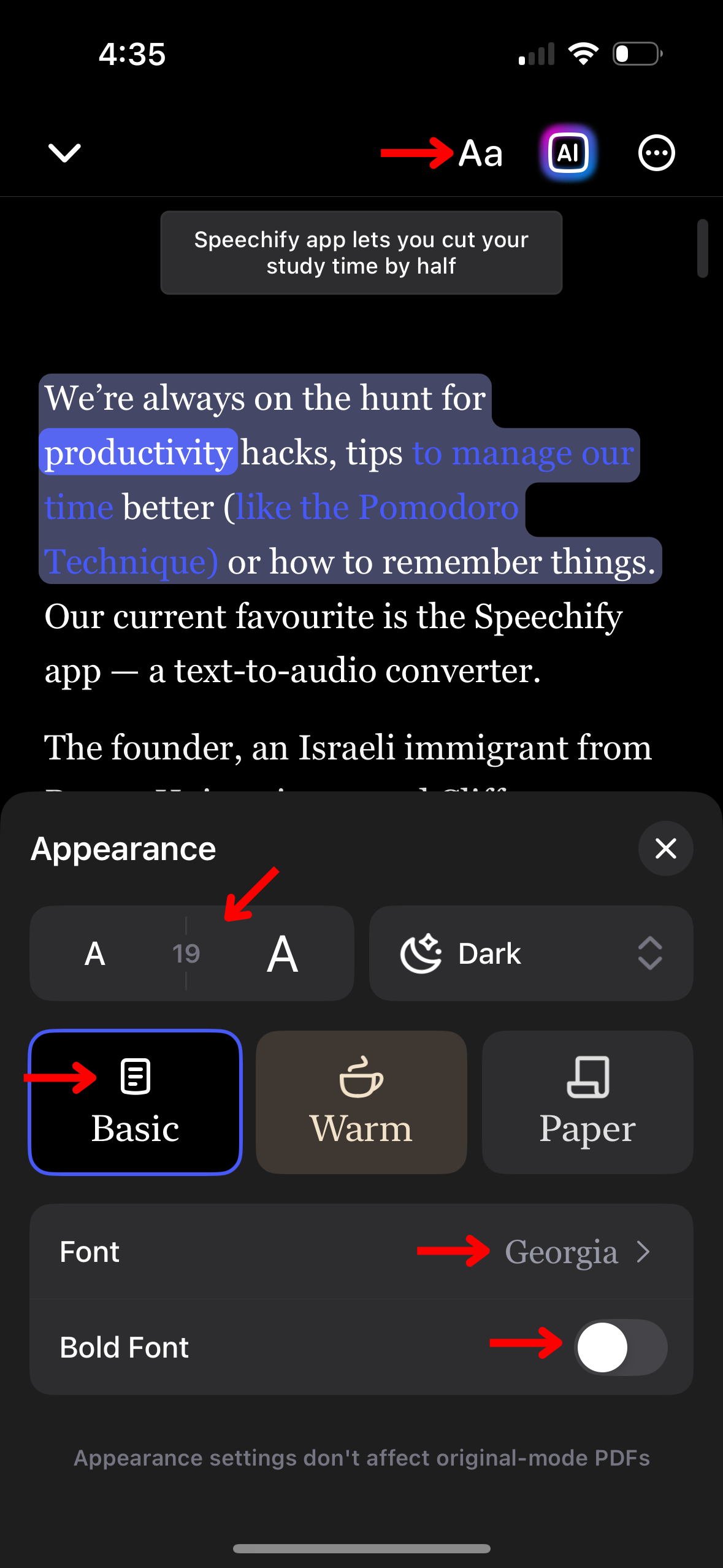
Φέρτε την εμφάνιση του Speechify στα μέτρα σας. Αλλάξτε θέμα, μέγεθος γραμματοσειράς και χρώμα για καλύτερη εμπειρία:
- Πατήστε Aa στη γραμμή εργαλείων πάνω δεξιά.
- Αλλάξτε το μέγεθος γραμματοσειράς τροποποιώντας τον αριθμό ανάμεσα στα δύο Α.
- Επιλέξτε Basic, Warm ή Paper για αλλαγή φόντου.
- Αλλάξτε γραμματοσειρά από το πεδίο «Γραμματοσειρά».
- Ενεργοποιήστε έντονη (Bold) γραμματοσειρά.
Πώς να παραλείψετε περιεχόμενο στην εφαρμογή Speechify iOS
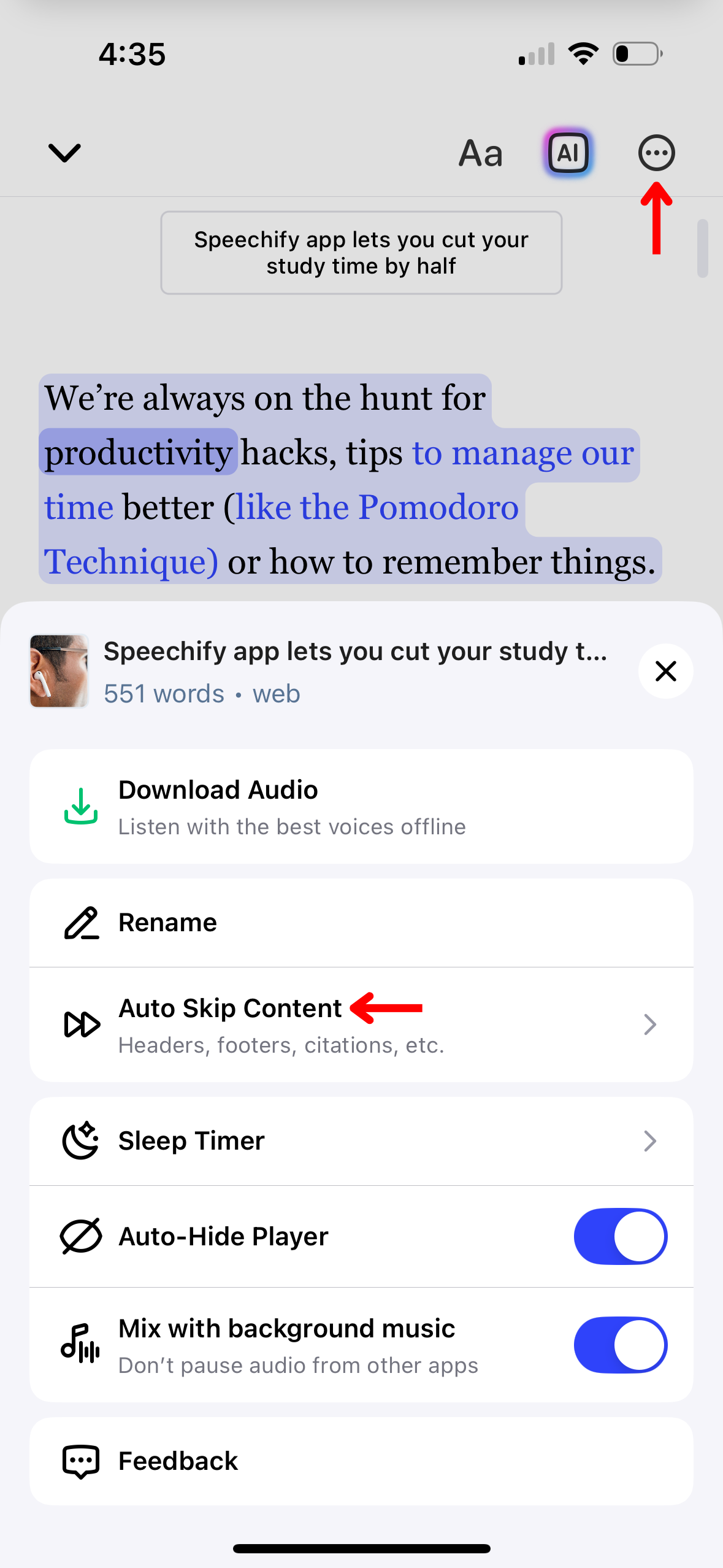
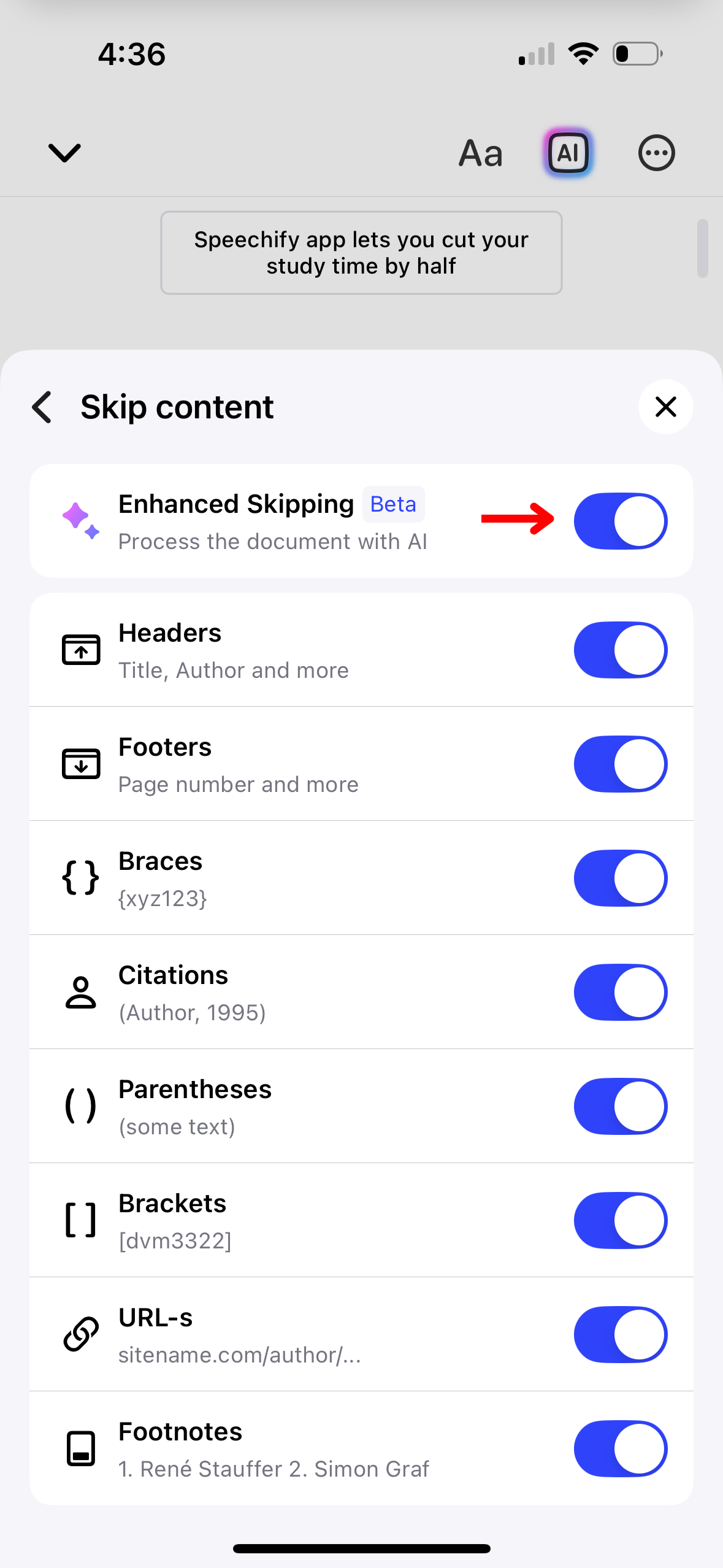
Αποφύγετε κεφαλίδες, υποσέλιδα και άλλα περιττά τμήματα για πιο γρήγορη ακρόαση στο Speechify. Ρυθμίστε το με τα παρακάτω βήματα:
- Πατήστε τις 3 τελείες πάνω δεξιά στην οθόνη.
- Ενεργοποιήστε τη «Βελτιωμένη Παράλειψη» για αυτόματο skip ή επιλέξτε από τα παρακάτω:
- Κεφαλίδες
- Υποσέλιδα
- Υποσημειώσεις
- Αγκύλες
- Παραπομπές
- Παρενθέσεις
- Συνδετικές αγκύλες
- URLS
Πώς να χρησιμοποιήσετε το Sleep Timer στην εφαρμογή Speechify iOS
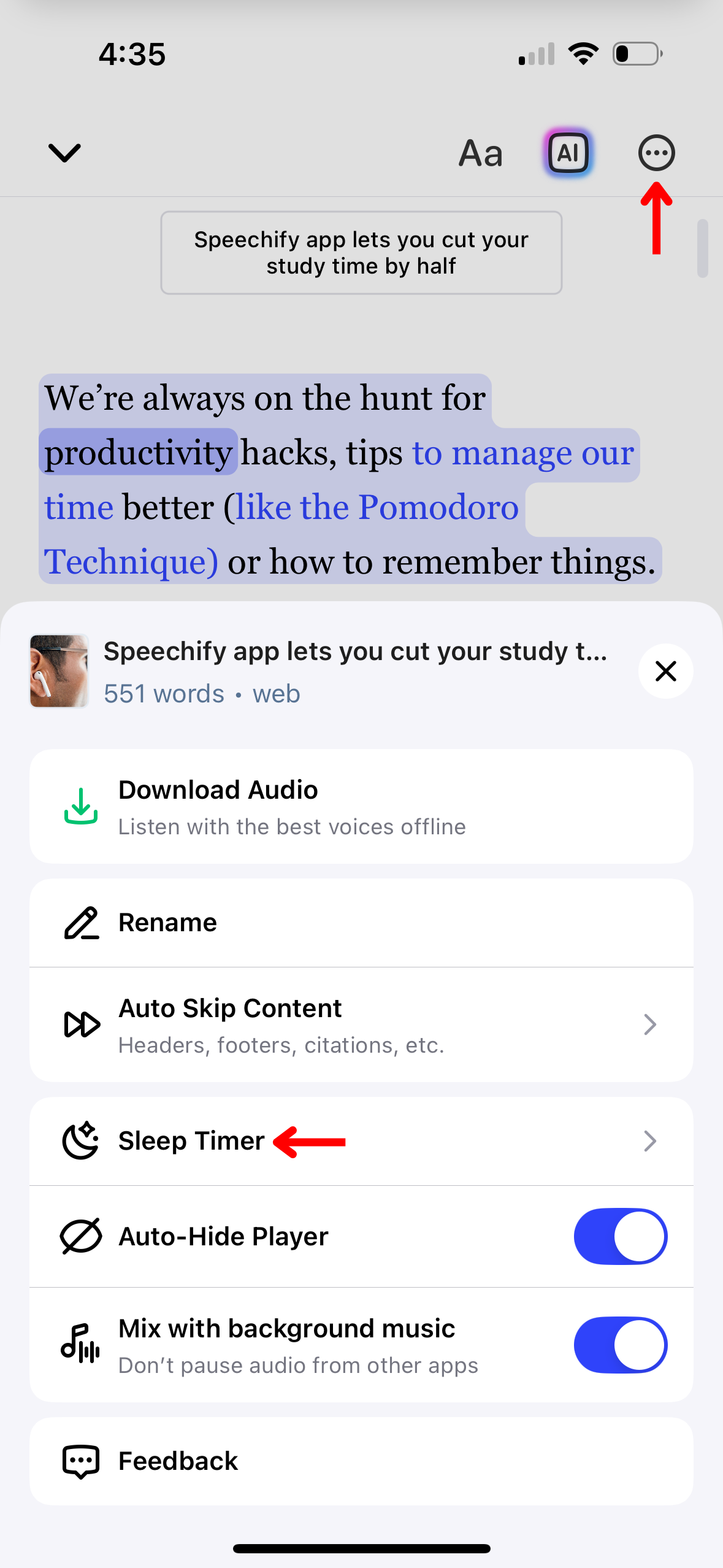
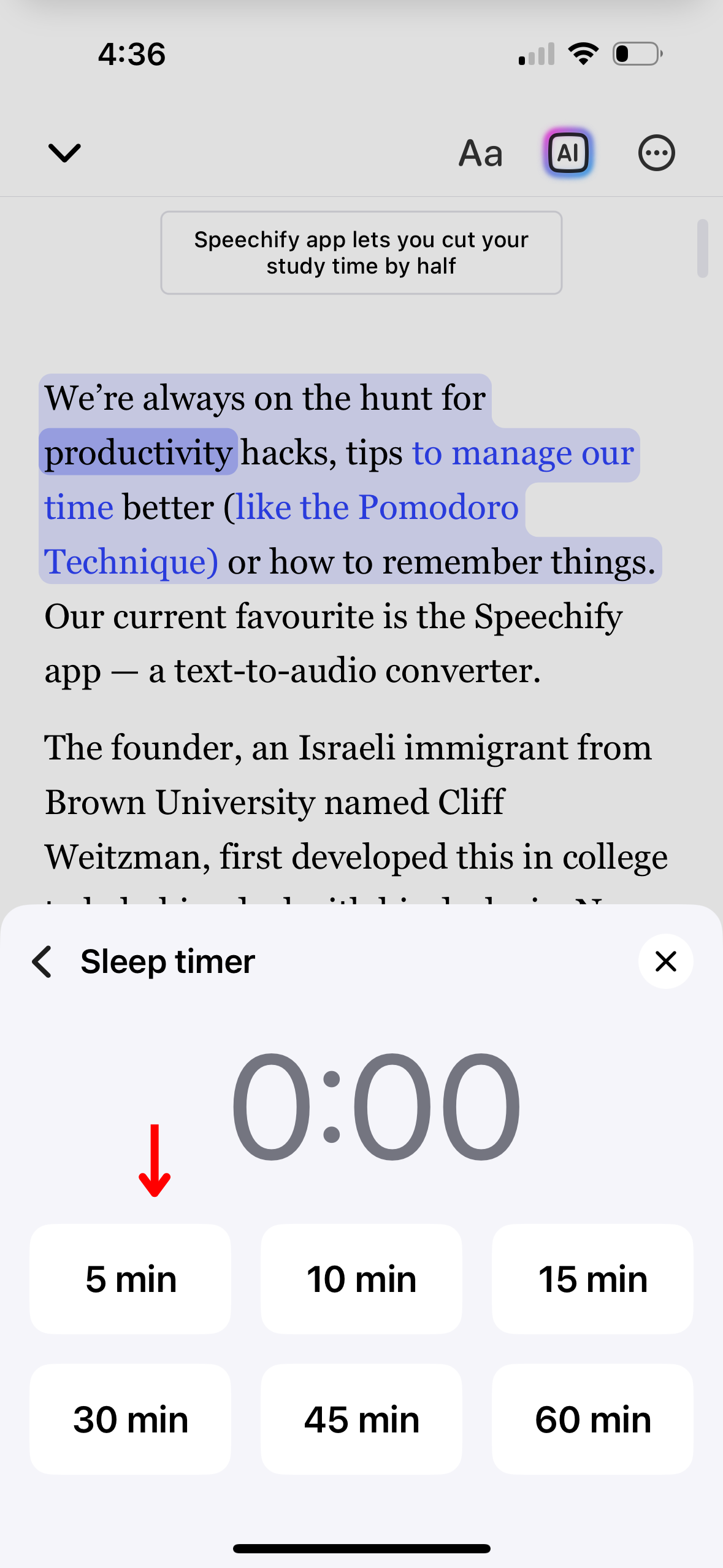
Ορίστε χρονοδιακόπτη ύπνου στο Speechify για να σταματά αυτόματα η αναπαραγωγή όταν σας παίρνει ο ύπνος. Ακολουθήστε τα παρακάτω βήματα:
- Πατήστε τις 3 τελείες πάνω δεξιά.
- Επιλέξτε «Χρονοδιακόπτης ύπνου».
- Ορίστε το χρονόμετρο στα 5, 10, 15, 30, 45 ή 60 λεπτά.
Πώς να ακούτε με μουσική υπόκρουση στην εφαρμογή Speechify iOS
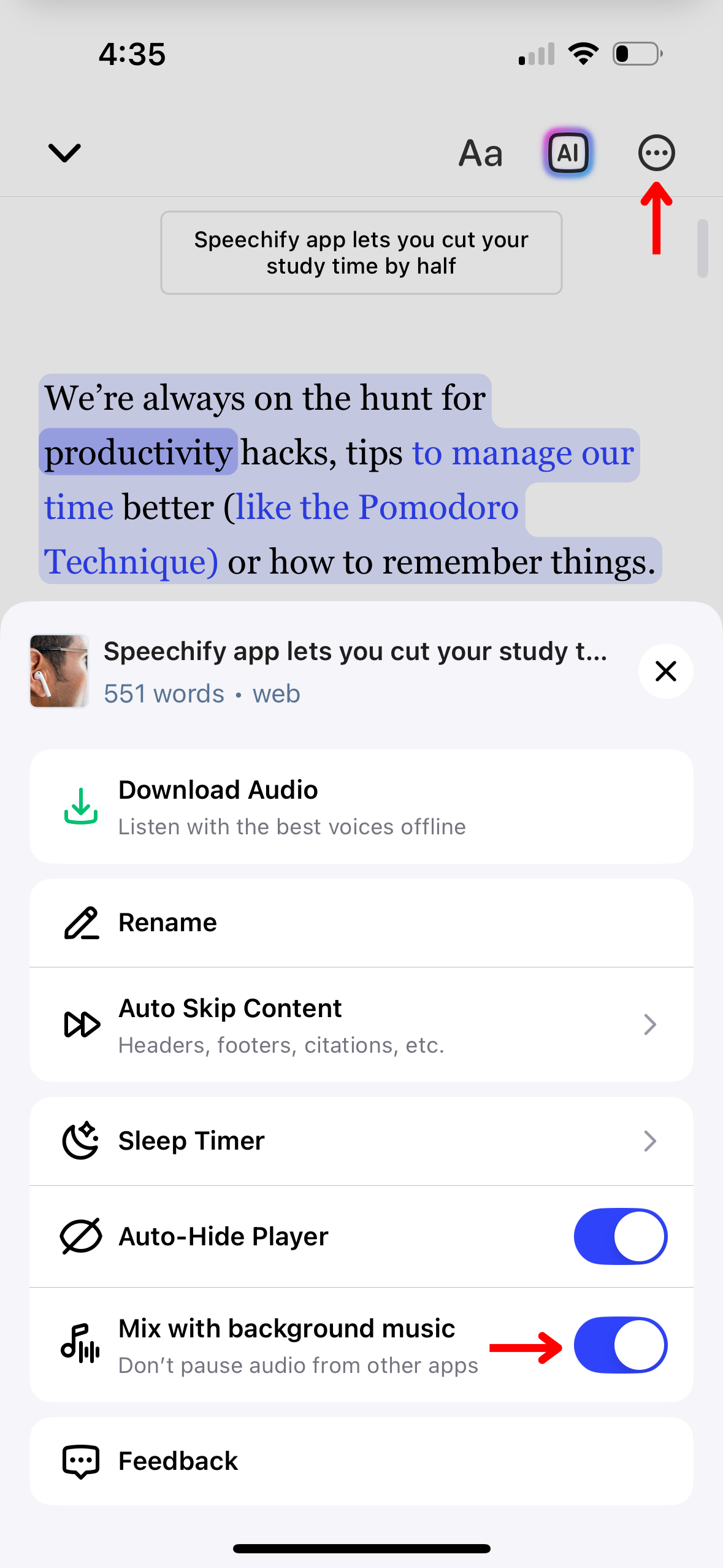
Συνεχίστε να ακούτε μουσική παράλληλα με το Speechify, χωρίς να διακόπτεται. Δείτε πώς να το ρυθμίσετε:
- Πατήστε τις 3 τελείες πάνω δεξιά.
- Ενεργοποιήστε την επιλογή «Ανάμειξη με μουσική υπόκρουση».
Πώς να έχετε υποστήριξη στην εφαρμογή Speechify iOS
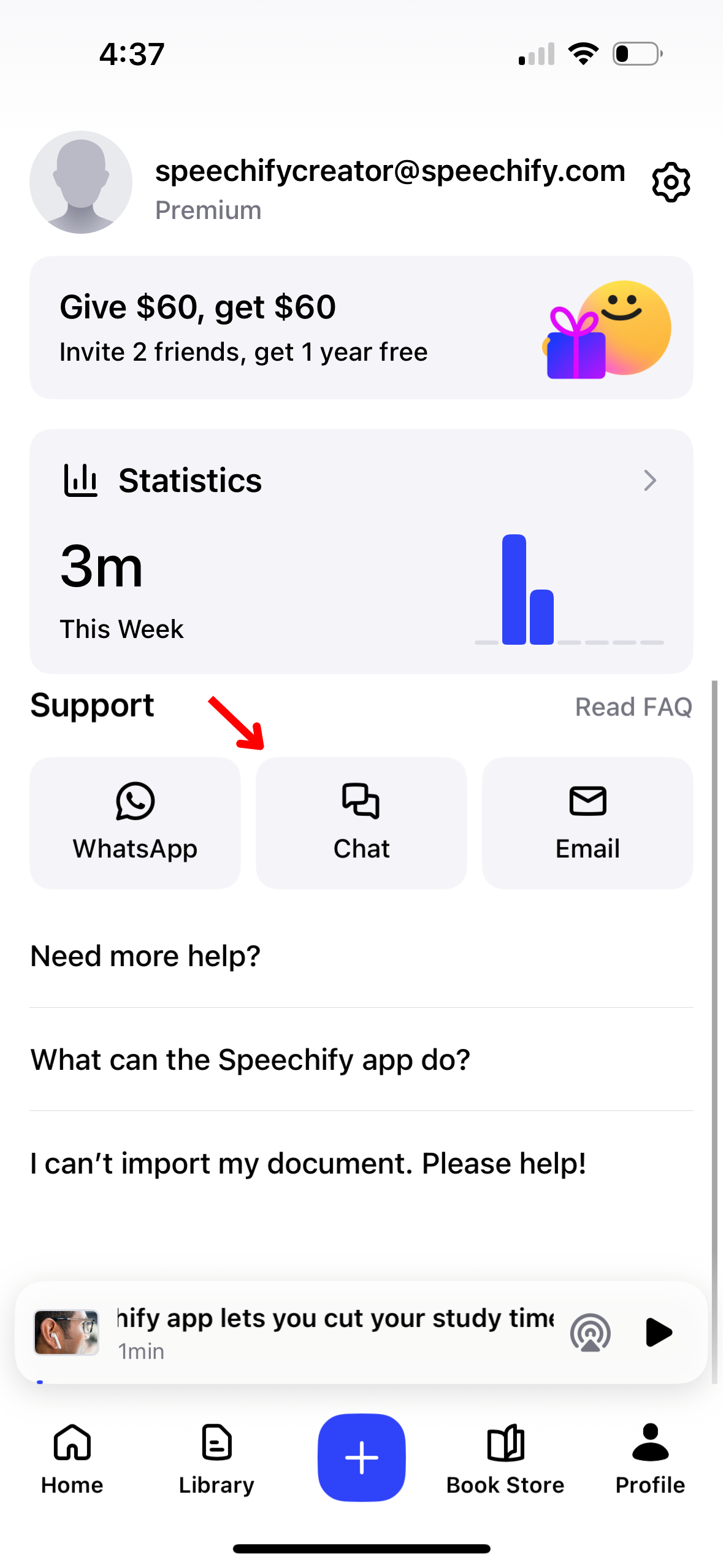
Για βοήθεια με το Speechify, επικοινωνήστε με την ομάδα υποστήριξης ή επισκεφθείτε το Κέντρο Βοήθειας. Δείτε πώς:
- Επιλέξτε το προφίλ κάτω δεξιά.
- Στην κατηγορία «Υποστήριξη», επιλέξτε WhatsApp, Chat ή Email.




