



PDF failai plačiai naudojami kaip populiarus skaitmeninių dokumentų formatas, tačiau daugelis vartotojų nežino apie integruotas tekstą į kalbą (TTS) priemones, galinčias juos skaityti garsiai. Šiame straipsnyje aptariama, kodėl verta klausytis PDF, apžvelgiamos TTS funkcijos įvairiuose įrenginiuose ir paaiškinama, kodėl Speechify yra geriausias sprendimas, kai norite bet kurį PDF paversti patrauklia audio versija.
PDF garsinimo privalumai
Nuolat tobulėjant skaitmeninėms technologijoms, keičiasi ir tai, kaip vartojame informaciją. Vienas didžiausių patobulinimų – galimybė PDF tekstą girdėti garsiai. Toks pateikimas atitinka skirtingus mokymosi stilius ir leidžia lengviau pasiekti turinį. PDF garsinimo privalumai:
- Prieinamumas turintiems negalią: TTS padeda regos sutrikimų ar disleksijos turintiems asmenims lengvai pasiekti PDF dokumentus.
- Daugiafunkciškumas: Galite klausytis PDF ir tuo pat metu atlikti kitus darbus.
- Mokymosi tipas: Klausant informaciją, ją dažnai lengviau suprasti ir įsiminti.
- Kalbų mokymasis: Nekalbantys angliškai gali lavinti tarimą per garsinį skaitymą.
Kaip garsinti PDF
Nesvarbu, ar turite regos sutrikimų, ar norite „skaityti“ užsiimdami kitais darbais, ar tiesiog mėgstate mokytis klausydamiesi, garsinis PDF skaitymas bus labai naudingas. Štai būdai, kaip bet kurį PDF galite perskaityti garsiai:
1 būdas: Kaip PDF garsinti naudojant integruotą TTS nemokamai
Naudojatės Windows, Mac, ChromeOS, iPhone ar Android – tekstą galite perskaityti garsiai be didelių pastangų. Tačiau TTS galimybės priklauso nuo įrenginio ar platformos. Vadovaukitės šiomis instrukcijomis ir lengvai įjunkite TTS savo įrenginyje, kad PDF būtų skaitomas garsiai.
Kaip naudoti Windows integruotą TTS PDF garsinimui
Windows – viena populiariausių operacinių sistemų pasaulyje, garsėjanti lankstumu ir patogumu. Vienas iš svarbiausių prieigos įrankių – integruota tekstą į kalbą (TTS) funkcija, leidžianti skaityti tekstą garsiai. Štai kaip ją įjungti ir naudoti savo Windows įrenginyje.
- Atverkite TTS nustatymus:
- Paspauskite 'Start' mygtuką arba Windows klavišą.
- Eikite į 'Settings' (krumpliaračio ikona).
- Pasirinkite 'Ease of Access'.
- Kairėje pasirinkite 'Speech'.
- Įjunkite TTS:
- Įjunkite 'Narrator' jungiklį.
- Pritaikykite balsą ir greitį:
- Skiltyje 'Choose a voice' išsirinkite balsą.
- Reguliuokite greitį su slankikliu.
- Naudokite TTS:
- Pažymėkite tekstą, kurį norite išgirsti garsiai.
- Paspauskite 'Ctrl + Win + Enter', kad įjungtumėte Narrator.
Kaip naudoti Mac integruotą TTS PDF garsinimui
Apple Mac kompiuteriai vertinami dėl išvaizdos ir patogumo. Apie jų prieinamumą liudija ir įdiegtas tekstą į kalbą sprendimas, leidžiantis PDF tekstą klausyti garsiai. Toliau – žingsniai, kaip aktyvuoti ir išnaudoti šią funkciją savo Mac.
- Atverkite TTS nustatymus:
- Paspauskite Apple meniu viršuje kairėje.
- Rinkitės 'System Preferences'.
- Eikite į 'Accessibility'.
- 'Vision' grupėje pasirinkite 'Speech'.
- Įjunkite TTS:
- Pažymėkite 'Speak selected text when the key is pressed'.
- Pritaikykite balsą ir greitį:
- Pasirinkite balsą iš 'System Voice' sąrašo.
- Reguliuokite greitį slankikliu.
- Naudokite TTS:
- Pažymėkite tekstą, kurį norite išgirsti garsiai.
- TTS paleiskite numatytu klavišų deriniu (dažniausiai 'Option + Esc').
Kaip naudoti ChromeOS integruotą TTS PDF garsinimui
ChromeOS, Chromebookų operacinė sistema, išsiskiria debesijos sprendimais ir paprastumu. Viena pagrindinių jos prieigos funkcijų – integruotas tekstas į kalbą (TTS), leidžiantis garsiai skaityti turinį. Štai kaip pasinaudoti šia funkcija ChromeOS.
- Atverkite TTS nustatymus:
- Spustelėkite paskyros nuotraukos sritį.
- Eikite į 'Settings'.
- 'Advanced' skiltyje pasirinkite 'Accessibility'.
- Pasirinkite 'Manage accessibility features'.
- Įjunkite TTS:
- Įjunkite 'Enable ChromeVox' – ekrano skaitytuvą.
- Naudokite TTS:
- Naršant puslapius ar dokumentus, ChromeVox skaitys tekstą garsiai.
Kaip naudoti iPhone integruotą TTS PDF garsinimui
Apple iPhone pasižymi gausiomis prieigos funkcijomis. Integruotas tekstą į kalbą įrankis „Speak Selection“ leidžia tekstą perskaityti garsiai vienu veiksmu. Sužinokite, kaip aktyvuoti šią naudingą funkciją savo iPhone.
- Atverkite TTS nustatymus:
- Atidarykite 'Settings'.
- Raskite 'Accessibility'.
- 'Vision' grupėje spustelėkite 'Spoken Content'.
- Įjunkite TTS:
- Įjunkite 'Speak Selection'.
- Pritaikykite balsą ir greitį:
- Spustelėkite 'Voices' ir pasirinkite balsą.
- Slankikliu nustatykite greitį.
- Naudokite TTS:
- Pažymėkite tekstą, kurį norite girdėti.
- Paspauskite atsirasiančią 'Speak'.
Kaip naudoti Android integruotą TTS PDF garsinimui
Android įrenginiai pasižymi įvairumu ir plačiomis prieigos funkcijomis. Viena jų – integruota tekstą į kalbą galimybė, leidžianti tekstą girdėti garsiai. Žemiau rasite instrukcijas, kaip ją įjungti.
- Atverkite TTS nustatymus:
- Atidarykite 'Settings'.
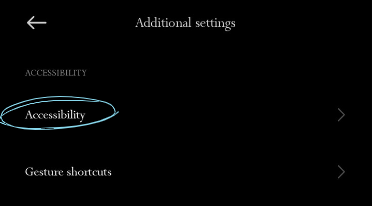
- Eikite į 'Accessibility'.
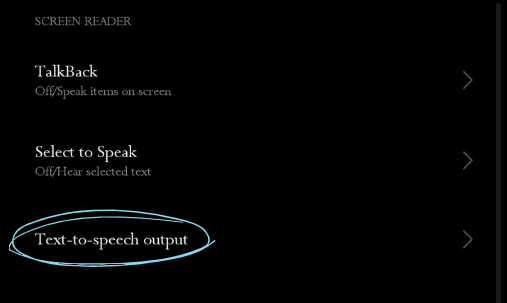
- Paspauskite 'Text to speech output'.
2. Pasirinkite TTS sistemą:
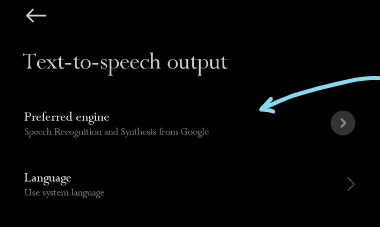
- Galite pasirinkti pageidaujamą sistemą, pavyzdžiui, 'Google Text to speech Engine'.
3. Pritaikykite balsą ir greitį:
- Nustatykite 'Speech rate' ir 'Pitch' pagal poreikį.
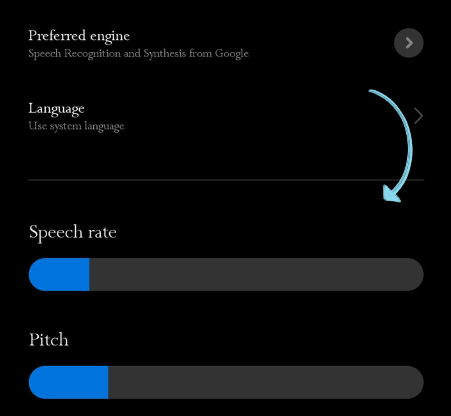
4. Pasirinkite balso rinkinį spustelėję 'Voice'.
5. Naudokite TTS:
- Priklausomai nuo įrenginio ar programos, gali būti tiesioginė 'Speak' funkcija pažymėjus tekstą. Kitu atveju TTS veikia specialiose programose, pvz., Google Play Books, kur galima garsiai skaityti knygas.
2 būdas: Kaip garsinti PDF su Adobe Acrobat Reader
Adobe Acrobat Reader, PDF valdymo pionierius, siūlo daugiau nei paprastą PDF peržiūrą kaip Adobe Reader. Tarp įvairių patogių funkcijų – ir integruota PDF garsinio skaitymo galimybė. Štai kaip pereiti nuo įprasto skaitymo prie audioversijos su Adobe Acrobat Reader.
- Atidarykite PDF naudodami Adobe Acrobat Reader.
- Pasirinkite meniu viršuje kairėje 'View'.
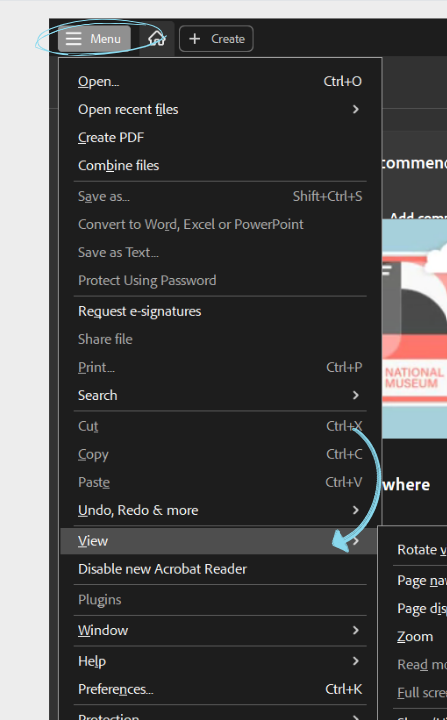
- Užveskite pelę ant 'Read Out Loud' ir spauskite 'Activate Read Out Loud'.
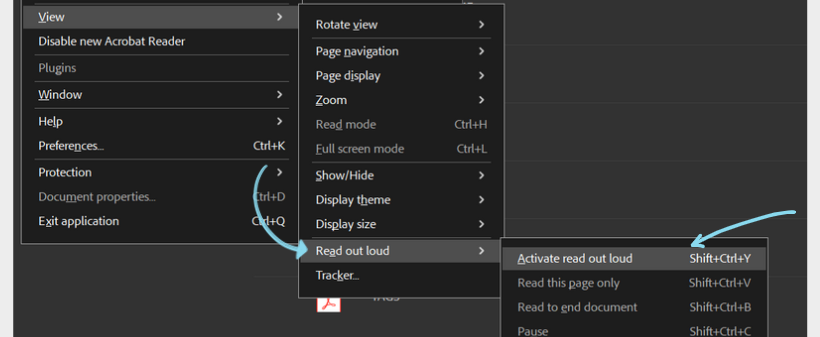
- Pasirinkite, ar norite skaityti tik šį puslapį, ar visą dokumentą.
- Rinkitės ‘Read to End of Document’ arba ‘Read This Page Only’.
3 būdas: Kaip garsiai skaityti PDF su Speechify
Ieškote tikroviškų balsų, kurie garsiai skaitytų PDF? Rinkitės Speechify! Su Speechify PDF galite paversti audio failais, kurių garsas prilygsta žmonių kalbai, o paprastas valdymas ir daugybė priedų užtikrina puikią patirtį. Štai kaip naudotis Speechify.
- Parsisiųskite ir įdiekite: mobiliuosiuose įrenginiuose eikite į App Store (iOS) arba Google Play (Android) ir parsisiųskite Speechify programėlę. Kompiuteryje – apsilankykite Speechify svetainėje arba įdiekite Speechify Chrome plėtinį.
- Atidarykite PDF: Atidarykite norimą PDF su Speechify.
- Pasirinkite tekstą: Pažymėkite norimą garsiai skaityti tekstą.
- Aktyvuokite Speechify: dešiniuoju klavišu spauskite pažymėtą tekstą ir iš meniu rinkitės Speechify.
- Klausykitės: Speechify pradės skaityti pasirinktą tekstą natūraliu balsu.
- Pritaikykite: su voiceover nustatymais keiskite skaitymo greitį, balso tipą ir kitus parametrus.
Kodėl verta rinktis Speechify PDF skaitymui garsiai
Speechify yra puikus pasirinkimas PDF garsiniam skaitymui dėl kelių svarbių priežasčių:
Daugiaplatformės prieigos galimybės
Speechify veikia iOS, Android, Google Play, Apple App Store, macOS ir Windows, todėl TTS galite naudotis visur ir visada.
Natūralūs AI balsai
Skirtingai nei kai kurios robotizuotos TTS sistemos, Speechify siūlo daugiau nei 200 natūralių tekstą į kalbą AI balsų įvairiomis kalbomis ir akcentais.
Paprasčiausias valdymas
Speechify turi intuityvią sąsają – patogu ir pradedantiesiems, ir pažengusiems vartotojams.
Daugiakalbystė
Speechify palaiko daugelį kalbų, įskaitant kinų, rusų, ukrainiečių, ispanų ir kt., todėl ją naudoja žmonės visame pasaulyje.
Reguliuojami nustatymai
Naudokite įvairias funkcijas: keiskite skaitymo greitį, AI balsų pasirinkimą, žymeklius tęsimui ir kt.
Palaiko visus formatus
Speechify skaitymas garsiai galimas ne tik su PDF – ji skaito ir PowerPoint, svetainių, Google Drive, EPUB, Word dokumentus ir kt.
Teksto garsinimas keliaujant
Naudodami mobiliąsias Speechify programėles PDF galite konvertuoti ir klausyti bet kur – iPhone, iPad ar Android įrenginyje.
OCR skenavimas
Speechify OCR (Optical Character Recognition) funkcija leidžia konvertuoti tekstą ir vaizdus į skaitmeninius, skaitomus failus – ir PDF taip pat.
Speechify – išbandykite #1 PDF skaitytuvą
Speechify – pirmas pasirinkimas ieškantiems modernios PDF skaityklės. Ji ne tik skaito tekstą garsiai naudodama išmaniuosius balsus, bet ir suteikia OCR funkciją. Skaitykite mokslinius straipsnius, verslo ataskaitas ar kitus dokumentus su natūraliu AI balsu, daugiakalbe ir patogia sąsaja. Net ir skenuoti tekstai nepasislėps – išbandykite Speechify nemokamai.
Dažniausiai užduodami klausimai
Rinkoje daug TTS programų, pvz., NaturalReader, bet Speechify siūlo natūraliausius AI balsus PDF garsinimui.
Naudokite Speechify – jis PDF pavers garsiniais audio failais.
Norėdami, kad iPhone skaitytų garsiai, įjungę „Speak Screen“ braukite dviem pirštais žemyn nuo ekrano viršaus.
Su Speechify galite garsinti bet kurį PDF.
Snoop Dogg ir Gwyneth Paltrow yra oficialūs ir išskirtiniai balsai, o ateityje laukia dar daugiau įžymybių balsų.
Mūsų aukštos kokybės AI balsai gali skaityti iki 9 kartų greičiau nei vidutinis žmogaus skaitymo greitis, todėl galite išmokti dar daugiau per trumpesnį laiką. Klausytis 900 žodžių per minutę nėra lengva, bet kas mes tokie, kad ribotume jūsų galimybes? Daugelis kitų teksto į garsą skaitytuvų gali skaityti taip pat greitai. Išbandykite mus jau šiandien: pradėkite nuo 380 žodžių per minutę, treniruokite ausis greitesniam klausymui ir pamažu didinkite greitį tiek, kiek jums reikia.
Viskas, ką išsaugote savo Speechify bibliotekoje, akimirksniu sinchronizuojama visuose įrenginiuose, todėl galite klausytis bet ko, bet kur ir bet kada.
Mūsų skaitymo balsai skamba natūraliau ir žmogiškiau nei bet kuris kitas AI skaitytuvas, todėl galite lengviau suprasti ir geriau įsiminti informaciją.
Mėgaukitės aukštos kokybės kalbėjimu daugiau nei 30 kalbų, siūlančių platų balsų pasirinkimą. Tarp siūlomų kalbų – arabų, kinų, čekų, danų, olandų, anglų, suomių, prancūzų, vokiečių, graikų, hebrajų, hindi, vengrų, indoneziečių, italų, japonų, korėjiečių, norvegų bokmål, lenkų, portugalų, rumunų, rusų, slovakų, ispanų, švedų, tailandiečių, turkų ir ukrainiečių.
Naudodamiesi mūsų nemokamu teksto į kalbą konverteriu internete galite rašyti, įklijuoti ar net įkelti failą ir akimirksniu paversti jį garsu. Vėliau šį įrašą galite parsisiųsti kaip garso failą ir naudoti kaip įgarsinimą ar kitoms reikmėms. Su Speechify premium prenumerata galite naudotis HD balsais ir net oficialiais įžymybių balsais, tokiais kaip Snoop Dog ir Gwyneth Paltrow.
Turite didelį dokumentą, kurį reikia paversti kalba? Jokių problemų. Tiesiog įkelkite jį į mūsų teksto į kalbą programėlę internete ir po kelių sekundžių jis bus paverstas garsu. Išbandykite demonstracinę versiją jau dabar!



