



PDF-ovi su popularan format za dijeljenje digitalnih dokumenata, ali mnogi ne znaju za alate za pretvaranje teksta u govor (TTS) koji ih mogu pročitati naglas. Ovaj članak opisuje prednosti slušanja PDF-ova, prikazuje ugrađene TTS opcije na raznim uređajima i objašnjava zašto je Speechify najbolji izbor za pretvaranje PDF-ova u zvuk.
Prednosti čitanja PDF-ova naglas
U današnjem digitalnom dobu način na koji konzumiramo sadržaj stalno se mijenja, a jedna od naprednih mogućnosti je čitanje PDF-ova naglas. Pretvaranje teksta u govor nudi dinamičan način pristupa informacijama, prilagođen raznim stilovima učenja i potrebama pristupačnosti. Ključne prednosti čitanja PDF-ova naglas su:
- Pristupačnost za osobe s invaliditetom: TTS pomaže osobama s oštećenjem vida ili disleksijom da lakše pristupe PDF dokumentima.
- Multitasking: Korisnici mogu slušati tekst dok obavljaju druge zadatke.
- Stil učenja: Osobe koje uče slušanjem bolje pamte sadržaj kad ga čuju.
- Učenje jezika: Osobe kojima engleski nije materinji jezik mogu vježbati izgovor.
Kako čitati PDF-ove naglas
Bilo da slabije vidite, želite multitaskati ili jednostavno više volite slušati, čitanje PDF-ova naglas može biti vrlo korisno. Evo najboljih načina kako omogućiti čitanje bilo kojeg PDF-a naglas:
Opcija 1: Kako besplatno čitati PDF-ove naglas pomoću ugrađene TTS opcije
Na Windowsu, Macu, ChromeOS-u, iPhoneu ili Androidu lako možete omogućiti čitanje teksta naglas. No, ugrađene TTS mogućnosti razlikuju se ovisno o uređaju. Pomoću ovih vodiča brzo uključite TTS na željenoj platformi i poslušajte PDF tekst naglas.
Kako koristiti ugrađeni TTS na Windowsu za čitanje PDF-ova naglas
Windows je jedan od najkorištenijih operativnih sustava i nudi brojne alate za pristupačnost, uključujući ugrađenu funkciju čitanja naglas. U ovom vodiču saznajte kako uključiti i koristiti TTS na svom Windows uređaju.
- Otvorite TTS postavke:
- Kliknite "Start" ili pritisnite Windows tipku.
- Odaberite "Settings" (ikona zupčanika).
- Idite na "Ease of Access".
- Izaberite "Speech" s lijevog izbornika.
- Uključite TTS:
- Uključite "Narrator" za aktivaciju.
- Prilagodite glas i brzinu:
- Odaberite glas pod "Choose a voice".
- Podesite brzinu čitanja klizačem.
- Koristite TTS:
- Označite tekst koji želite čuti.
- Pritisnite "Ctrl + Win + Enter" za pokretanje čitanja.
Kako koristiti ugrađeni TTS na Macu za čitanje PDF-ova naglas
Apple Mac poznat je po jednostavnosti korištenja. Dio pristupačnih opcija je integrirani TTS, koji omogućuje čitanje bilo kojeg teksta naglas. Slijedite korake u nastavku za aktivaciju i korištenje na Macu.
- Otvorite TTS postavke:
- Kliknite na Apple izbornik gore lijevo.
- Odaberite "System Preferences".
- Izaberite "Accessibility".
- U kategoriji "Vision" odaberite "Speech".
- Uključite TTS:
- Označite kućicu "Speak selected text when the key is pressed".
- Prilagodite glas i brzinu:
- Odaberite glas u "System Voice" izborniku.
- Podesite brzinu klizačem.
- Koristite TTS:
- Označite tekst koji želite čuti.
- Za početak čitanja koristite "Option + Esc".
Kako koristiti ugrađeni TTS na ChromeOS-u za čitanje PDF-ova naglas
ChromeOS na Chromebooku poznat je po jednostavnosti. Ugrađena TTS opcija omogućuje čitanje sadržaja naglas. Pratite korake za korištenje na ChromeOS-u.
- Otvorite TTS postavke:
- Kliknite na statusno područje gdje je slika računa.
- Odaberite "Settings".
- Pod "Advanced" izaberite "Accessibility".
- Kliknite "Manage accessibility features".
- Uključite TTS:
- Aktivirajte "Enable ChromeVox" (ugrađeni čitač ekrana).
- Koristite TTS:
- Dok pregledavate dokumente, ChromeVox će čitati tekst naglas.
Kako koristiti ugrađeni TTS na iPhoneu za čitanje PDF-ova naglas
Apple iPhone nudi svoju TTS opciju pod nazivom "Speak Selection" za čitanje teksta jednim pokretom prsta. Pogledajte kako je omogućiti i koristiti na svom iPhoneu.
- Otvorite TTS postavke:
- Otvorite "Settings".
- Idite na "Accessibility".
- Pod "Vision" odaberite "Spoken Content".
- Uključite TTS:
- Uključite "Speak Selection".
- Prilagodite glas i brzinu:
- Dodirnite "Voices" za izbor glasa.
- Podesite brzinu klizačem.
- Koristite TTS:
- Označite tekst za čitanje.
- Dodirnite opciju "Speak" koja se pojavi.
Kako koristiti ugrađeni TTS na Androidu za čitanje PDF-ova naglas
Android podržava široku paletu uređaja i ima ugrađeni TTS za pristupačnost. Evo kako ga uključiti i koristiti, korak po korak.
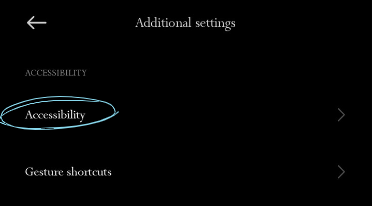
- Otvorite TTS postavke:
- Otvorite "Settings".
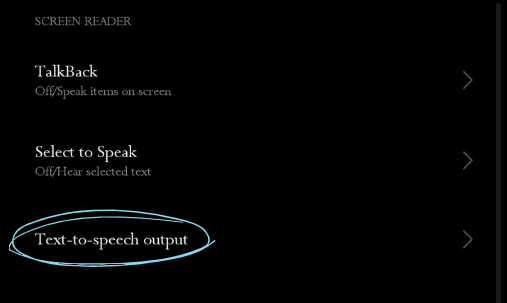
- Izaberite "Accessibility".
- Dotaknite "Text to speech output".
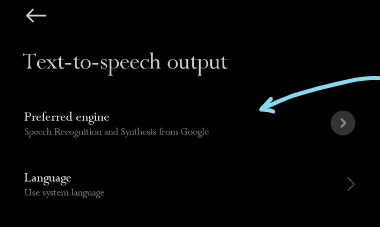
2. Izaberite TTS sustav:
- Možete odabrati željeni TTS motor, primjerice "Google Text to speech Engine".
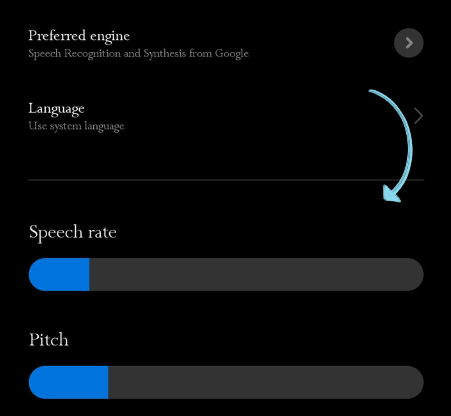
3. Prilagodite glas i brzinu:
- Dodirnite "Speech rate" i "Pitch" za podešavanje.
4. Izaberite skup glasova dodirom na "Voice".
5. Koristite TTS:
- Ovisno o uređaju i verziji, možda će se pojaviti opcija "Speak" kad označite tekst u nekim aplikacijama. Inače, TTS radi u određenim aplikacijama, kao što su Google Play Books, i čita knjige naglas.
Opcija 2: Kako čitati PDF naglas u Adobe Acrobat Readeru
Adobe Acrobat Reader, poznat PDF alat, nudi puno više od samog prikaza dokumenata. Ugrađena opcija može čitati sadržaj PDF-a naglas. Evo kako prijeći s vizualnog na slušni doživljaj u Adobe Readeru.
- Otvorite PDF u Adobe Acrobat Readeru.
- U gornjem lijevom izborniku kliknite "View".
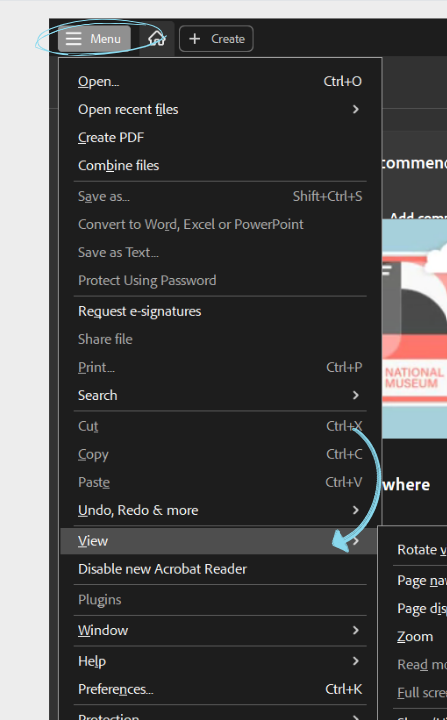
- Zadržite pokazivač iznad "Read Out Loud" i kliknite "Activate Read Out Loud".
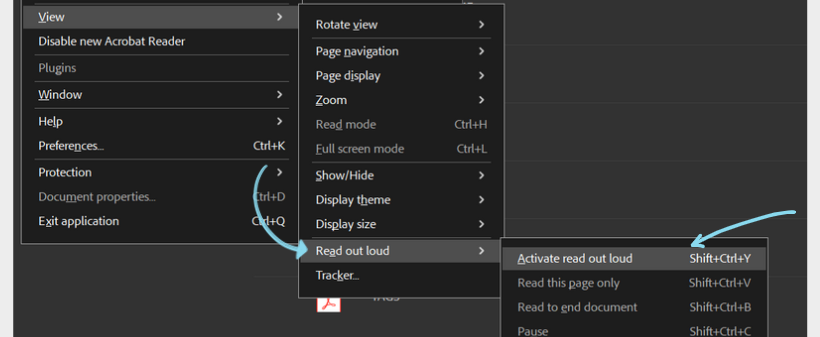
- Možete birati između čitanja trenutne stranice ili cijelog dokumenta.
- Odaberite "Read to End of Document" ili "Read This Page Only".
Opcija 3: Kako čitati PDF naglas sa Speechifyjem
Ako želite da PDF zvuči što prirodnije, Speechify je najbolji izbor. Omogućuje pretvorbu PDF-ova u zvuk koji zvuči realno, a sučelje i funkcije dodatno poboljšavaju iskustvo, zbog čega je mnogima favorit među TTS rješenjima. Evo kako Speechify radi.
- Preuzmite i instalirajte: Na mobitelu otvorite App Store (iOS) ili Google Play (Android) i preuzmite Speechify. Na računalu otvorite Speechify web ili instalirajte Chrome ekstenziju.
- Otvorite PDF: Odaberite PDF koji želite slušati.
- Označite tekst: Označite što želite da se pročita.
- Aktivirajte Speechify: Desnim klikom na označeni tekst otvorite izbornik i odaberite Speechify.
- Slušajte: Speechifyov čitač čitat će označeni tekst prirodnim glasom.
- Prilagodite: Podesite voiceover brzinu čitanja, glas i ostale opcije prema želji.
Zašto je Speechify najbolji izbor za čitanje PDF-a naglas
Speechify se izdvaja kao najbolji izbor za čitanje PDF-ova naglas zbog više ključnih razloga, kao što su:
Višestruka dostupnost
Speechify je dostupan na iOS-u, Androidu, Google Playu, Apple App Storeu, macOS-u i Windowsu, što omogućuje pristup dokumentima i TTS-u na raznim uređajima.
Prirodni AI glasovi
Za razliku od nekih robotskih TTS sustava, Speechify nudi 200+ kvalitetnih, prirodnih AI glasova na više jezika i naglasaka za ugodnije slušanje.
Jednostavno korištenje
Speechify ima intuitivno sučelje — pogodno i za početnike i za napredne korisnike.
Podrška za više jezika
Speechify podržava brojne jezike osim engleskog, uključujući kineski, ruski, ukrajinski, španjolski i druge, pa je prikladan za korisnike diljem svijeta.
Podesive postavke
S brojnim TTS opcijama možete prilagoditi brzinu čitanja i AI glas te označiti gdje stati i nastaviti kasnije.
Podržava sve formate
Speechify se ne ograničava samo na PDF. Može čitati bilo koji tekst — uključujući PowerPoint prezentacije, web stranice, Google Drive, EPUB knjige, Word dokumente i još mnogo toga.
Čitanje u pokretu
Mobilne aplikacije Speechifyja omogućuju slušanje dokumenata bilo gdje — na iPhoneu, iPadu ili Androidu.
OCR skeniranje
Speechify OCR (optičko prepoznavanje znakova) omogućuje jednostavnu pretvorbu tiskanog teksta i slika u digitalni, čitljiv sadržaj, uključujući PDF-ove.
Speechify – Isprobajte #1 PDF čitač
Speechify se izdvaja kao napredan PDF čitač. Osim osnovnih funkcija, ima naprednu TTS opciju koja oživljava PDF-ove. Bilo da se radi o znanstvenom radu, poslovnom izvještaju ili bilo kojem drugom dokumentu, Speechify donosi kristalno jasne AI glasove, prirodnu intonaciju i višejezičnu podršku. Sučelje s OCR mogućnostima osigurava da ni skenirani tekst ne ostane nepročitan. Isprobajte Speechify besplatno i podignite svoje iskustvo čitanja na novu razinu.
Najčešća pitanja
Postoje mnoge TTS aplikacije, poput NaturalReadera, no Speechify ima najrealističnije AI glasove za čitanje vašeg PDF-a naglas.
Uz Speechify možete PDF pretvoriti u audio datoteku, poput podcasta.
Prečac za čitanje teksta na iPhoneu je povlačenje prema dolje s dva prsta od vrha zaslona nakon što uključite "Speak Screen" u postavkama pristupačnosti.
Sa Speechifyjem možete čitati bilo koji PDF naglas.
Službeni i ekskluzivni glasovi Snoop Dogga i Gwyneth Paltrow, uz još više glasova poznatih osoba koji stižu uskoro.
Naši visokokvalitetni AI glasovi mogu čitati do 9x brže od prosječne brzine čitanja, tako da možete naučiti još više u kraćem vremenu. Iako nije lako slušati 900 riječi u minuti, tko smo mi da ograničimo vaše mogućnosti? Većina drugih čitača teksta ne ide toliko brzo. Isprobajte nas već danas. Krenite lagano sa 380 riječi u minuti, izvježbajte svoje uši za brže slušanje i postupno povećavajte brzinu koliko god vam odgovara.
Sve što spremite u svoju Speechify biblioteku trenutno se sinkronizira na svim uređajima, tako da možete slušati bilo što, bilo gdje i bilo kada.
Naši glasovi za čitanje zvuče prirodnije i ljudskije od bilo kojeg drugog AI čitača, tako da možete lakše pratiti i više zapamtiti.
Uživajte u vrhunskoj kvaliteti govora na više od 30 jezika uz razne glasove. Neki od dostupnih jezika su arapski, kineski, češki, danski, nizozemski, engleski, finski, francuski, njemački, grčki, hebrejski, hindski, mađarski, indonezijski, talijanski, japanski, korejski, norveški Bokmål, poljski, portugalski, rumunjski, ruski, slovački, španjolski, švedski, tajlandski, turski i ukrajinski.
Uz naš besplatni online pretvarač teksta u govor možete upisati, zalijepiti tekst ili čak prenijeti datoteku i pretvoriti je u govor. Zatim je možete preuzeti kao audio datoteku za korištenje kao voice-over ili za bilo koju drugu namjenu. Premium pretplata na Speechify nudi HD glasove i čak službene glasove slavnih poput Snoop Dogga & Gwyneth Paltrow.
Imate li veliki dokument koji želite pretvoriti u govor? Nema problema. Jednostavno ga učitajte u našu online aplikaciju za pretvaranje teksta u govor i bit će pretvoren u svega nekoliko sekundi. Isprobajte demo odmah!




