



AI voice dictation has become one of the most efficient ways to write, communicate, and create content hands-free. With ChatGPT’s built-in voice features and AI-powered dictation capabilities, users can now speak naturally and let the system convert their speech into accurate, structured text. Whether you want to improve productivity, reduce typing fatigue, or simply speed up your workflow, mastering AI voice dictation on ChatGPT can transform the way you work, so here’s everything you need to know.
What Is AI Voice Dictation in ChatGPT?
ChatGPT’s voice dictation uses advanced speech to text AI models to convert spoken words into written language in real time. Unlike basic voice typing tools, which rely on fixed speech engines, ChatGPT continuously interprets context, punctuation, tone, and intent, resulting in significantly more natural and accurate output. This makes it ideal for professionals, students, creators, and anyone looking to enhance productivity through voice typing and dictation.
How to Use AI Voice Dictation on ChatGPT (Step-by-Step)
Using voice dictation in ChatGPT is simple, but the full feature set depends on whether you're using the web app, mobile app, or a device that supports hands-free voice chat. Below are detailed steps for each platform.
How to Use Voice Dictation in the ChatGPT Mobile App
- Open the ChatGPT app on your iPhone or Android device. Once opened, navigate to any conversation where you’d like to use voice typing.
- Tap the microphone icon. The icon appears on the right side of the message input box and activates voice dictation.
- Start speaking naturally. ChatGPT uses real-time AI dictation to convert your voice into text, interpreting pauses, punctuation cues, and context.
Review the transcription. ChatGPT will display the dictated text before or after sending, depending on the feature you’re using. - Send or refine the message. You can edit the text manually or prompt ChatGPT to polish, rewrite, or expand your dictated content.
How to Use Voice Dictation in ChatGPT on Desktop
- Open ChatGPT in your web browser. Make sure your browser microphone permissions are enabled.
- Click the microphone button in the prompt bar. This starts the live voice typing feature.
- Speak clearly to dictate your message. ChatGPT converts your dictation to text in real time.
- Submit, revise, or continue dictating. Voice typing can be used repeatedly, allowing smooth hands-free interaction.
How to Use Hands-Free Voice Mode (If Available)
Some versions of ChatGPT (especially Plus and Pro plans) include immersive Voice Mode, which allows full voice conversations with no typing required. Start Voice Mode by tapping the headphone or voice icon. ChatGPT will begin listening continuously, letting you converse naturally. You can use conversational commands such as:
“Rewrite that,” “Continue,” or “Start a new message” and receive responses as spoken audio, creating a fully hands-free workflow.
Tips to Improve Accuracy When Using AI Voice Dictation
AI voice dictation has made it easier than ever to turn spoken words into written content, but accuracy still depends heavily on how the tool is used. Learning a few practical techniques can help reduce errors, improve clarity, and ensure your dictated text requires minimal editing:
- Speak Clearly and at a Natural Pace: Clear speech allows the AI to capture words accurately without overcorrection.
- Use Verbal Punctuation When Needed: Saying phrases like “period,” “comma,” or “new paragraph” helps structure long passages.
- Reduce Background Noise: Quiet environments improve dictation accuracy for both voice typing and dictation.
- Use Short Segments for Complex Topics: Breaking your dictation into sections reduces errors and improves readability.
- Allow ChatGPT to Clean Up Your Draft: Since dictation drafts are often rough, you can ask ChatGPT to “rewrite this more professionally” or “format this as an article.”
Popular Use Cases for Voice Dictation with ChatGPT
Voice dictation with ChatGPT has opened up new ways for people to think, write, and work more efficiently without relying on constant typing. Here are the most popular use cases:
- Writing Articles and Blog Posts: Users can dictate full drafts hands-free and let ChatGPT structure and refine them.
- Composing Emails and Reports: Dictation saves time and reduces fatigue for frequent communication tasks.
- Creating Notes, Ideas, and Brainstorms: AI voice dictation helps organize spoken ideas into coherent outlines.
- Accessibility and Hands-Free Productivity: Voice typing and dictation help individuals with injuries, disabilities, or typing limitations.
- Multitasking Support: Users can dictate while on the go or when typing isn’t practical.
Speechify Voice Typing: Best ChatGPT AI Voice Dictation
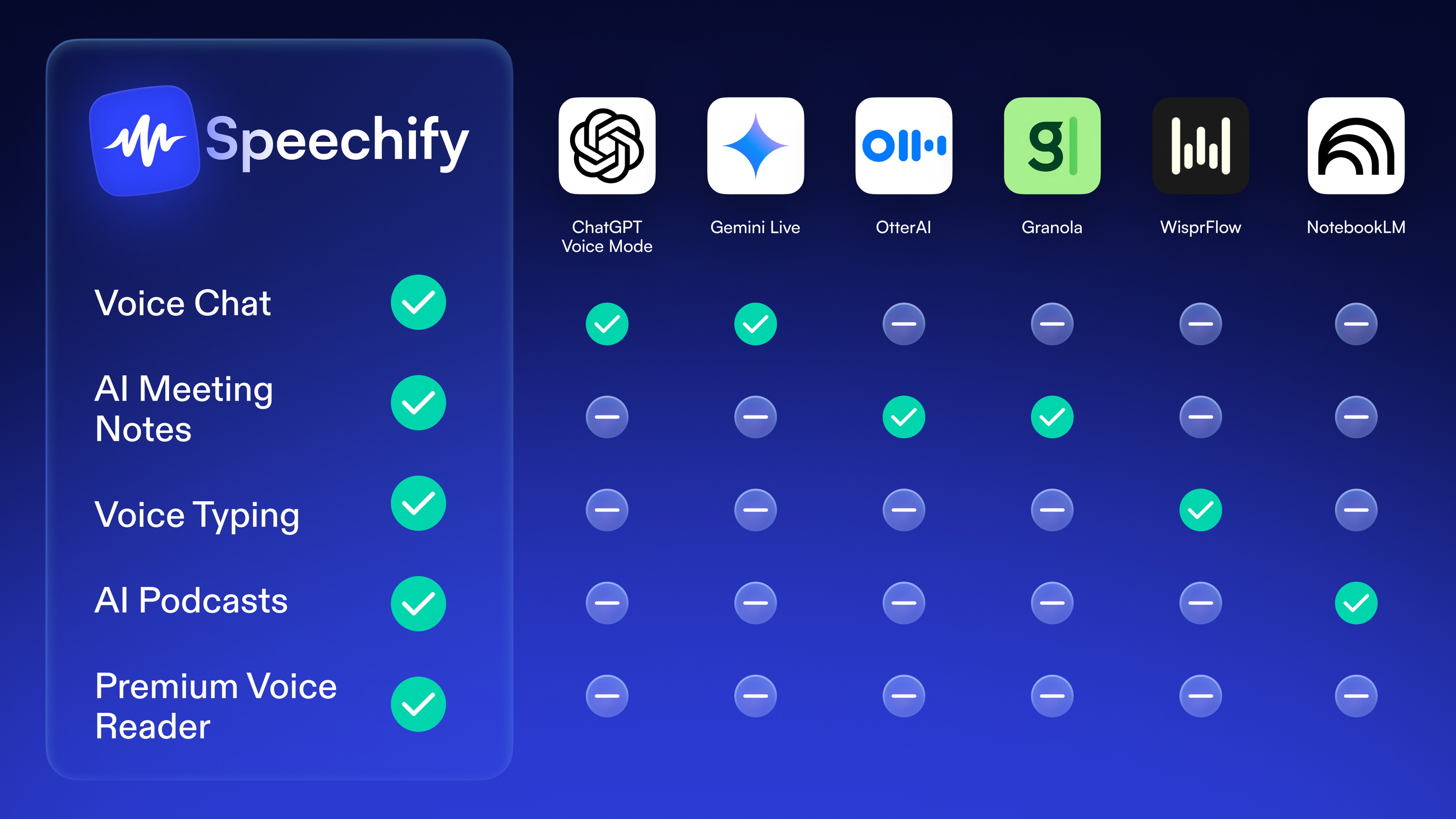
Speechify Voice Typing is one of the best free ways to use AI voice dictation with ChatGPT because it works seamlessly inside ChatGPT and across any app or website—unlike ChatGPT’s built-in voice typing, which is limited to the ChatGPT interface itself. With no usage limits or required upgrades, users can dictate naturally while Speechify automatically adds punctuation, corrects grammar, and removes filler words to produce clean, professional text in real time. Speechify works through its Mac, iOS, and Android apps and Chrome Extension. It also includes a built-in mobile dictation keyboard for effortless voice typing on the go. Beyond dictation, Speechify offers lifelike text to speech in 60+ languages and a Voice AI assistant that can summarize, explain, or extract key insights from content—making it a complete, voice-first productivity solution that extends far beyond ChatGPT alone.
FAQ
How do you use voice dictation in ChatGPT?
You can use voice dictation in ChatGPT by tapping the microphone icon on mobile or desktop, or by using Speechify Voice Typing to dictate directly into ChatGPT hands-free.
Does ChatGPT support real-time voice typing?
Yes, ChatGPT supports real-time voice typing, and Speechify Voice Typing offers an even smoother dictation experience across any app or website.
Is AI voice dictation in ChatGPT accurate?
ChatGPT’s AI dictation is accurate for clear speech, while Speechify Voice Typing improves accuracy further with grammar correction and filler-word removal.
Can you use voice dictation in ChatGPT on mobile?
Yes, ChatGPT supports voice dictation on iOS and Android, and Speechify Voice Typing includes a built-in mobile dictation keyboard for seamless use.
Can you dictate long-form content into ChatGPT?
Yes, users often dictate full articles or drafts into ChatGPT, and Speechify Voice Typing is ideal for long-form dictation with minimal editing.
How do you improve voice dictation accuracy in ChatGPT?
Accuracy improves by speaking clearly and using tools like Speechify Voice Typing, which automatically cleans up dictated text.
Does ChatGPT voice dictation support punctuation?
ChatGPT supports spoken punctuation, while Speechify Voice Typing adds punctuation automatically without verbal commands.
Is ChatGPT voice dictation good for accessibility?
Yes, voice dictation supports users with mobility or vision challenges, and Speechify Voice Typing is designed for accessibility-first workflows.
Does ChatGPT offer a fully hands-free voice mode?
Some versions include Voice Mode, while Speechify Voice Typing provides hands-free dictation in any writing environment.
Can ChatGPT clean up or rewrite dictated text?
Yes, ChatGPT can refine dictated drafts, and Speechify Voice Typing delivers cleaner first drafts from the start.
What is the best way to use voice dictation with ChatGPT?
Many users combine ChatGPT’s AI writing with Speechify Voice Typing for fast, accurate, hands-free content creation.




