



Whether you're a filmmaker, content creator, or marketer looking to expand your audience across linguistic boundaries, this guide will walk you through every step of the dubbing process. From selecting the perfect AI voice to fine-tuning your audio output, Speechify Studio offers a seamless, efficient solution for bringing your projects to life in multiple languages. Ready to dive in? Let’s explore how Speechify Studio can enhance your content and captivate a global audience.
How to Start a New Dubbing Project on Speechify Studio
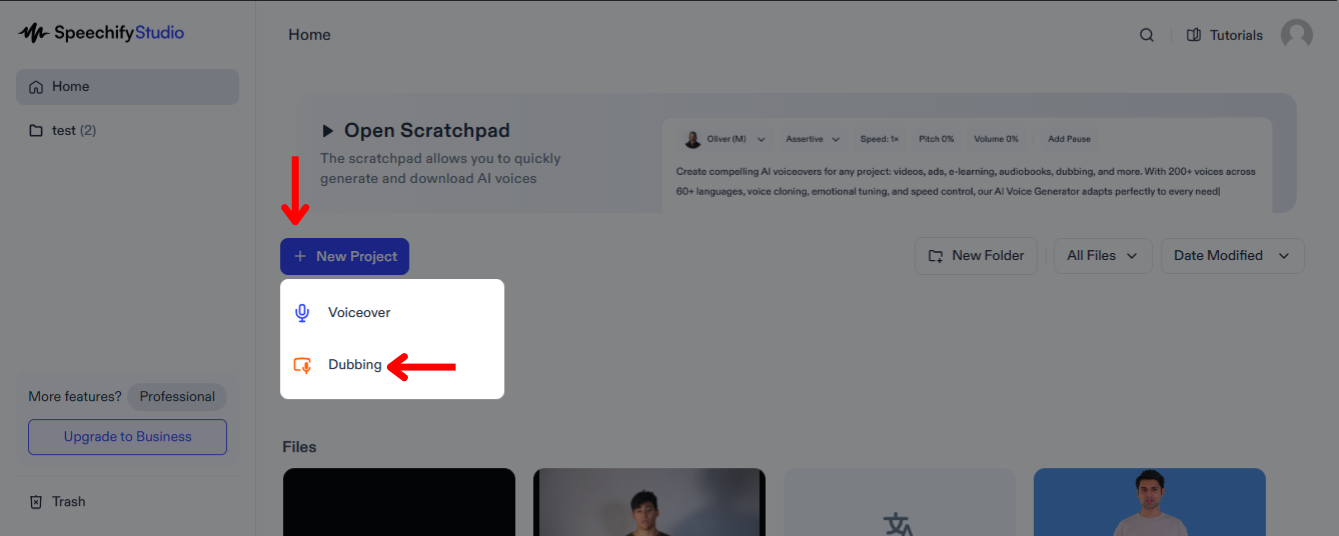
Dubbing your videos can significantly broaden your audience reach, allowing viewers from different linguistic backgrounds to engage with your content in their native language. To get started:
- Click “New Project” from the Home Screen.
- Choose “Dubbing.”
How to Upload Files on Speechify Studio Dubbing
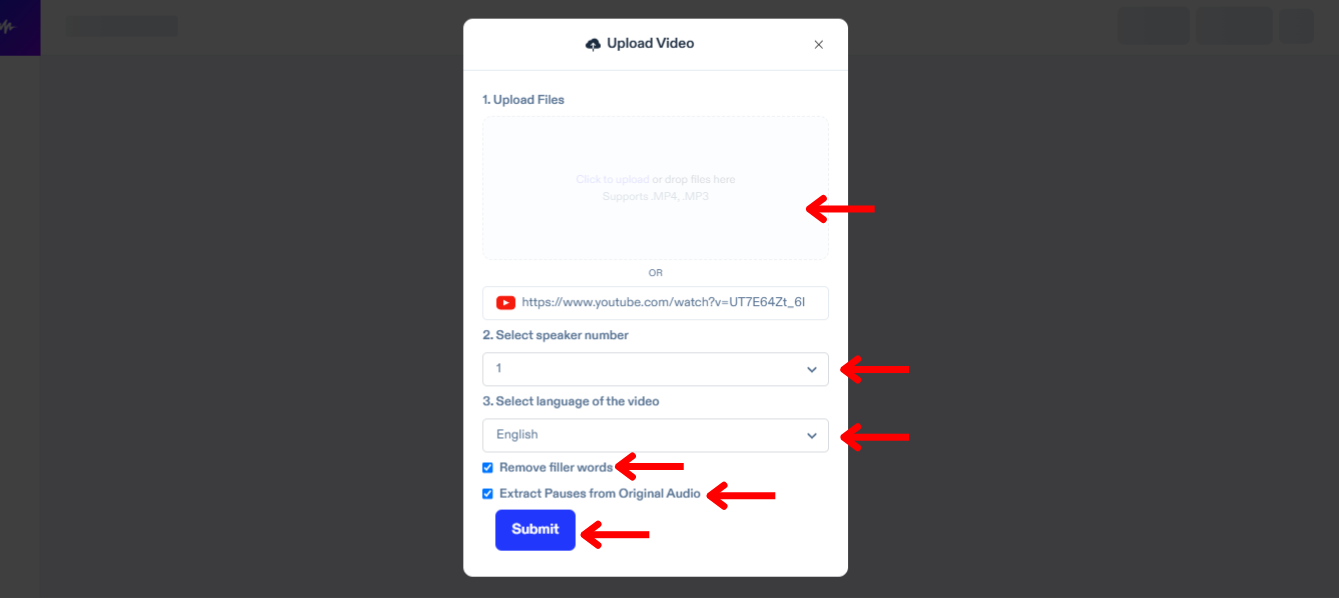
The first step to dubbing is uploading the file you wish to translate and dub. To do so:
- Tap "Import."
- Upload files or paste a YouTube link.
- Select the number of speakers in your video.
- Choose the language of your video.
- Check “Remove Filler Words” to remove extra words, such as “um” or “like.”
- Click “Extract Pauses from Original Audio” to ensure your dubbing is natural.
- Tap “Submit” and Speechify Dubbing will automatically transcribe your video in its current language.
How to Edit the Auto-transcription on Speechify Studio Dubbing
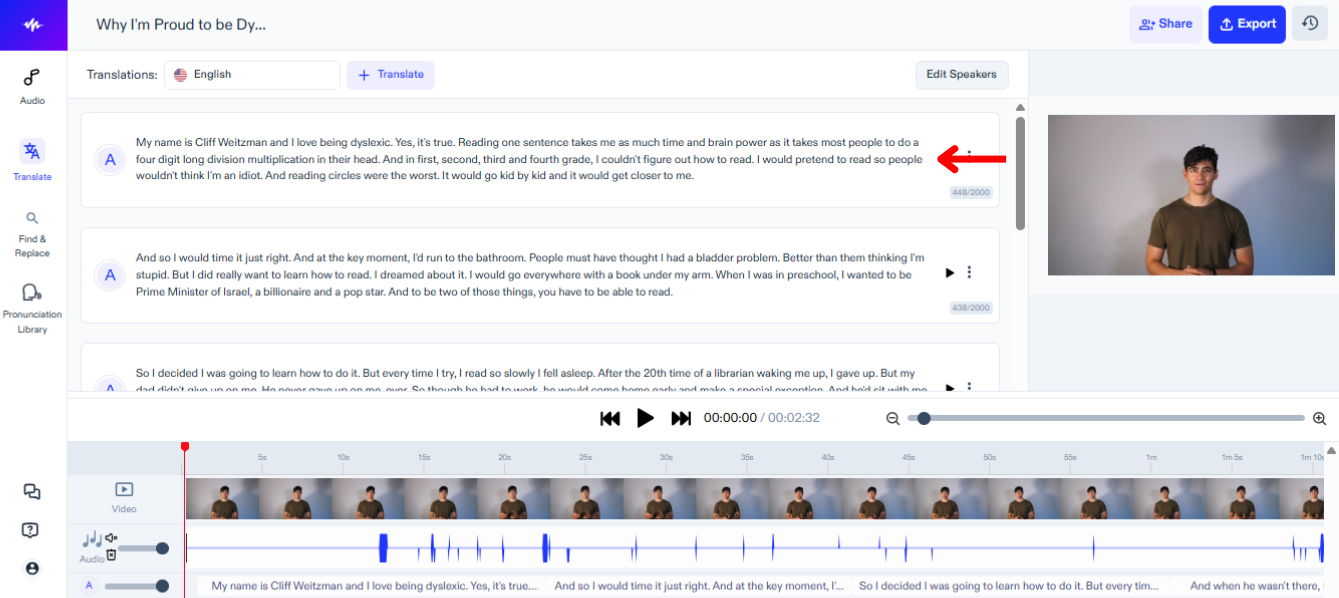
If you wish to make edits to the transcription of the original audio, simply:
- Tap into the text block you wish to change.
- Edit the script just like you would edit text.
How to Translate and Dub Video on Speechify Studio
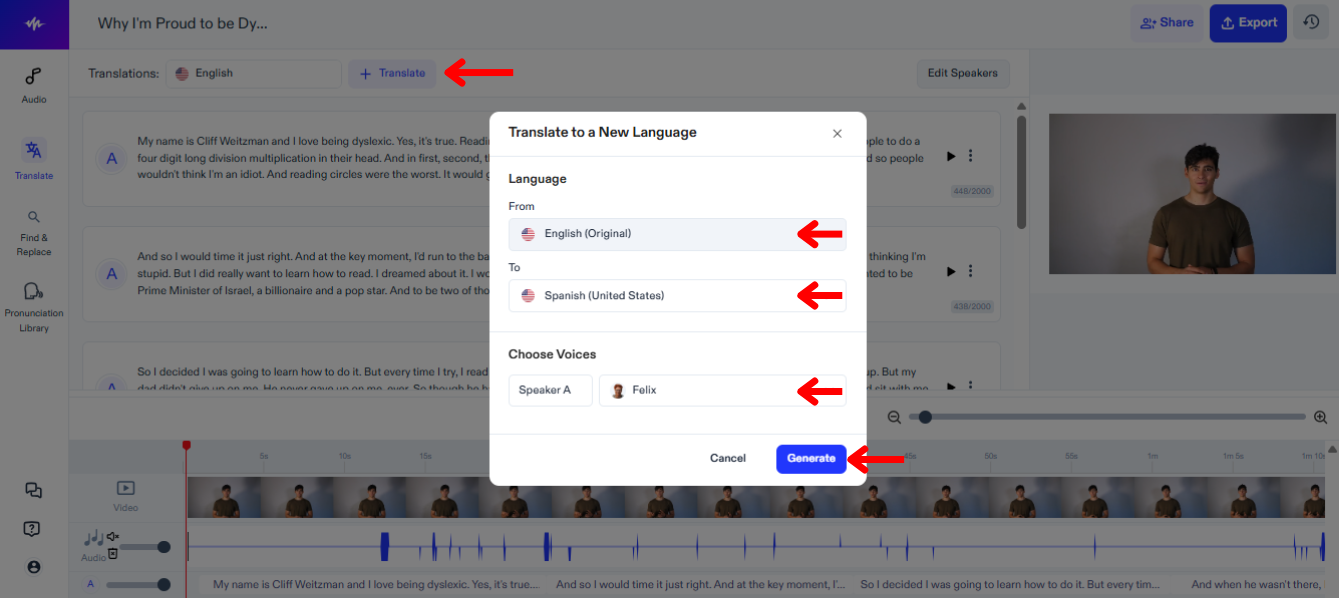
The next step is to translate and dub your video into another language. Follow this guide:
- Click “Translate.”
- Choose the language your video is currently in under “From.”
- Select the language you want your video to be translated and dubbed into from 60+ languages under “To.”
- Choose a voice for each speaker.
- Tap “Generate” and wait for Speechify Dubbing to automatically dub your video.
How to Edit the Translation on Speechify Studio Dubbing
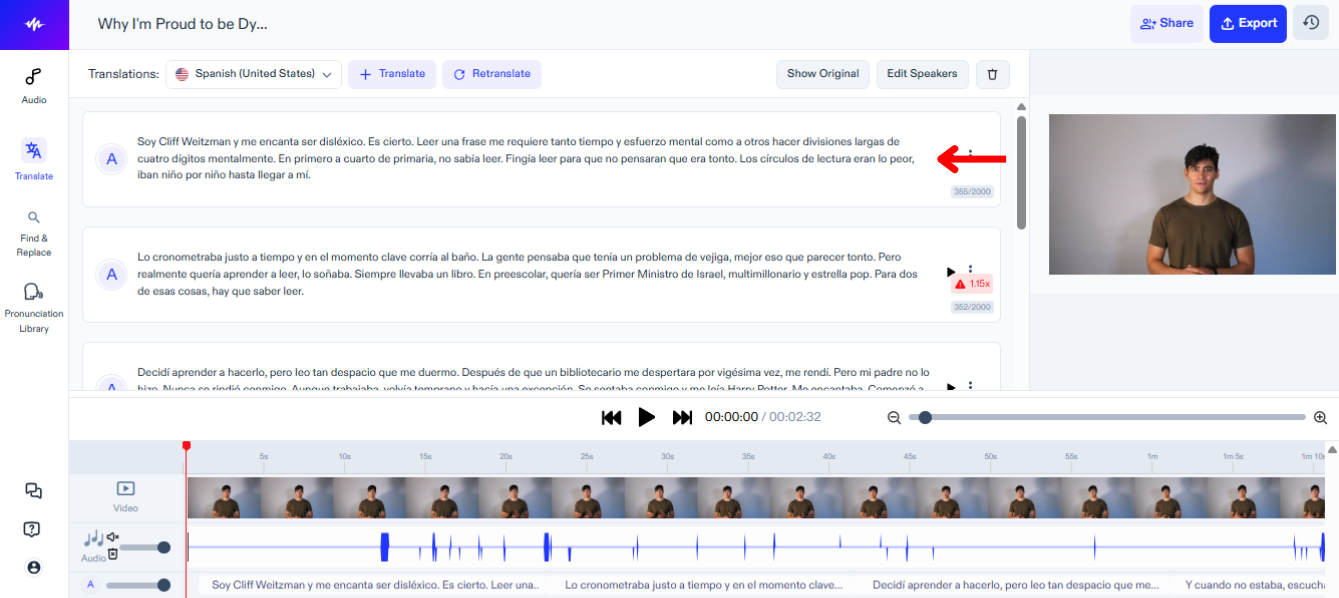
Editing the translation of your video is easy, simply:
- Tap into the text block you wish to change.
- Edit the script just like you would edit text.
How to Change the Voice on Speechify Studio Dubbing
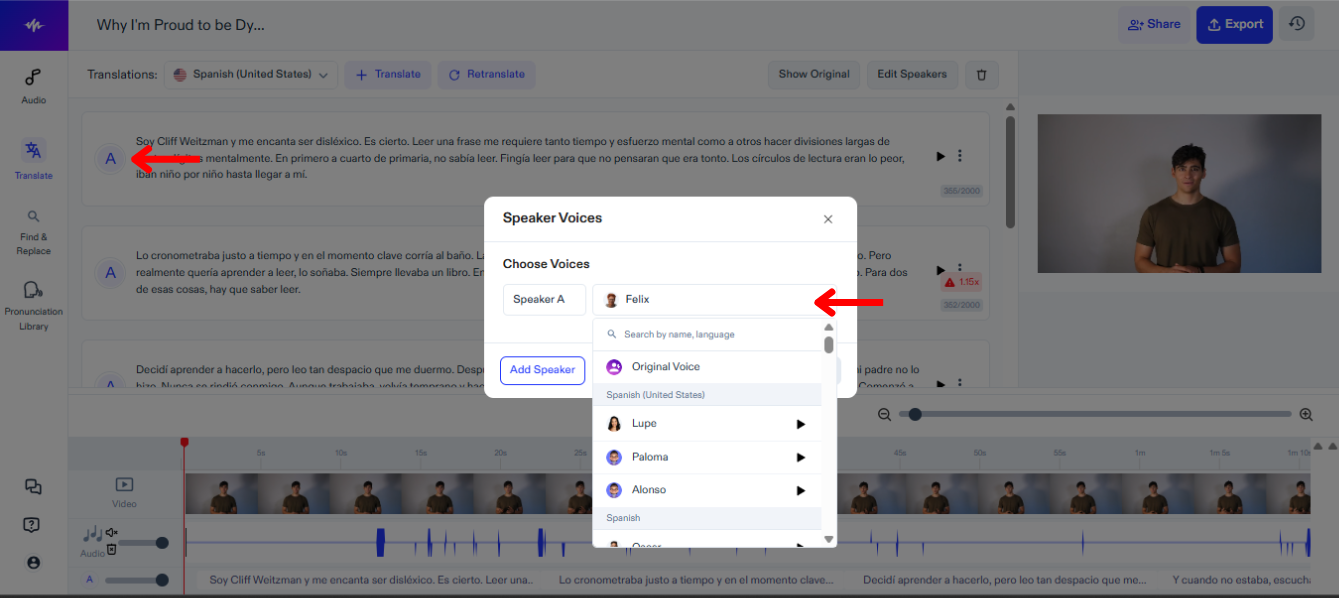
You can assign different voices to different speakers in your video and change voices at any time to find the perfect fit. To change the voice on Speechify Studio:
- Press the Speaker icon.
- Choose from 200+ lifelike voices.
How to Add Background Music on Speechify Studio Dubbing
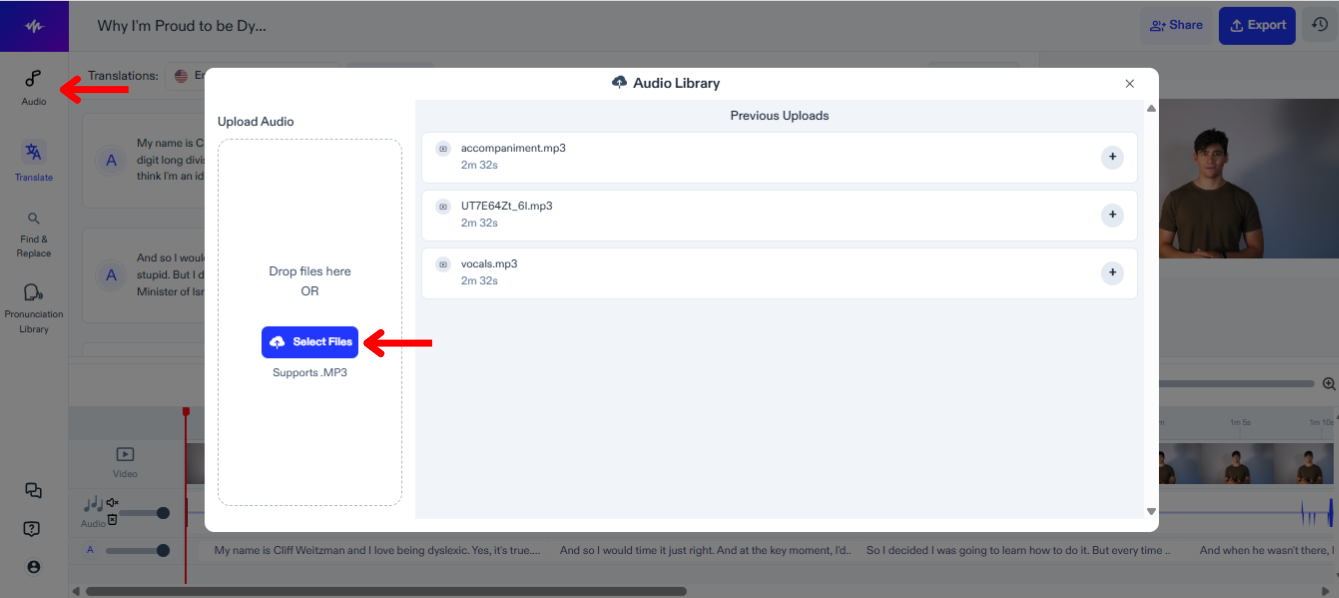
To add music or other audio files to your dubbing project, use these steps:
- Tap "Audio" on the left-hand toolbar.
- Upload your audio files.
- Select the file to add to your editing timeline.
How to Add to the Pronunciation Library on Speechify Studio Dubbing
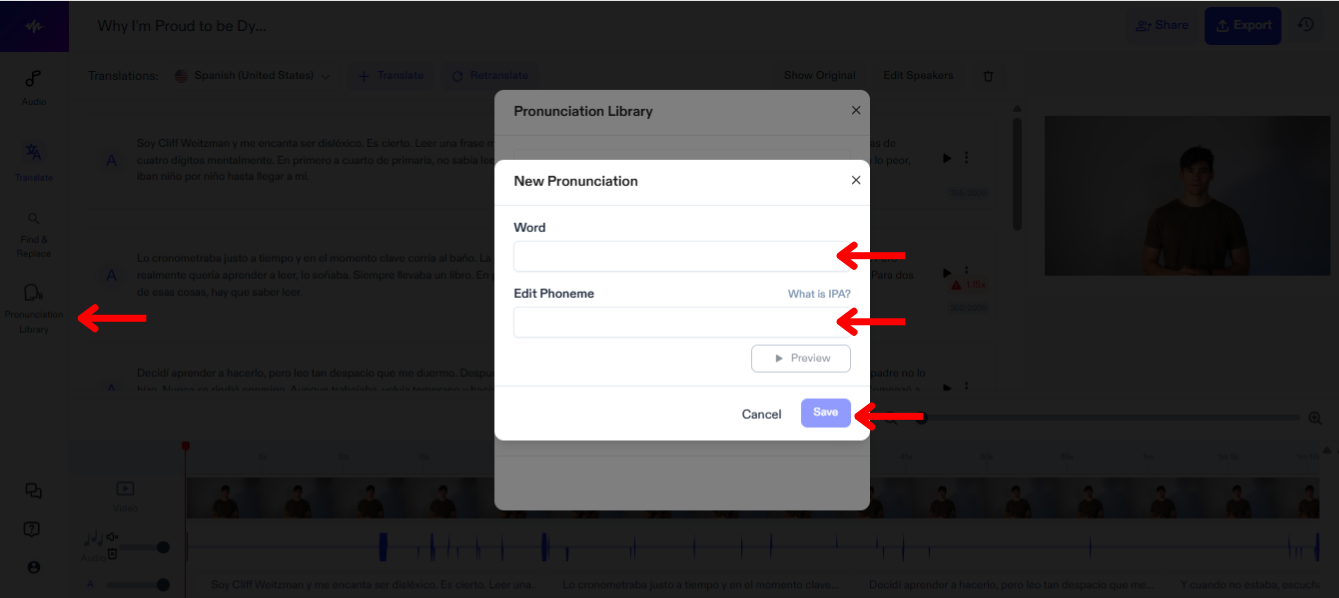
Adding to the pronunciation library in Speechify Studio allows for customized and accurate speech output, ensuring that every word and name in your video is articulated correctly. Follow these steps to add a term to the pronunciation library:
- Click “Pronunciation Library.”
- Press “Create New Pronunciation.”
- Insert the word along with its phoneme.
- Tap “Preview” to review the new pronunciation.
- Select “Save” to save the new pronunciation for future use.
How to Export your Dubbing Project on Speechify Studio
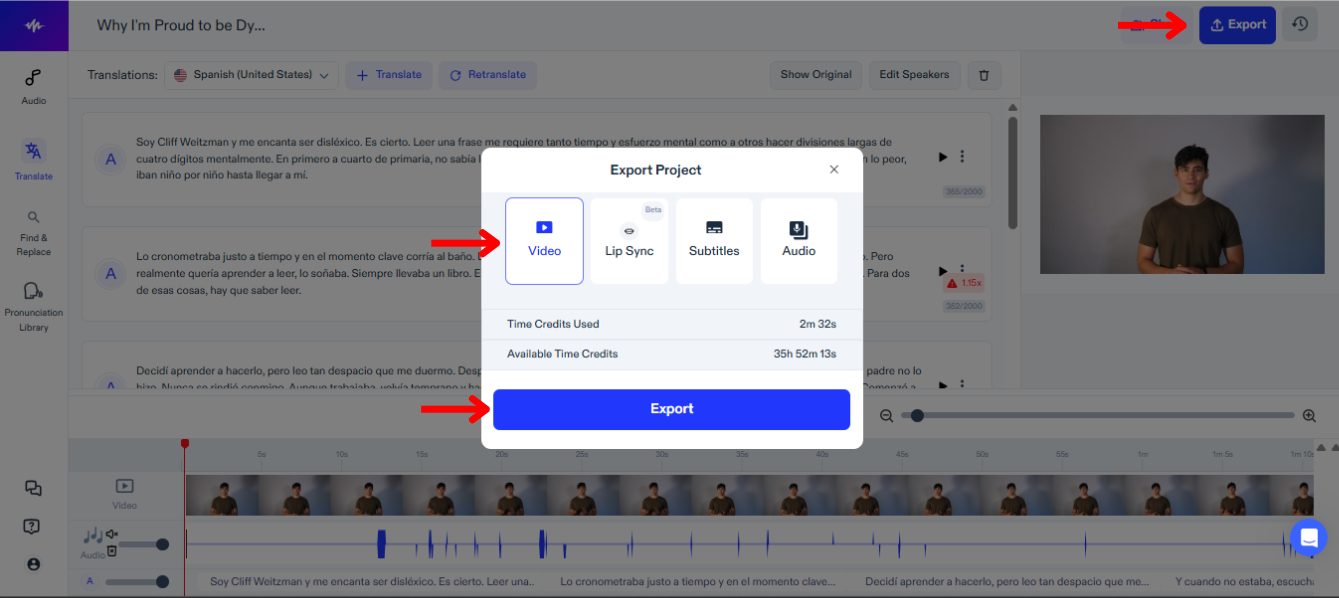
Exporting your dubbing project on Speechify Studio allows you to integrate your newly voiced content into various platforms and formats. To export:
- Click “Export.”
- Choose whether you wish to export your project in video format, subtitle format (SRT, VTT, or PDF), or audio format (MP3, WAV, or OGG).
How to use Lip Sync with Dubbing on Speechify Studio
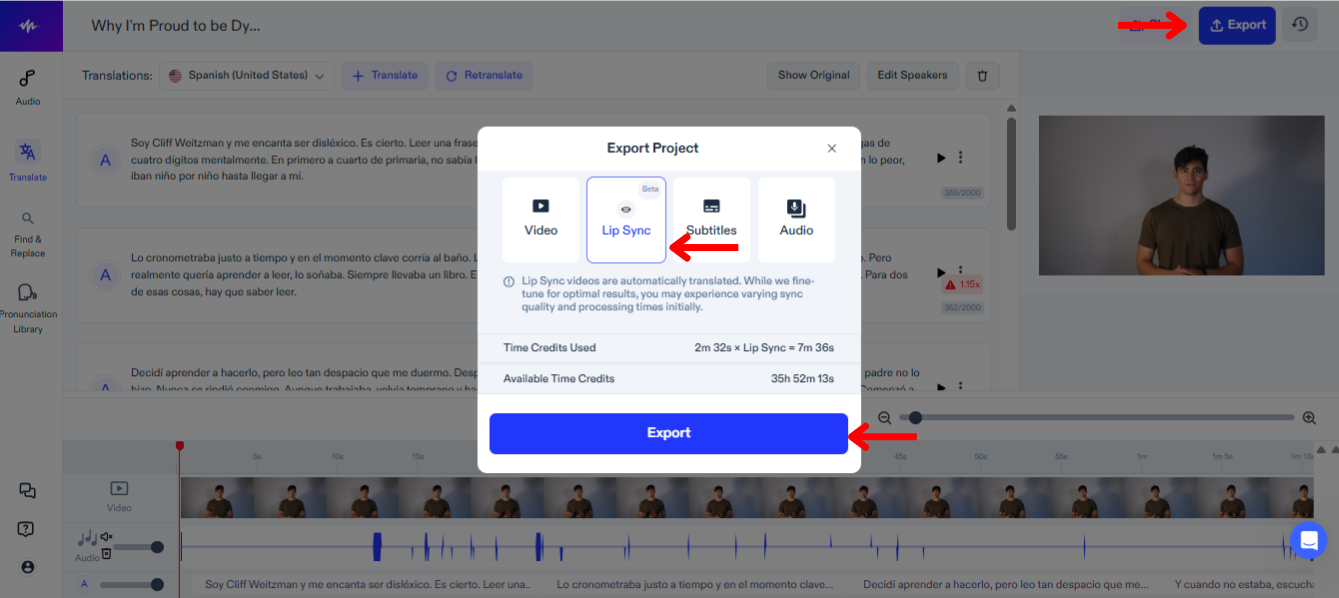
Using lip sync with dubbing on Speechify Studio enhances the viewing experience by aligning the spoken audio precisely with the speakers' lip movements. To try out this new feature:
- Select “Export.”
- Choose “Lip Sync.”
- Tap "Export" and the Lip Sync feature, which is still in BETA, will automatically dub the video to match the new translation.
How to Access Support on Speechify Studio Dubbing
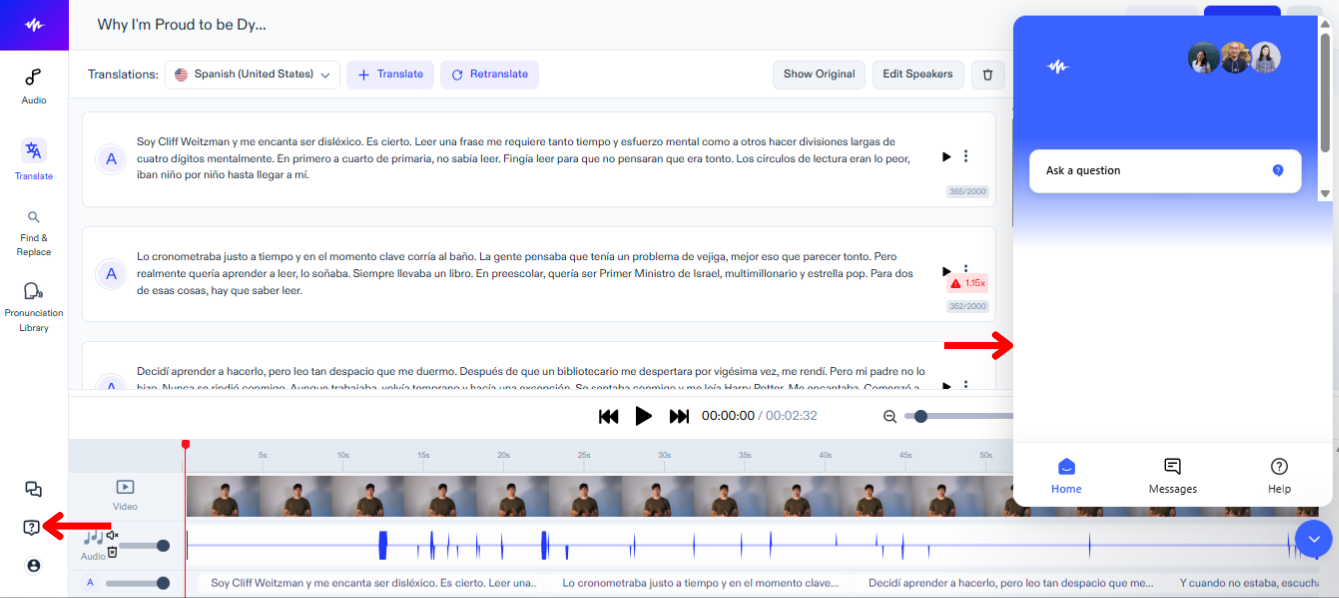
To quickly resolve any technical issues or receive further guidance, reach out to our support team with these steps:
- Tap the Question Mark icon in the left-hand toolbar.
- Send a message to the support team.




