How to Change Listening Language Preference

Cliff Weitzman
CEO/Founder of Speechify
Speechify, Your Voice AI Assistant
Text to Speech. Voice Typing. Fast Answers.
 2025 Apple Design Award
50M+ Users
Learn how to change language
You may change the language or voice option when you're in reading mode. Follow these easy steps below.
- Open a document from your library.
- Tap the person's head icon 👤 and it will open up to the voice/language options view.

3. Choose the voice/language of your choice and hit "Done."
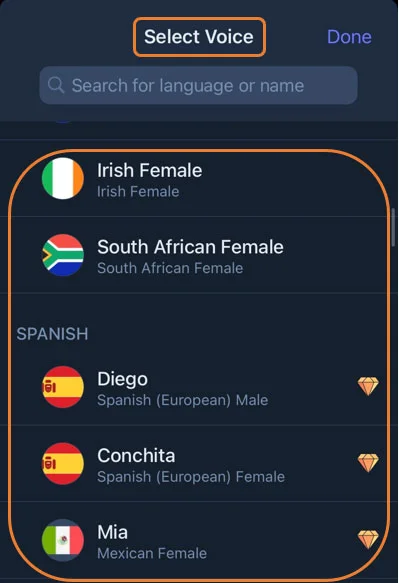
Speechify will be able to read in any of the languages listed. Say you have a text written in Italian - if the Italian language is selected, it will read in Italian. If you use the Italian voice to read texts written in English, the App will read in English using the Italian voice/accent.
Enjoy the most advanced AI voices, unlimited files, and 24/7 support
Try For Free